

Workflows
A workflow decides which statuses a work item can have, how it moves between them, and what must be in place before a move. Workflows are under "Projects" → Workflows.
Statuses
The Statuses tab lists the organisation’s statuses. Each has a name, a category, a tracking state and a colour. A status can be archived and restored. A status that is still in use cannot be archived.
Editing a workflow
The list shows each workflow’s name, published version, whether a draft is open and whether it is regulated. A regulated workflow must be published by a second person.
Changes are made in a draft:
- add or remove statuses, set the initial status and the status an item moves to when time tracking starts, and decide whether done items can be reopened;
- add transitions with a key, a name, a from status and a to status, optionally with a condition written in the search query language. Rules set by the system are shown read-only;
- attach required evidence to a transition.
A transition can require any of this evidence:
| Evidence | Met when |
|---|---|
| Required fields | The listed fields are filled in |
| Checklists | All checklists are done |
| Acceptance criteria | The acceptance criteria are met |
| Attachments | The item has at least the set number of attachments |
| Comment | A comment is given |
| Blockers | No blockers are open |
| Child items | All child items are done |
| Linked item | A linked item is in a given category |
| Tracked time | At least the set amount of time is tracked |
Open the draft
Choose Projects › Workflows and open the workflow. Editing needs a larger screen.
Make your changes
Change statuses, transitions and required evidence, then save the draft. If someone else saved the draft in the meantime, you are asked to reload.
Validate
Use Validate to check the draft.
Publish
Select Publish and confirm the summary of the changes. On a regulated workflow, a second person publishes; the person who drafted the change cannot.
Versions
Versions lists every published version with its changes, its publisher and, where needed, its second approver. "Restore as new draft" brings back an earlier version: it is published at once, or, on a regulated workflow, it becomes a draft for a second person to publish.
On the board and the item page
When someone changes an item’s status, only the transitions the workflow allows are offered, and the required evidence is checked. The item’s History tab keeps every status change.
Approvals
A transition can require approval. The status control marks such a change "Needs approval". Choosing it sends the request, and the status changes only once it is approved. Approval steps run one after another. The people who decide find the request under "My work" → Approvals (see Tasks and projects).
Request the change
On the item page, open the status control and choose the status marked Needs approval.
Wait for the decision
The item shows "Waiting for approval", with the step name where there is a single step. The other status changes are disabled meanwhile.
Resubmit if it comes back
If the request is sent back, the item shows "Returned for correction". The requester or the item’s owner fixes what is needed and selects Resubmit. The approval starts again from the first step.
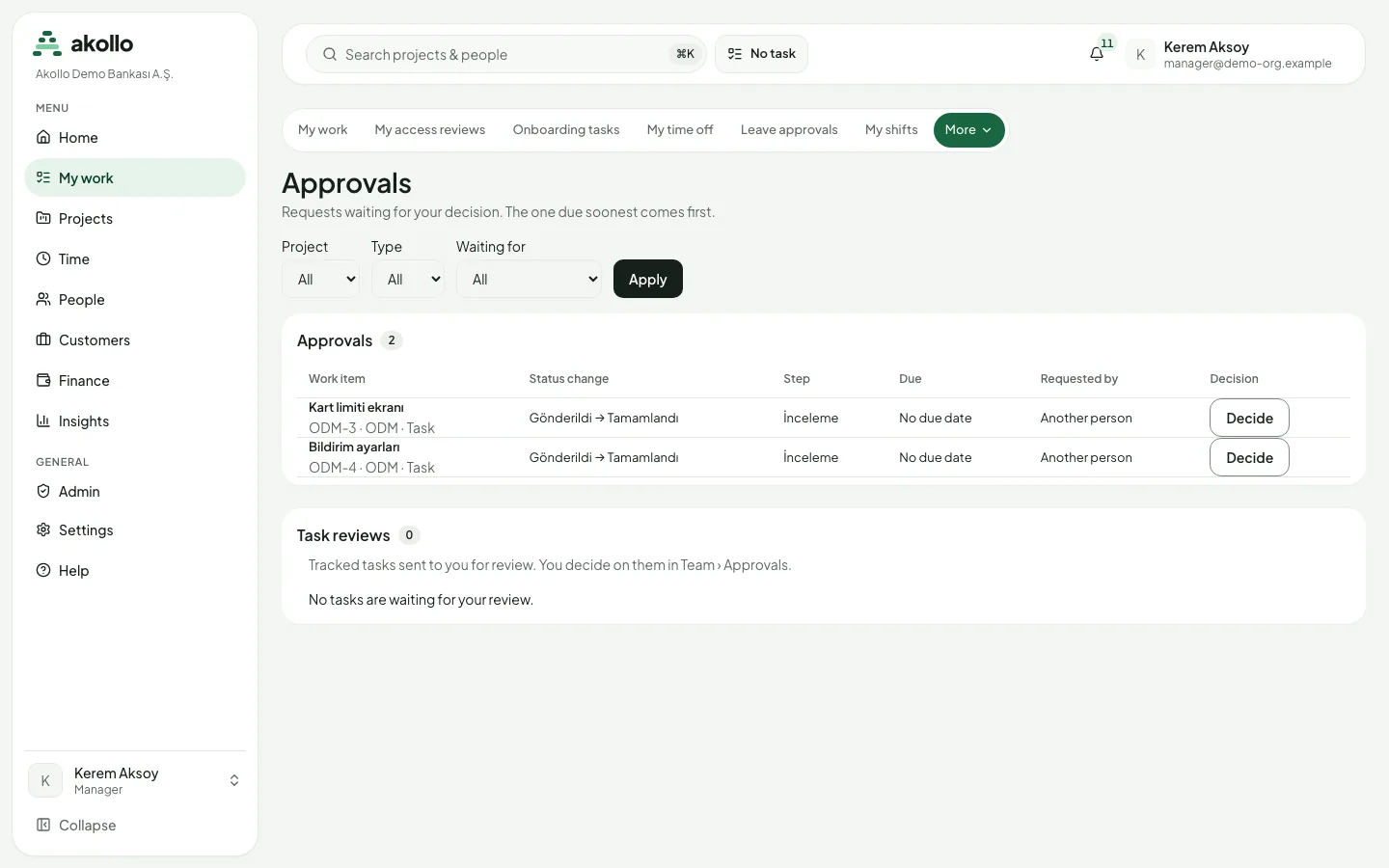
Nobody can decide on their own request when the policy separates duties.
Every day the transition history of each item is checked for tampering. Findings are written to the audit log for administrators.
FAQ
A status that is still in use cannot be archived. Once it is no longer in use you can archive it, and restore it later if needed.
No. On a regulated workflow a second person must publish; the person who drafted the change cannot.
Open Versions and choose "Restore as new draft" on the earlier version. It is published at once, or, on a regulated workflow, becomes a draft for a second person to publish.
The approval starts again from the first step.
Tasks and projects
Work items keep the work, the people responsible and its context together; projects group related items. Create, track, approve and archive work.
Planning and delivery
Backlogs, boards, sprints, releases, milestones, scenarios, goals, status updates and risks help a team order its work and follow delivery.