

Time
Time turns the time the desktop app measures into a complete record that can be checked, submitted, approved and locked. People choose the task they work on, add the time the computer cannot see, explain gaps and submit their period; managers approve and correct. Time is an item of the Menu group in the sidebar. An employee sees the tabs My day, My tasks, Timesheet and My exceptions; a manager also sees Team, Time approvals, Team exceptions and Team activity.
Who uses it
| Role | What they do here |
|---|---|
| Employee | Picks the task for each device, runs the timer, adds entries for meetings or work away from the computer, checks the day and the week, resolves exceptions and submits the period. |
| Manager | Sees the people in their scope, approves tasks, timesheets, entries, reopen requests and overtime, and follows open exceptions in the team. |
| Person who corrects time | Proposes and decides corrections to how measured time is reported. A second person always approves. |
| HR or payroll | Relies on approved and locked periods; late data in a locked period shows up as a separate difference, never as a silent change. |
| Administrator | Publishes the time settings: periods, entry approval, breaks, locking, work schedule, reminders, overtime and billable time. |
Kinds of time
The same day has several figures. They answer different questions; see Time and tasks for the full definitions.
| On screen | What it means |
|---|---|
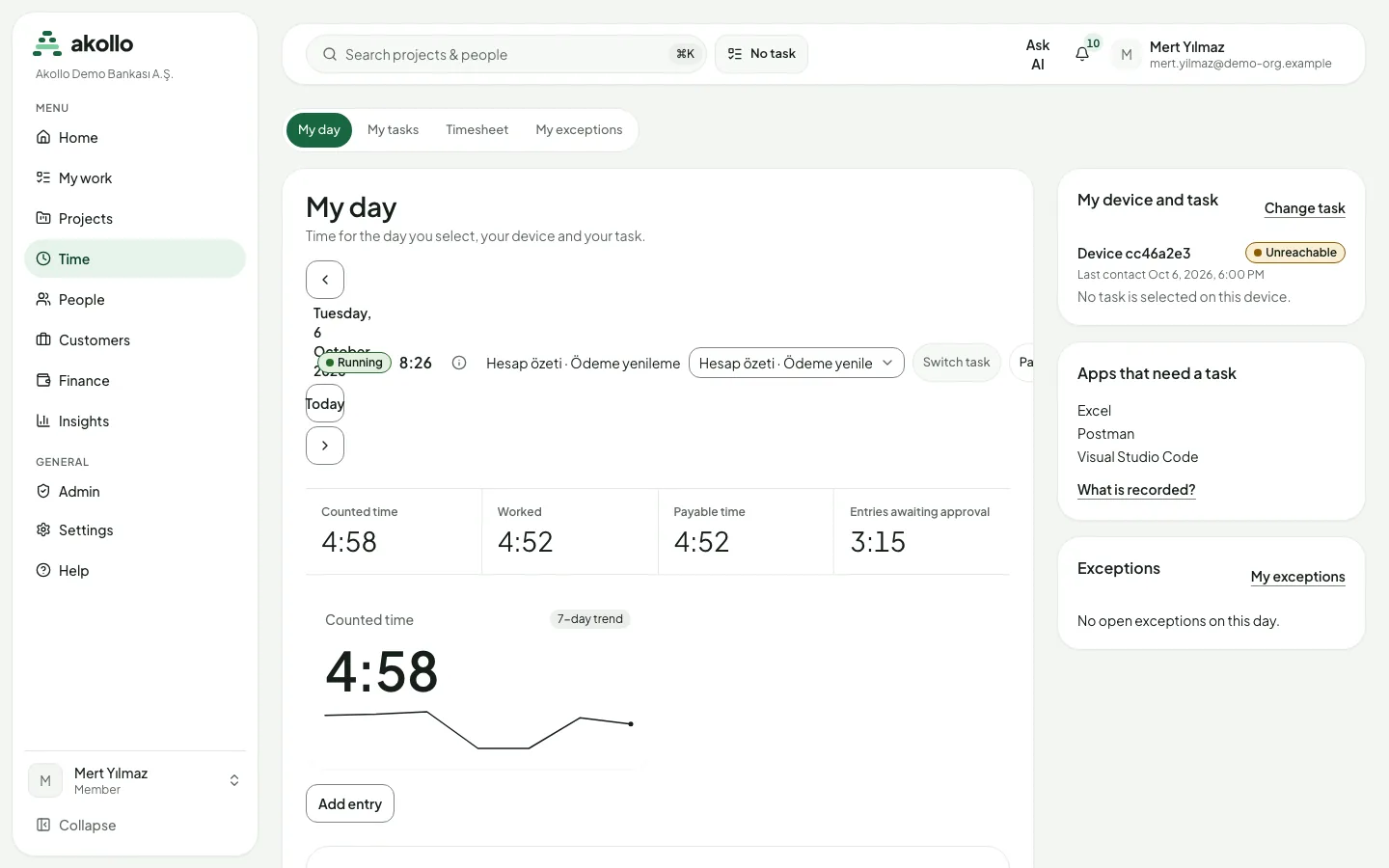
| Counted time | Measured time credited to the selected task. Every instant of one employee counts once, even with two devices. |
| Worked | The part of the counted time spent in an active state. |
| Payable time | Counted time plus approved entries and paid breaks. |
| Entries awaiting approval | Entries you sent that do not count yet. |
Main screens
| Screen | What it shows |
|---|---|
| My day | The day’s totals, a 7-day trend, the timer, Add entry, your device and its task, the apps that need a task, and the day’s open exceptions. |
| My tasks | The task chosen for each device and whether the device applied it, your assigned tasks, and Submit for review. |
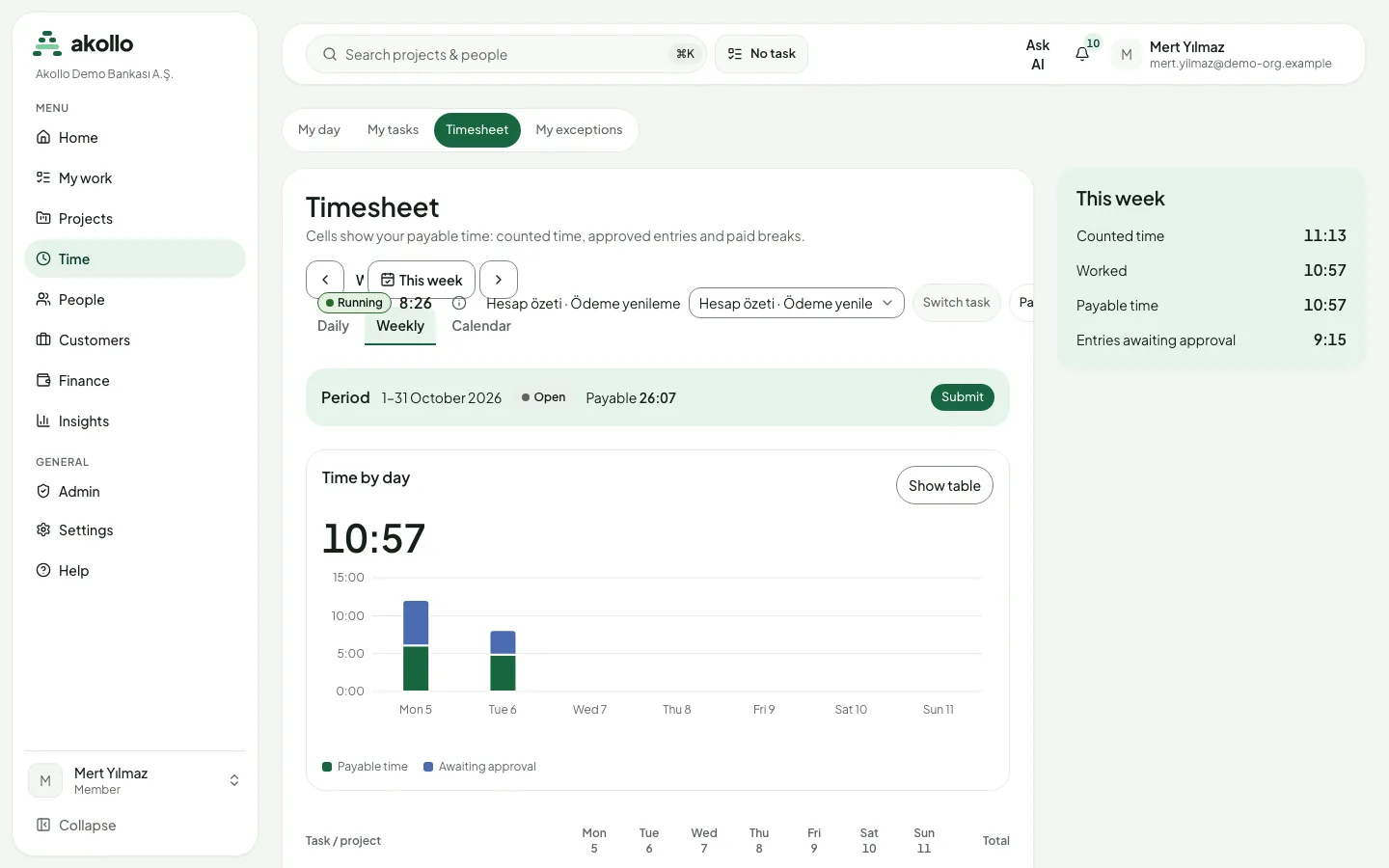
| Timesheet | One week in a Daily, Weekly or Calendar view, the Period bar with Submit, and the This week panel. |
| My exceptions | Days and periods of the last 62 days where your time needs attention. |
| Team | Members in your scope, tasks in progress, items awaiting review and projects. |
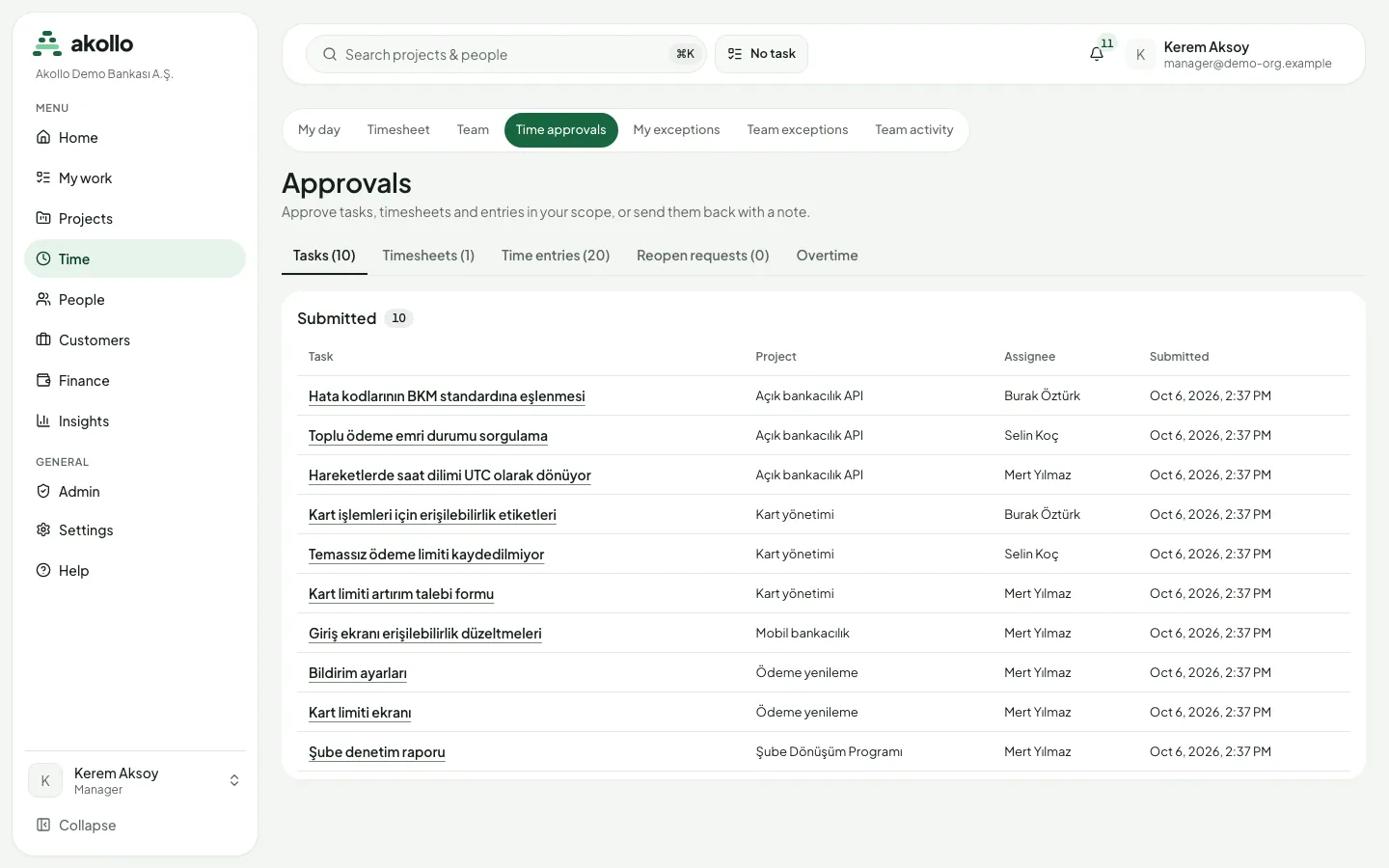
| Time approvals | Tabs Tasks, Timesheets, Time entries, Reopen requests and Overtime. |
| Team exceptions | Open exceptions of the people you are responsible for. |
| Team activity | Team-level workload, focus and collaboration figures, never per person. See Tracking and activity. |
| Time corrections | The measured intervals of one employee and day, and the proposals to correct them. |
Tasks, the timer and entries
- The task on your device. Each enrolled device has its own selection. You choose it on My tasks with Apply to this device, or from the task chip in the top bar, which shows Current task or No task. The desktop app applies the choice at its next measurement and confirms it; until then it is Pending, and time recorded before keeps the earlier task. The page shows one of Pending, Applied, Conflict, Unreachable or Rejected. A device that has not been seen for more than five minutes applies the selection when it is back. You may choose no task; that time stays unassigned.
- What you can select. Only tasks assigned to you. A task waiting for review or already finished cannot be selected. Apps that need a task lists the applications and sites that, by the category rules in force, require a task.
- The timer. The bar on My day and Timesheet shows whether the timer is Running, Paused or Waiting for device, and offers Start, Switch task, Pause, Resume and Stop. Timer time is not your credited time: credited time still comes from what the device measures. A pause is refused when the recording policy or today’s pause limit does not allow it.
- Entries. Add entry sends time the computer could not see for approval: a Manual entry, Work away from the computer or a Meeting. You give the start and end, the task (or why there is none), a reason and what you worked on. An entry counts once it is approved, unless the organisation’s entry rule approves that kind automatically. An entry over time that was already measured is refused.
- Meeting suggestions. When Zoom is connected, meetings you hosted can be proposed as entries with Propose as entry, or hidden. An accepted meeting goes to approval; it is never approved automatically. See Zoom meetings.
Periods and locking
Your time is cut into periods (monthly by default, or weekly or twice a month). The Period bar on the Timesheet shows the period, its state and its payable total.
- A period with an exception that Blocks submission, or with locked days, cannot be submitted.
- A returned period shows the manager’s note. Fix it and submit again.
- A locked period cannot change. To correct it, choose Ask for a reopen, give a reason and how many days it should stay open (1 to 14). Someone other than the employee, the requester and the person who locked it decides.
- Data that arrives late for a locked period does not change it. It shows up as a separate difference for payroll.
Key tasks
Choose your task and start working
Pick the task
Open Time → My tasks, choose the task under Current task and select Apply to this device. Or use Switch task in the timer bar.
Wait for the device
The choice stays Pending until the desktop app applies it at its next measurement. From then on, time is credited to the new task.
Hand in finished work
Under Assigned to me, select Submit for review and add a delivery note or link. You cannot review your own submission.
Add time the computer did not see
Open the form
On My day, select Add entry.
Describe the time
Choose the Entry type, the Task (or Without a task with a reason), the Start and End, the Reason and What did you work on?. Times are read in the organisation’s time zone.
Send it
Select Send for approval. The time appears under Entries awaiting approval until your manager decides.
Submit your period
Check your exceptions
Open My exceptions. Resolve every exception marked Blocks submission: Resolve with an entry, Request a correction, or Explain it to your manager.
Review the week
On Timesheet, step through the weeks of the period. Show table shows the chart as a table.
Submit
In the Period bar, select Submit. The period waits for your manager’s approval; you can Withdraw it while it waits.
Approve time as a manager
Open the queue
Choose Time → Time approvals. Each tab shows its count.
Review each item
Open a task, timesheet, entry, reopen request or overtime week. Entries show the measured time next to what was requested.
Decide
Approve, or reject with a reason; a rejected item goes back with your note. If an item changed while it was open, reload and decide again. Nobody approves their own time.
Correct how time is reported
Choose the employee and day
Open Time corrections, choose an Employee and a Day, then Show. Measured time lists the day’s intervals; if your scope covers only part of the day (for example the day of a team transfer), only that part is listed.
Propose
Pick the Change (Task, Category or Worked or not), the New value and a Reason, then select Propose.
A second person decides
The proposal is Waiting for a second person. Someone who is neither the proposer nor the employee chooses Approve or Reject with a Reason. Only the proposer can Withdraw it.
A correction never edits the measured record. Approved corrections are applied on top of it in reports and exports, which say how many were applied. A period can have only one open or approved correction. If the intervals change before approval (for example because late data arrived), the proposal is refused rather than applied to other time. Once the measured time has been deleted under the retention rules, it can no longer be corrected. A decision is final.
Permissions
- Your own time: every member sees their own day, tasks, timesheet and exceptions, adds entries, runs the timer and submits their period.
- Team: managers see employees in their scope, not the whole organisation, unless their role covers it. Someone outside your scope does not open. Team and Time approvals do not appear for a member.
- Separation of duties: an entry, a period, overtime or a correction is never approved by the employee or the person who proposed it. A blocking exception is dismissed by someone other than the employee. A locked range is unlocked by someone other than the person who locked it.
- Corrections: the screen appears for roles that may propose or approve corrections; employees do not have it by default.
- Settings: administrators publish time settings. A new revision applies from a future time only and never changes the past.
- Support sessions can look but never change time. A support session cannot open an employee’s day.
What the AI can do here
- Draft an entry: in Add entry, Suggest a draft writes the description from your own records and shows what it is based on. Read and correct it before you send it.
- Find missing time: ask the assistant "Did I miss time anywhere?". It lists recent days with less time than your working hours and suggests tasks; adding the time is still an entry you confirm.
- Start or stop the timer: "Start the timer on this task" prepares the change; nothing happens until you Confirm.
AI never contributes to a total, a payable figure or a pay input, and it never approves anything. See Assistant and AI and you.
The desktop app and time off
- Measured time comes from the desktop app on your computer. It records only during the scheduled hours of the recording policy, after you have acknowledged the recording notice. See Tracking and activity and Desktop app and devices.
- Approved leave is taken into account: a scheduled day covered by approved leave is not reported as missing time. Leave is requested and approved under People; see People.
FAQ
Timer time is not credited time. Credited time comes from what the desktop app measured, and every instant counts once. The day view explains time that was not credited.
At the desktop app’s next measurement. Until then it is pending, and earlier time keeps the earlier task. An offline device applies it when it is back.
An exception that Blocks submission is still open, or some days of the period are locked. Resolve the exception, or ask for a reopen of the locked days.
A dash means there is no time for that day. Time is not split by task in the timesheet, so the task cells stay dashes. A day marked with * is covered by your scope only in part, for example on the day you moved to another team.
No. Someone other than the employee and the proposer must decide.
No. The measured record stays as it was. Reports show the corrected figures on top of it.
Each day of the week is a row you can open; today starts open. The calendar becomes a vertical list of weeks.
Related
Projects and work
Plan and deliver work in Akollo: projects, work items, backlogs, boards, sprints, the timeline, risks, workflows, approvals and capacity.
Tracking and activity
What the Akollo desktop app records, the recording policy behind it, screenshots and analyses, reports and exports, retention, device health and what employees can see.