

Projects and work
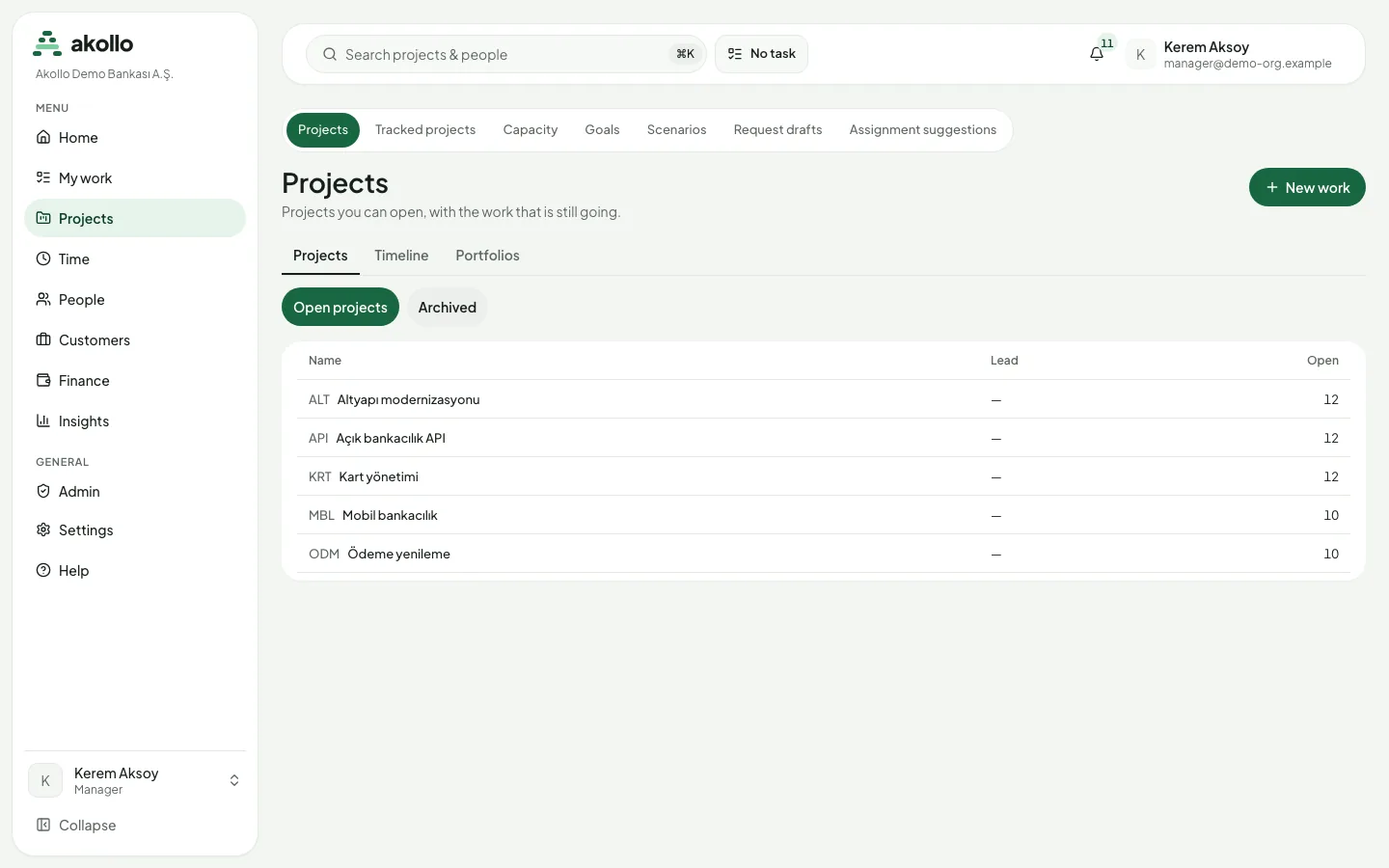
Projects is where a team turns goals into work items, orders them, plans sprints and follows delivery until the work is approved and done. Work items keep the expected work, the people responsible and the context together; projects group them. Projects is an item of the Menu group in the sidebar. Its tabs are Projects, Tracked projects, Capacity, Goals, Scenarios, Request drafts and Assignment suggestions. Your own list of work, the inbox and the approvals waiting for you are in My work (see My work).
Who uses it
| Role | What they do here |
|---|---|
| Team member | Opens the projects they belong to, creates and updates work items, moves cards on the board, comments, and requests status changes that need approval. |
| Project lead or manager | Orders the backlog, plans and closes sprints, follows the timeline and the critical path, publishes status updates, records risks and compares capacity with planned work. |
| Approver | Decides status changes that a workflow sends for approval, from My work → Approvals. |
| Project administrator | Sets up boards, templates, recurring items, request forms and imports in the project settings, and places a legal hold when needed. |
| Workflow administrator | Edits statuses, transitions and required evidence in Projects → Workflows, and publishes new workflow versions. |
| Manager of tracked work | Creates the tasks that measured time is credited to, assigns them to employees in scope and reviews what they hand in (see Tracked projects). |
Main screens
| Screen | What it shows |
|---|---|
| Projects | Every project you can open, open or archived, with its key, name, lead and number of open items. The Timeline and Portfolios sub-tabs sit beside the list. |
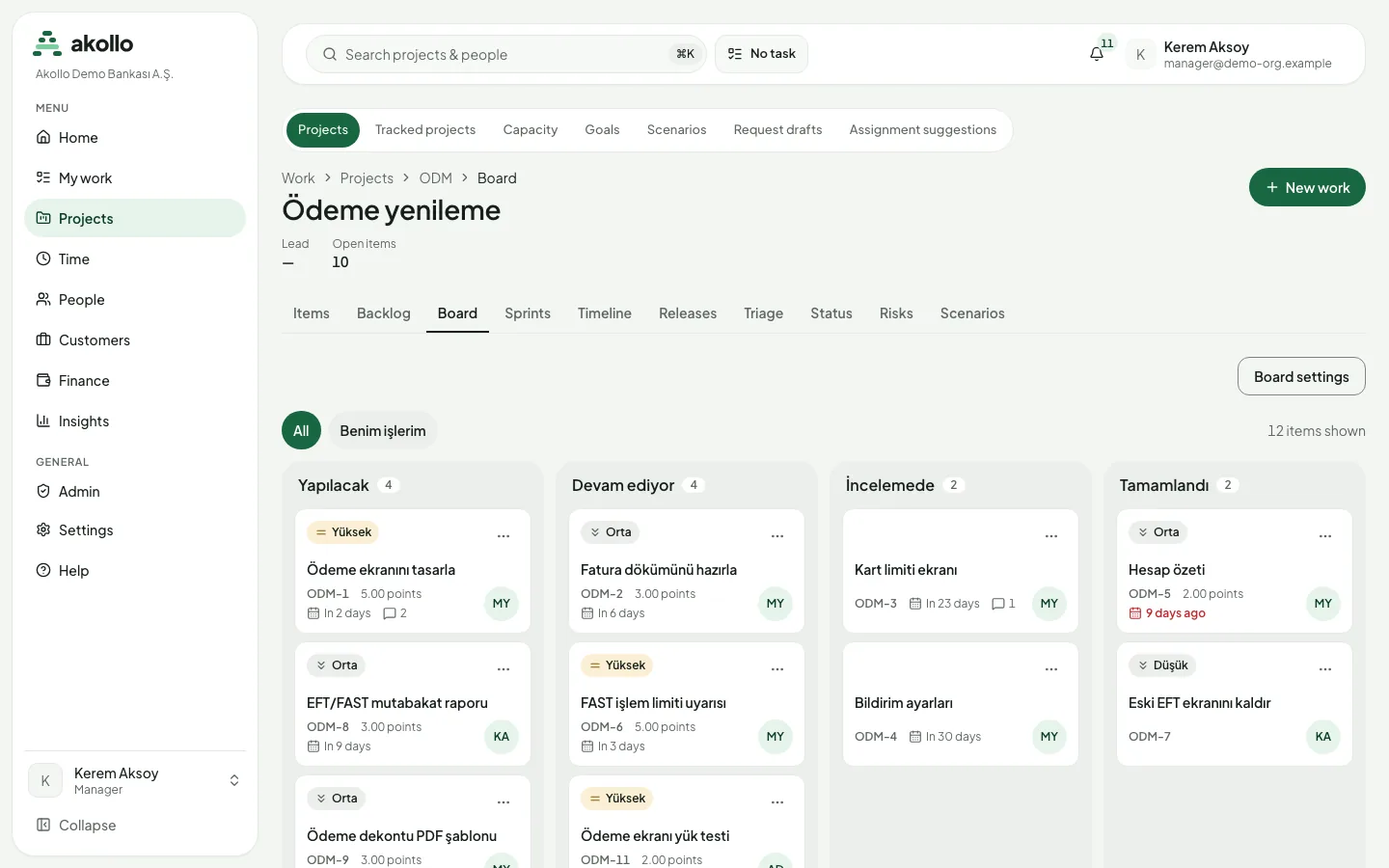
| A project | Tabs Items, Backlog, Board, Sprints, Timeline, Releases, Triage, Status, Risks and Scenarios, plus Trash and, for project administrators, Settings. Sprints appears only on a project with a scrum board. |
| Backlog | The project’s ranked list of items. Reorder moves an item to the top, up, down or to the bottom. |
| Board | Kanban or scrum columns mapped to statuses, with work-in-progress limits, swimlanes and quick filters. |
| Sprints | Plan, Active sprint (burndown and burnup) and Report (velocity). |
| Timeline | Projects, epics and items as bars on one time axis, with dependencies, sprints, milestones and the schedule with the critical path. |
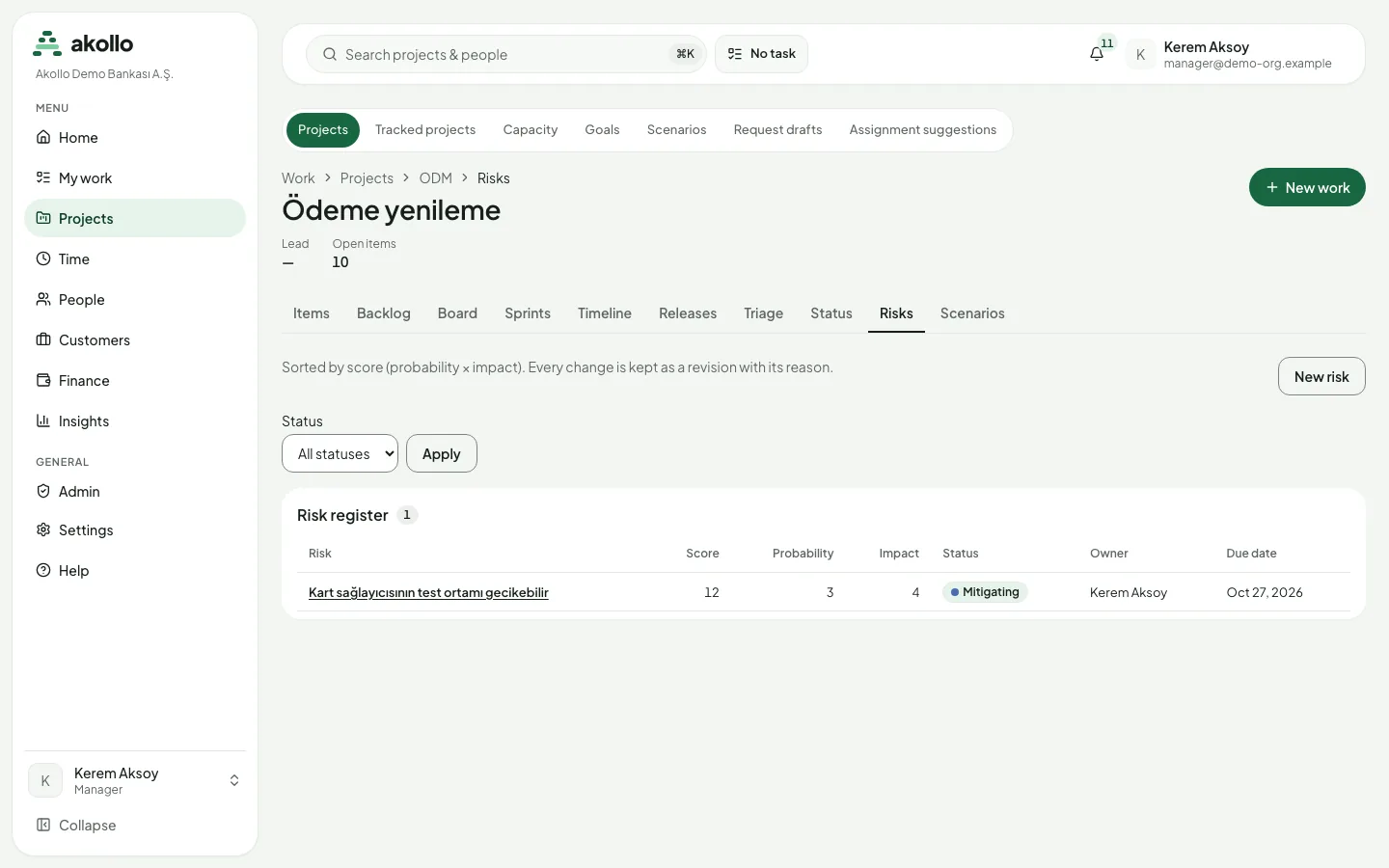
| Risks | The risk register, highest score first. The score is probability × impact. |
| Projects → Workflows | Statuses, transitions, required evidence and approval steps, edited in drafts and published as versions. |
| Capacity | Planned work against the available time of a team and its people. |
| Goals and Scenarios | Organisation goals with the progress of linked work, and what-if copies of a project plan. |
| Tracked projects | The simple projects and tasks that measured time is credited to. |
| Request drafts and Assignment suggestions | Incoming briefs turned into breakdown drafts, and the people who fit a work item. See What the AI can do here. |
Key tasks
Create a work item
Start a new item
Select New work. It is on the Projects page, on every project page and on My work.
Fill in the basics
Choose the Project and the Type (task, epic, story or bug), enter a Title and, optionally, an Owner.
Create it
Select Create. The item gets a stable key and a permanent link and starts in the initial status of its workflow. For work you repeat, use New from template or a recurring rule instead.
Plan and run a sprint
Order the backlog
Open the project’s Backlog and use Reorder to put the most important items at the top.
Plan the sprint
Open Sprints → Plan, create the sprint with a name, goal, start and end, and add items from the ranked backlog. Then start it.
Follow it
Active sprint shows days left, committed, completed, added and removed work, and the burndown and burnup charts. Move cards on the Board as work progresses.
Close it
Select Close sprint, choose where each unfinished item goes (the next planned sprint, a new sprint or the backlog) and rate the goal as met, partly met or not met.
Move an item through an approval
Request the change
On the item page, open the status control and choose a status marked Needs approval. The item shows "Waiting for approval", and other status changes are disabled meanwhile.
The approver decides
The approver opens My work → Approvals, selects Decide and chooses Approve, Reject or Send back. Rejecting and sending back need a comment.
Resubmit if it comes back
If the request is sent back, the requester or the item’s owner fixes what is needed and selects Resubmit. The approval starts again from the first step.
Record and follow a risk
Open the register
In the project, open Risks. Filter by Status and select Apply if you only want some of them.
Add the risk
Select New risk and set its probability and impact, each from 1 to 5. The score (1 to 25) decides its place in the list.
Update it with a reason
Change the risk on its page by saving a new revision with a reason. The page keeps the full history of who changed what and why.
Compare capacity with planned work
Open Capacity
Choose Projects → Capacity, pick the Team and the Length of the period.
Read the figures
The Team total chart shows planned time as bars and available time as a dashed line. Load per person shows who carries the load week by week.
Tracked projects
Tracked projects holds the projects and tasks that the desktop app credits measured time to. They are deliberately simple and separate from work items: a task has a title, a status and an assignee, and no subtasks, comments, attachments, due date or priority.
- A manager creates a project and its tasks, assigns employees in their scope and reviews what they hand in. If nobody is in your scope, an administrator first places employees and grants a manager scope.
- A task moves through assigned, in progress, submitted, approved, rejected and closed. Starting a task on a device is the employee’s own action on My tasks.
- A task waiting for review cannot be edited until the submission is decided. A closed task stays closed.
- Every change is kept as a revision with the title, status, reason, who made it and when. Open a task to read its history.
- Archive a project only after its open tasks are closed or finished. If a project or task changed while you were editing, reload and try again; nothing is overwritten.
Submitted tasks are reviewed in Time → Time approvals (see Time).
Permissions
- Projects and items: you see the projects you can open. Creating, editing, attaching files and bulk editing each need their own permission. An archived item, or an item in an archived project, is read-only.
- Project settings (boards, templates, recurring items, imports, request forms, legal hold) are for people who manage the project’s configuration.
- Workflows: editing needs the workflow permission. On a regulated workflow, a second person publishes the change; the author cannot.
- Approvals: you decide only the requests assigned to you. When the policy separates duties, nobody decides their own request.
- Board limits: a column set to block can only be overfilled by people with the override permission, and the override is recorded in the audit log.
- Tracked projects: managers work only with employees in their scope; nobody reviews their own submission.
- Support sessions can read work pages, but cannot create or change work, decide approvals or download attachments.
What the AI can do here
- Draft a project plan: describe a goal (or type /plan in the assistant) and get epics, stories and tasks with estimate ranges and dependencies. Nothing is created until you choose Create; a large plan waits for a second person’s approval. See Planning and staffing with AI.
- Break down a work item into child items you review and edit before they are created.
- Suggest people: ask "who should take this?" or use /staff to get up to three best-fitting people and one growth pick. Nothing is assigned until a manager presses Assign. The Assignment suggestions tab shows the people or teams that fit a work item, with their skills, evidence and availability; you make the decision.
- Request drafts: record an incoming brief, then let the AI propose a work breakdown draft, or write it yourself.
- Ask about this page: on a project, the assistant offers questions such as "What is at risk in this project?" and answers with sources you can open. See Assistant.
- Scenarios: Ask AI for alternatives proposes changes in a scenario, never in the live plan.
- Writing help in descriptions and comments turns notes into text, shortens or fixes it; nothing changes until you insert it.
The AI reads only what you are allowed to see and never changes a project on its own.
FAQ
Projects holds work items with workflows, boards, sprints and the timeline. Tracked projects holds the simple tasks the desktop app credits measured time to, with a short review flow. A work item’s Time tab shows the credited time per person.
A status change on the item is waiting for approval. Until it is decided, the other changes are shown but disabled.
If the limit warns, you see a notice and the card moves. If it blocks, only people with the override permission can use "Override and move", and the override is recorded.
Once three sprints are closed. The sprint Report shows velocity per sprint.
Yes, from the project’s Trash with Restore, until it is purged 30 days after deletion. Items on legal hold are never purged.
You can assign only employees in your scope. An administrator places employees and grants manager scopes.
No. A scenario is a copy where you try out changes to dates or people. The live plan changes only when a scenario is applied.