

Settings
Settings holds your personal account settings and, for administrators, the settings of the organisation: members and roles, the recording policy, devices, integrations and audit. Settings sits in the General group at the bottom of the sidebar; your account menu (your name at the bottom of the sidebar) opens the personal pages directly. Inside Settings, a rail on the left groups the pages under Account, Organization and Human resources; the recording pages open from Admin → Tracking settings with the same rail.
Who uses it
| Role | What they do in Settings |
|---|---|
| Everyone | Profile, security, preferences, notifications and appearance for their own account. Reads their own devices. |
| Administrator | Company profile, users, roles, usage, the workforce page, the recording policy and its pages, devices of the whole organisation and the audit records. |
| HR administrator | The Human resources pages: leave types, entitlement rules, holiday calendars, work schedules and more. |
| Owner | Everything an administrator does, including administering administrators. |
Main screens
| Group | Pages |
|---|---|
| Account | Profile, Security, Preferences, Notifications, Appearance |
| Organization | Company, Users, Roles, Usage |
| Human resources | Overview, Leave types, Entitlement rules, Holiday calendars, Work schedules, Shift rules and more |
| Recording (Admin → Tracking settings) | Tracking policy, Work schedule, Screenshots, Idle and offline, Retention, Category rules |
| Elsewhere | Devices, Integrations, Audit records, the AI settings |
The sections below describe each page.
Profile
Your name and photo. The email address is the one your invitation was sent to; you change it on Security. The organisation you are working in is shown at the top of the sidebar; you do not create an organisation here.
Security
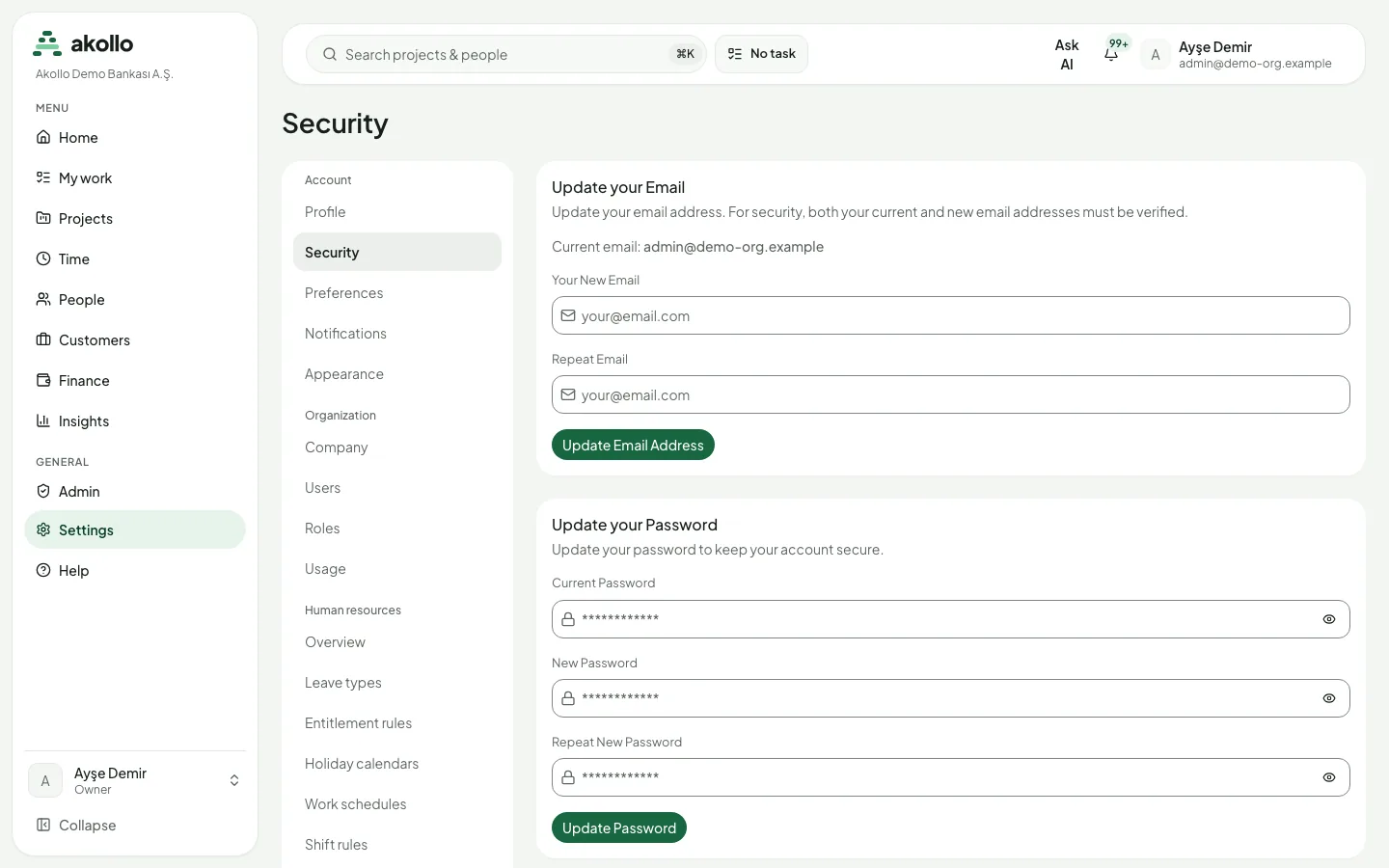
- Update your Email: both the current and the new address must be verified.
- Update your Password: Current Password, New Password, Repeat New Password, then Update Password.
- Two-step verification with an authenticator app and backup codes; passkeys, trusted devices and connected accounts where your organisation offers them.
Forgot your password before signing in? Use the reset link on the sign-in page; the message goes to your account’s email address. See Security and administration.
Preferences
The language of the product: Turkish or English. The choice is remembered for this browser. Where offered, the light, dark or system theme is chosen here too, and from the icon in the top bar.
Appearance
A background for the app. Like the theme, it is stored in the current browser only. It never changes what the desktop app records.
Notifications
In-app notifications and Email notifications (both on until you turn them off), and the Notification language for e-mails. The settings apply only to you, in the active organisation.
Company
The organisation’s own profile, maintained by an administrator. Do not confuse it with the workforce page, which holds the structure and the recording notice (see Recording settings).
Users
Members with their role and joining date, and pending invitations. Administrators invite people with Invite Members, choose a role and cancel invitations. Changing a role follows the usual rules: an owner can administer administrators, and nobody can grant themselves a role they do not hold. See Admin.
Roles
The roles in order, with their level, members and description. Owner, Admin and Member are built in; Create Role adds your own, such as a manager. A role does not decide which people a manager sees: that is the manager’s scope on the workforce page. Permission sets and field policies are on Roles & permissions (see Admin).
Usage
Usage per meter, day by day, with a monthly budget per meter and Download CSV for people with the export permission. See Security and administration.
Human resources
Leave types, profile fields, entitlement rules, holiday calendars, work schedules, shift rules and checklist templates for HR administrators. See People.
Recording settings
The workforce page (Settings → Workforce & recording) is where an administrator manages departments and teams, where each employee sits (including transfers), each manager’s scope (who they may review, and for which dates), time-limited support grants and the recording notice in Turkish and English. The notice is written by your organisation. Publish it before the recording policy; a new notice version asks every employee to acknowledge it again, and recording stays off for a person until they do. A support grant is for one person and a limited time: check who it is for before you save it, because it cannot be ended early and removing the person from the organisation does not cancel it.
Each recording page publishes a new revision of the policy with Effective from and Expires dates and leaves the fields of the other pages as they were. Recording stops on the expiry date, so publish a new version before then. Working hours use the policy time zone.
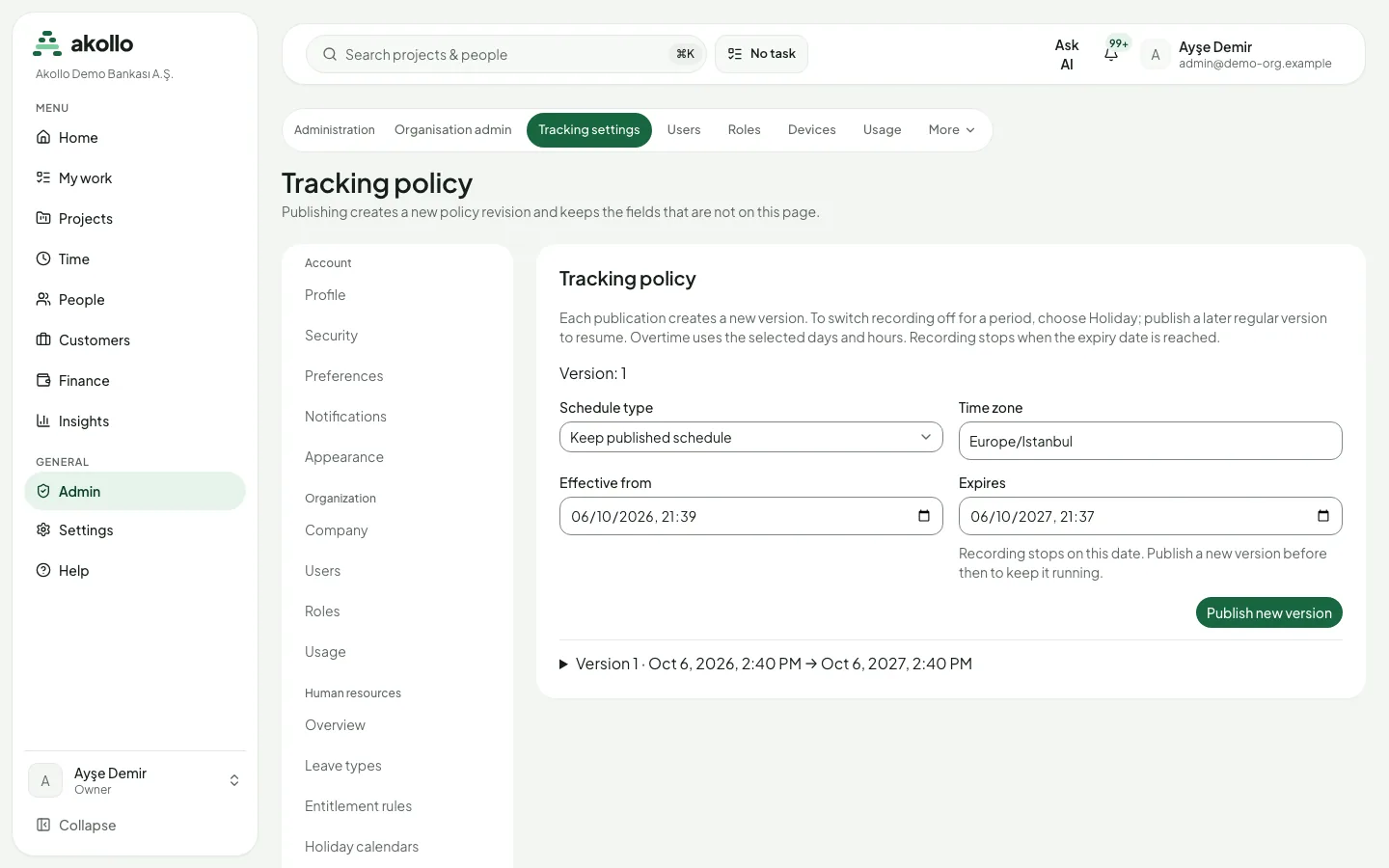
- Tracking policy: the Schedule type and Time zone. Regular follows the published days and hours; Holiday switches recording off for the revision’s period (publish a later regular version to resume); Overtime uses the days and hours selected for that revision; Keep published schedule changes only the dates.
- Work schedule: the weekly windows the desktop app may record in: which days, local start and local end. A window may run overnight. There is one weekly list for the organisation; a period without recording is a holiday revision of the tracking policy.
- Screenshots: the Capture interval (5 to 30 minutes) and Capture all monitors. Captures follow the work schedule. See Screen evidence and privacy.
- Idle and offline: the idle threshold in seconds, whether employees may pause recording, and the daily pause allowance in minutes (blank means no cap). Employees pause from the desktop app, not from this page.
- Retention: how many days each kind of data is kept, checked against the recording notice. Publishing a value deletes nothing by itself; a nightly run does. See Screen evidence and privacy.
- Category rules: an application or site is productive, neutral, unproductive or unclassified, with a priority and whether a task must be selected while it is in front. A rule matches one exact application or one site host; the priority breaks a tie between rules at the same level. A team rule overrides a department rule, which overrides the organisation. A fallback covers anything that matches no rule. A new snapshot never rewrites evidence already recorded. Employees see the rules that require a task on My tasks.
Devices
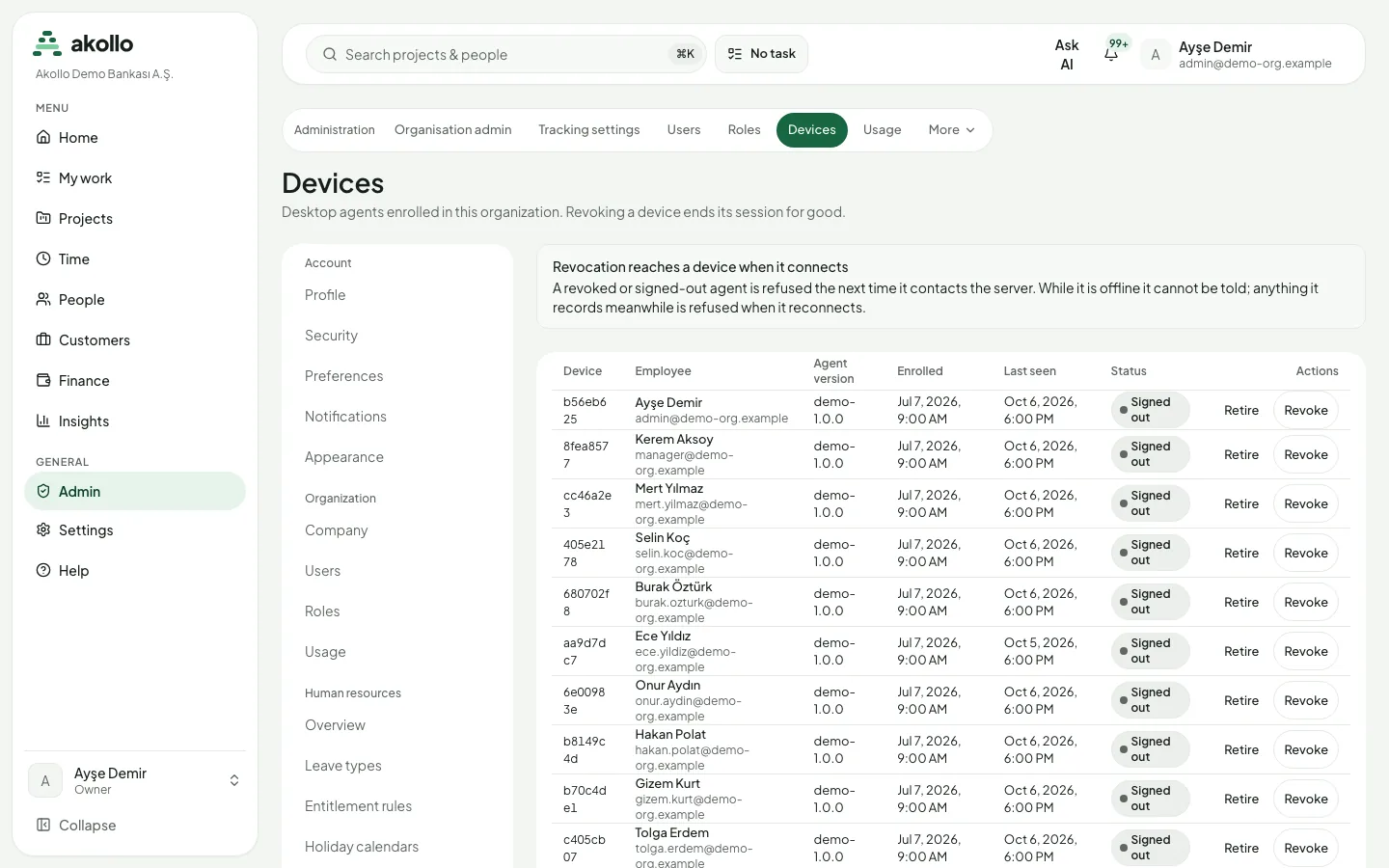
Enrolled desktop apps: your own, or every device for administrators, with employee, version, enrolment date, last seen and status. Revoke signs a device out for good; it reaches the computer the next time it connects. Enrolling is not a button here: the person signs in from the desktop app. See Desktop app and devices.
Integrations
Integrations is its own area, with an overview and a Catalogue of connectors. Old settings links to integrations still lead there. A support session can look but cannot change a connector. See Connected systems.
Audit records
Changes to privileges and configuration are written to the audit log, which administrators read under Admin → Audit records. Administrators who manage recording also see the latest recording administration events in the audit section of the Security page. There is no second, hidden log.
AI settings
Who may use AI, seats, monthly limits and the emergency stop are under Settings › AI › Access & usage; skill signals under Settings › AI › Skills. See AI access and tokens.
Key tasks
Change your password
Open Security
Open your account menu and choose Security.
Enter the passwords
Under Update your Password, fill in Current Password, New Password and Repeat New Password.
Save
Select Update Password.
Switch language and theme
Open Preferences
Open your account menu and choose Preferences.
Choose
Pick Turkish or English, and the theme where offered. The choice is kept for this browser.
Start recording for the organisation
Publish the recording notice
On the workforce page, write the notice in Turkish and English and publish it. Employees acknowledge it before anything is recorded for them.
Publish the tracking policy
Open Admin → Tracking settings → Tracking policy, choose the schedule type and time zone, set Effective from and Expires, and select Publish new version.
Set the work schedule
On Work schedule, add the weekly windows and publish.
Fine-tune
Publish screenshots, idle, retention and category rules as your notice allows. Each page keeps the other pages’ fields.
Revoke a lost computer
Open Devices
Choose Admin → Devices (or Settings → Devices).
Revoke it
Find the device and select Revoke, then confirm with Revoke device. The person can enroll the computer again later as a new device.
Permissions
- Your own account pages (Profile, Security, Preferences, Notifications, Appearance) are open to every member, for their own account only.
- Organisation pages (Company, Users, Roles, Usage, the workforce page, the recording pages, all devices, audit) need an owner or administrator, or a role that grants that page. Roles appears only when custom roles are enabled and you may manage them.
- Devices: a member sees their own computers; seeing other people’s devices is a separate permission.
- HR pages need the HR administration permission.
- A support session can read pages it is allowed to see but cannot change anything.
What the AI can do here
The AI does not change settings. Administrators control the AI itself here: who may use it, seats, monthly limits, the emergency stop and skill signals. Note that the emergency stop does not pause screenshot analysis in activity tracking, which has its own switch. See AI access and tokens, AI connections and Skill signals.
FAQ
Those pages are for administrators. If you need access, ask your administrator.
Check that the recording notice is published and acknowledged, that the policy has not expired, that the current time is inside the work schedule, and that the schedule type is not Holiday.
No. Each publication creates a new revision from its start date. Evidence already recorded is never rewritten.
No. There is no location setting, and the product does not report where a person is.
No. Ask your administrator if you need your access removed.
No. Theme and background are stored in the current browser only.