

Screen evidence and privacy
Screenshots are taken only when the organisation's recording policy turns them on. Administrators decide who may see them, how long they are kept and when they are deleted.
Screenshot settings
Under Settings → Workforce & recording → Screenshots, administrators choose the capture interval (every 5 to 30 minutes) and whether all monitors are captured. Like every policy change, this publishes a new revision with a start date. Fields that are not on this page stay as they are.
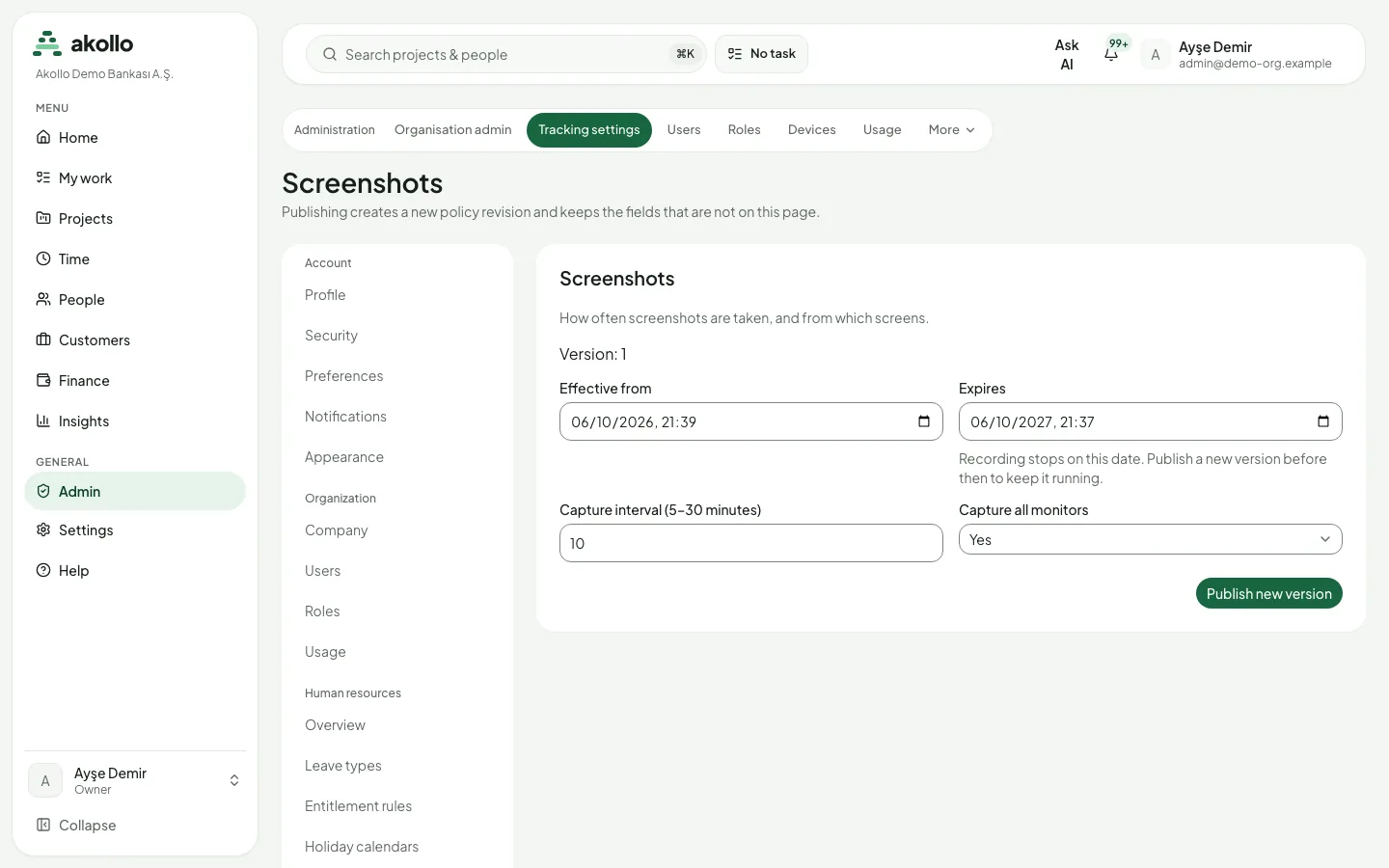
Open the screenshot settings
Choose Settings → Workforce & recording → Screenshots.
Set the period
Enter Effective from and, if needed, Expires.
Choose interval and monitors
Enter the Capture interval in minutes (5 to 30) and choose whether to Capture all monitors.
Publish
Select Publish new version. The new revision takes effect from its start date.
Warning
Recording stops on the expiry date. To keep it running, publish a new version before that date.
Who can see what
| Who | What they can see or do |
|---|---|
| Every employee | Their own data on My data: the recording settings in force, their own screenshots in a personal gallery, who opened their evidence and why, and how long their data is kept. |
| People allowed to read captures | Captures in the day view, next to the intervals they belong to. The original image only on request. |
| Managers with review permission | The day of an employee in their scope, from Team days. |
| People with the analysis permission | Request a new image analysis, retry a failed one, and mark observations as correct, incorrect or uncertain. |
| Administrators | Screenshot settings, retention rules and erasure. |
What employees see about themselves
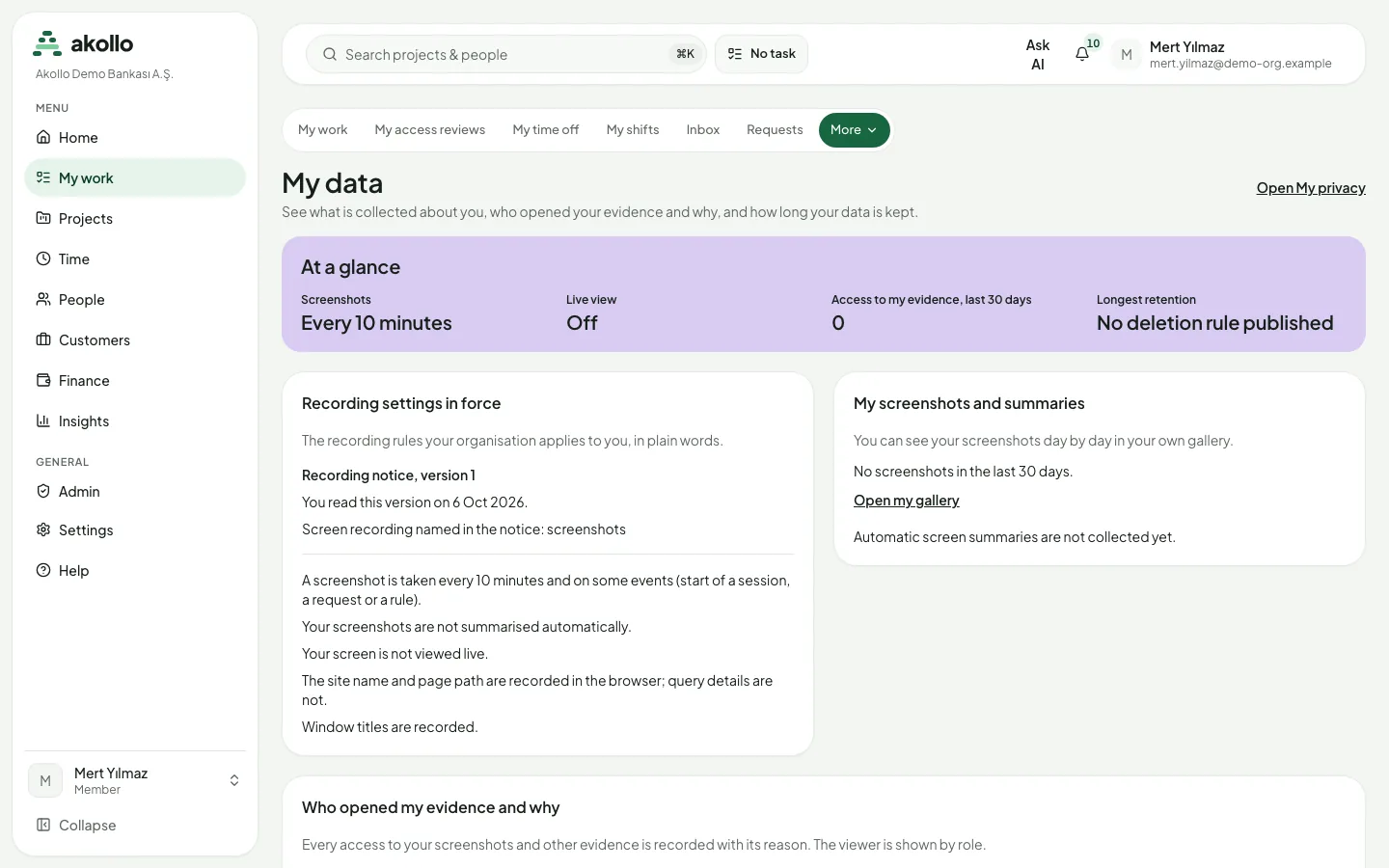
My data shows each employee what is collected about them, who opened their evidence and why, and how long their data is kept. An At a glance strip sums up the screenshot interval, access to their evidence in the last 30 days and the longest retention. Recording settings in force explains in plain words the rules the organisation applies to them, including the version of the recording notice and when they read it.
Note
Every access to an employee's screenshots and other evidence is recorded with its reason. The employee sees these accesses on My data, with the viewer shown by role.
Viewing captures
People allowed to read captures see them in the day view, next to the intervals they belong to. A capture's page shows its time, the person, the device, the monitors and the interval. The original image opens only on request (Show original).
Image analysis
If image analysis is enabled, a model describes each capture: a short summary, the applications seen, what changed since the previous capture, how it relates to the selected task, the evidence used and how uncertain the model is. Analyses are listed on the Vision analyses page (/tracking/analysis) and on each capture.
- An analysis can be wrong, and it never changes measured time.
- Each analysis records the provider, model and prompt version that produced it.
- People with the permission can ask for a new analysis, retry a failed one, and mark an observation as correct, incorrect or uncertain, with a note.
Note
Image analysis runs separately from the application. An outage there does not stop recording or time accounting.
Retention and deletion
Settings → Workforce & recording → Retention and deletion sets how many days each kind of data is kept: screenshot originals, screenshot previews, detailed activity, image analyses, daily summaries, exported reports and data still waiting on the desktop app. Before you save, the page shows how many records are already past the new limit. Deleted data is listed afterwards.
- A kind of data without a rule is kept.
- Publishing a value deletes nothing by itself. A nightly retention run removes data, and only what a published rule or a requested erasure covers.
- A rule may be shorter than the period stated in the recording notice, never longer. Previews cannot be kept longer than their original.
- If the recording notice states a period for a kind of data but no deletion rule is published, the page shows a warning, and employees see the same warning on My data.
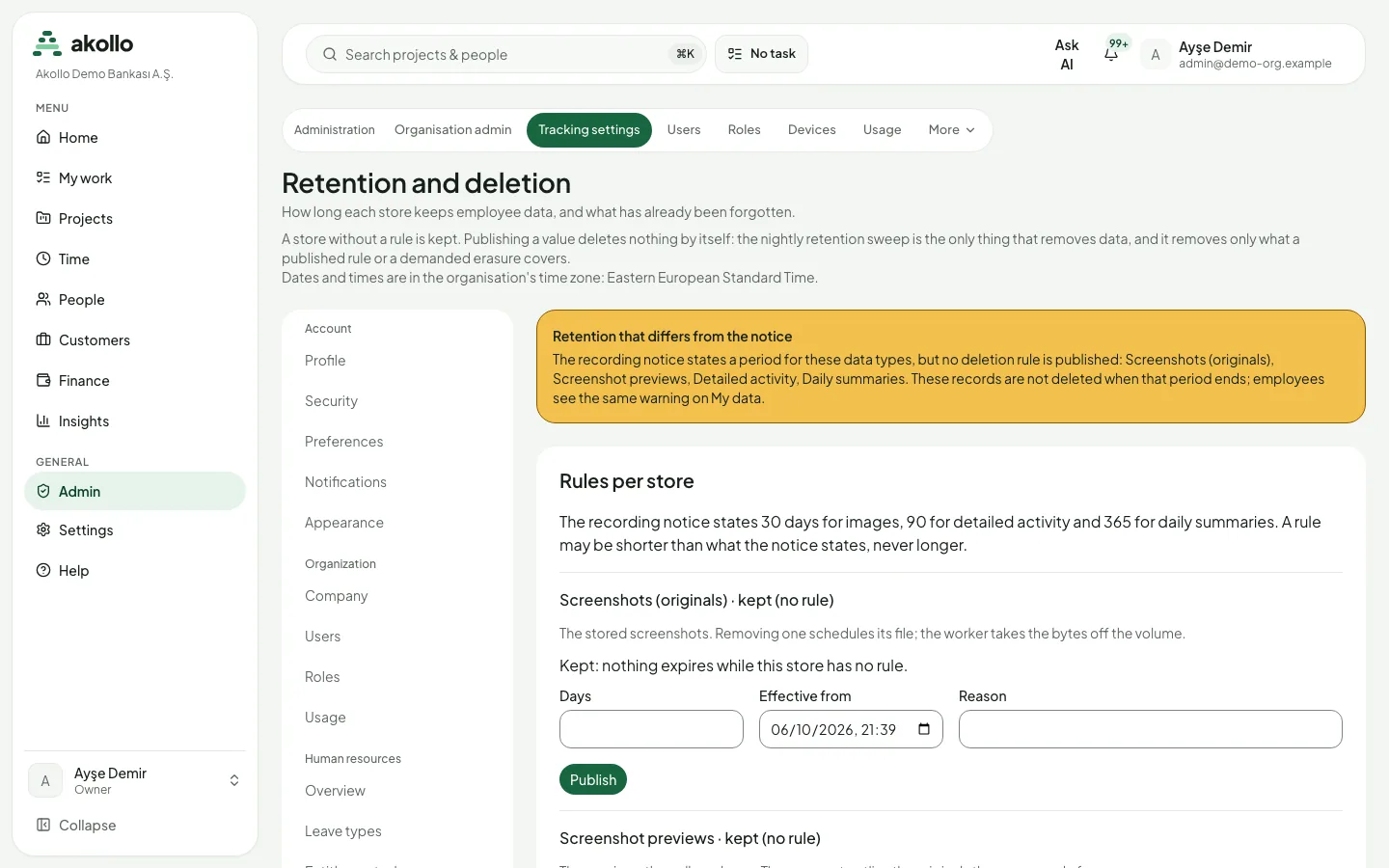
Open retention settings
Choose Settings → Workforce & recording → Retention and deletion.
Set the rule for a kind of data
Under Rules per store, enter the number of Days, the Effective from date and a Reason.
Check and publish
Check how many records are already past the new limit, then select Publish.
When erasure is required for one employee or for the whole organisation, an administrator can delete the data at once. You confirm by typing "erase". Erasure cannot be undone and is recorded with your name and reason. It does not reach data still waiting in the desktop app on a computer.
Warning
Erasure cannot be undone. Data still waiting in the desktop app on a computer is not covered.
FAQ
No. They are taken only when the organisation's recording policy turns them on, at an interval of 5 to 30 minutes.
Yes. My data links to your own gallery, where you see your screenshots day by day.
Yes. Every access is recorded with its reason, and My data lists who opened your evidence, shown by role.
No. An analysis can be wrong, and it never changes measured time.
No. Publishing deletes nothing by itself. The nightly retention run removes what the published rule covers. For immediate deletion, an administrator uses erasure.
Desktop app and devices
The Akollo desktop app measures activity on the employee's computer. Sign in a device, revoke it, check device health and set the recording policy.
Team workload and capacity
Compare team and personal capacity with planned work, and see the planned workload analytics that are built from approved totals.