

Planning and delivery
Backlogs, boards, sprints, milestones, releases, the timeline, scenarios, goals, status updates and risks help a team order its work and follow delivery.
Backlog
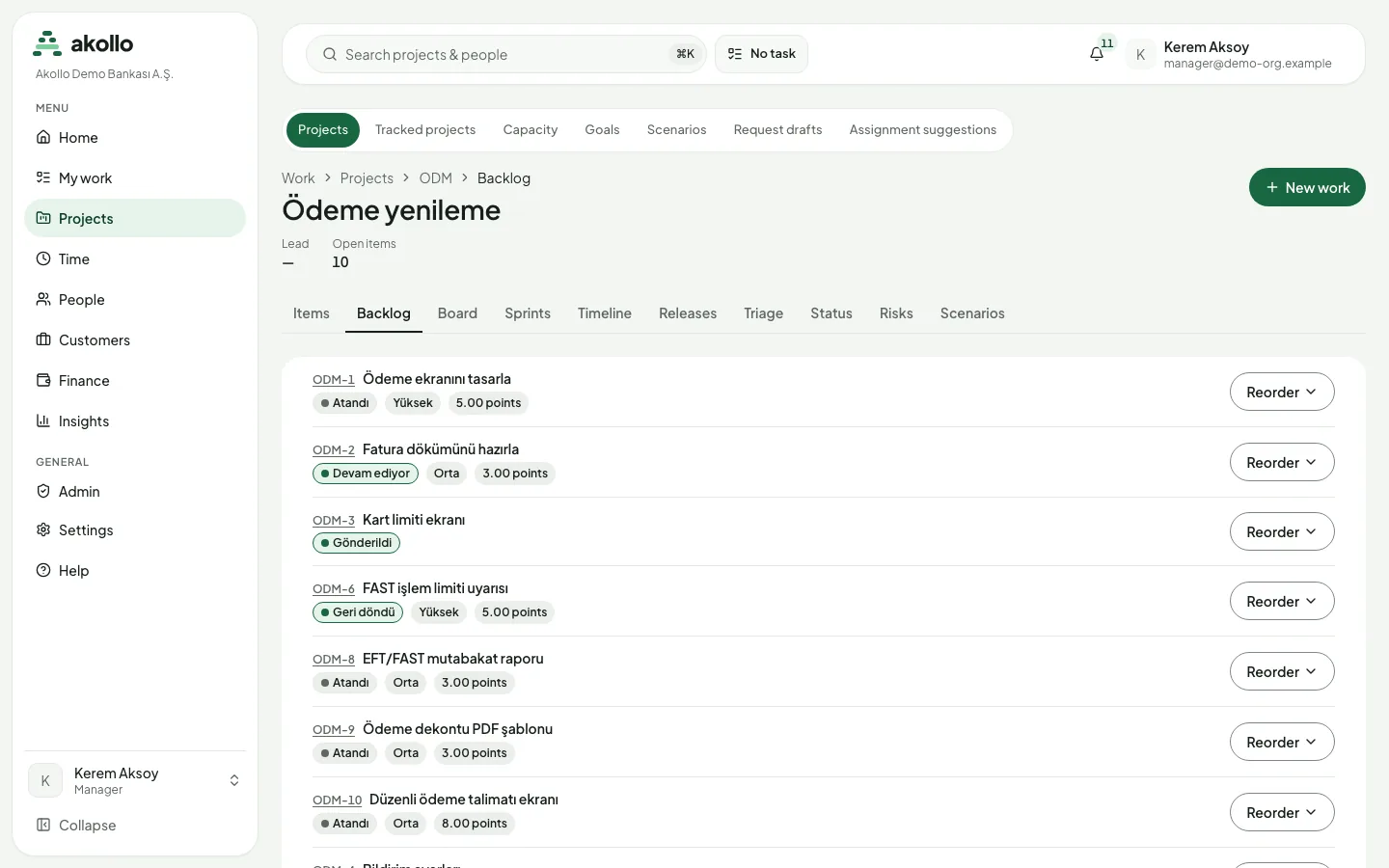
The backlog is the project’s ranked list of items. Use Reorder on an item to move it to the top, up, down or to the bottom. Items that have no rank yet are marked "Not ranked yet".
Boards
A project can have Kanban and Scrum boards. Columns show how many items they hold and whether they are within their work-in-progress limit, over it or below its minimum. Swimlanes can be collapsed, and quick filters narrow the cards. Statuses that are not on any column are listed separately. On a phone one column is shown at a time.
Move a card with "Move to…". Every move follows the workflow rules. Some moves wait for an approval first, and the card says so. Column limits behave like this:
| Limit set to | When a column is at its limit |
|---|---|
| Warn | You see a notice. |
| Block | Only people with the override permission can use "Override and move". The override is recorded in the audit log. |
People who manage the project set up boards under Settings → Boards:
- the board type (Kanban or Scrum) and how work is estimated (story points, hours or item count);
- which items the board shows, and for Scrum whether sprints may run in parallel;
- columns mapped to statuses, one done column, and minimum and maximum limits that warn or block, optionally counted per swimlane;
- swimlanes by owner, epic, priority, project or saved filters;
- quick filters written in the search query language.
A board can be archived.
Sprints
Scrum boards have three sprint pages:
- Plan: create or edit a sprint (name, goal, start and end), add items from the ranked backlog, remove an item with a reason, and start the sprint.
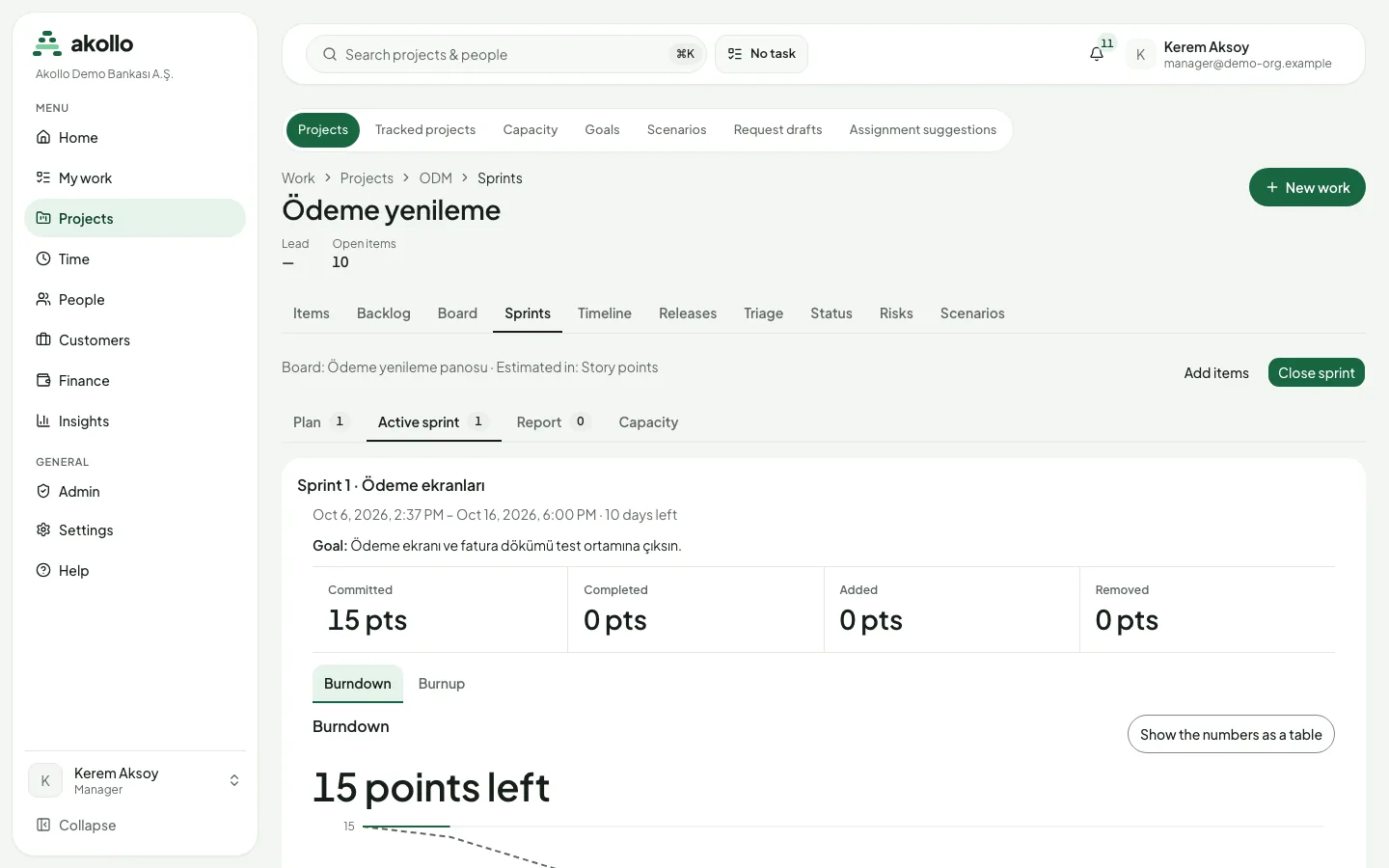
- Active sprint: days left, committed, completed, added and removed work, logged time, and burndown and burnup charts, also shown as a table.
- Report: velocity per sprint. The average appears once three sprints are closed.
Plan the sprint
Open the project’s Sprints tab and choose Plan. Create the sprint with a name, goal, start and end.
Fill it from the backlog
Add items from the ranked backlog. To take an item out again, give a reason.
Start and follow it
Start the sprint. Follow it on Active sprint; Show the numbers as a table shows the chart values as a table.
Close the sprint
Select Close sprint. Choose where each unfinished item goes: the next planned sprint, a new sprint or the backlog. Rate the goal as met, partly met or not met.
Estimates follow the board’s setting.
Releases and milestones
Releases have a name, description, start date and release date, and can be archived. Items are linked by key as "Fixed in" or "Affects". Release notes are grouped by item type and can be downloaded as CSV. To release, choose where each open item goes. A release can also link items of other projects when those projects and the release’s project belong directly to the same portfolio.
Milestones have a target date and a status: open, reached, missed or cancelled. You can create, edit and delete them and link or unlink items. A milestone at risk is marked as slipping.
Timeline
The Timeline tab of a project shows the calculated schedule as a table: item, start, finish, duration, float, whether the item is on the critical path, and its number of conflicts. On a wide screen bars, a time axis and a today line are drawn as well; everything they show is also in the table. You can zoom by days or weeks and show only the critical path.
The schedule counts working days, Monday to Friday. Items can be scheduled manually (they keep their own dates) or automatically. Dependencies link two items as finish-to-start, start-to-start, finish-to-finish or start-to-finish, with a lead or lag in working days; they can also link items in different projects. A dependency that would create a loop is refused. The conflicts list names items that start before their predecessor, finish after their milestone or release, fall outside their sprint, or break their date constraint.
The schedule is recalculated automatically every few minutes. When the plan has changed since the last calculation a notice appears, and people who can edit the schedule can use Recalculate.
People who can edit the schedule open an item’s editor from the timeline to set its scheduling mode, duration and date constraint, and to add, change or remove its predecessors and successors. Every change must be previewed first: the preview shows which items move and by how many working days, new and resolved conflicts, and the new project finish. Saving is possible only while the values on screen are the ones you previewed. An item you cannot open appears only with its dates, never with its name. Members can read the timeline; a support session and archived projects are read-only.
For the bars, dragging and the critical path in detail, see Timeline.
Scenarios
A scenario lets you try out a project’s plan without touching the live plan: move dates or people and see the effect.
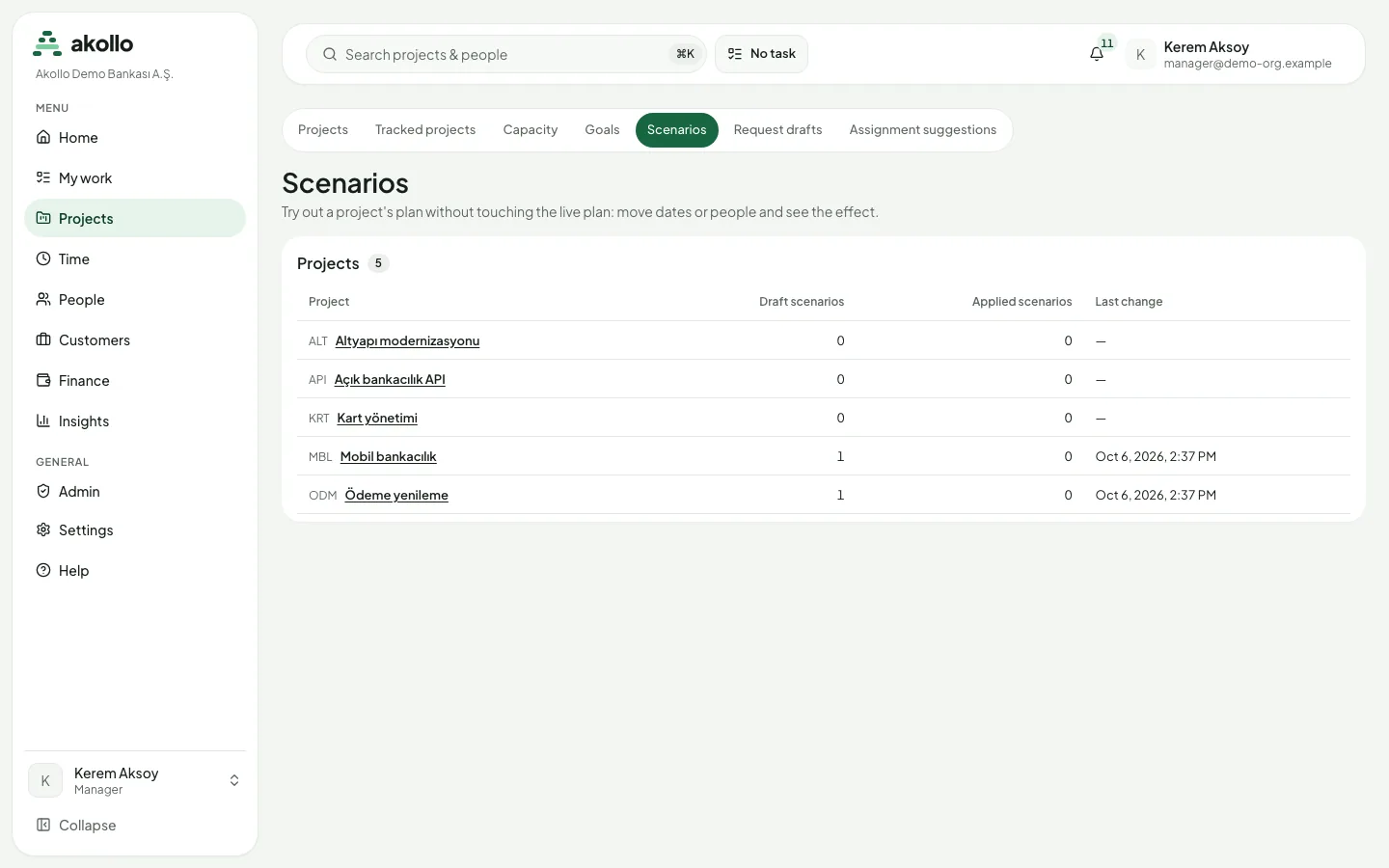
Projects › Scenarios lists the projects with how many draft and applied scenarios each has and when one last changed. Inside a project, the Scenarios tab lists its scenarios with name, status, source, number of changes, owner and last update. You can filter by status: draft, applied or discarded. Start one with New scenario, or use Ask AI for alternatives (see AI planning).
Status updates and risks
The Status tab lists the project’s status updates, newest first, with a health (On track, At risk, Off track), the author and the text. Members can publish an update. An update cannot be edited or deleted; instead, anyone who may publish can Correct it once. The original stays in the list, marked "Corrected", and links to its correction. If a project has had no update for 14 days, its lead and project administrators are reminded.
The Risks tab lists the project’s risks, highest score first, and can be filtered by state. The score is probability × impact, each from 1 to 5, so scores run from 1 to 25. People who manage risks add a risk with New risk and change it on its page by saving a new revision with a reason; the page keeps the full history of who changed what and why. If someone else saved a revision first, you are asked to reload.
Goals
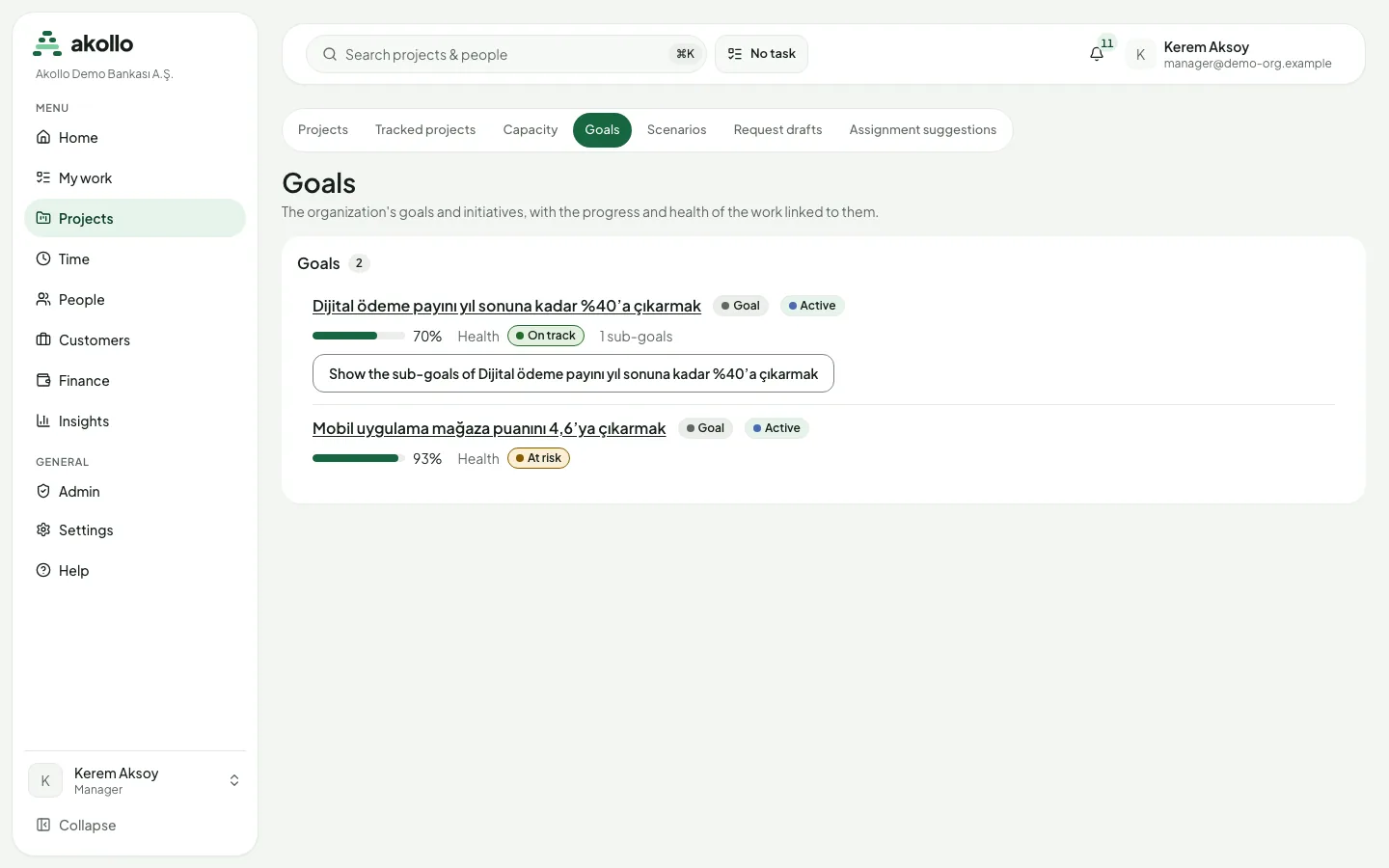
Projects › Goals lists the organisation’s goals and initiatives, with the progress and health of the work linked to them. Each goal shows its type, status, progress, health and number of sub-goals.
A goal’s page shows:
| Area | What it shows |
|---|---|
| Header | Type, owner, period and number of sub-goals, with Edit, Add a sub-goal, Move and Change status |
| Figures | Linked items, share of items done, estimate done and total, points done and total |
| Progress summary | Progress by value, progress by items, health (from sub-goals and linked projects) and a breakdown by status |
| Sub-goals | Each sub-goal with its status and progress |
| Linked work | The portfolios and projects linked to the goal; Add link adds one |
| Status updates | Updates with a health (On track, At risk, Off track), in plain text of up to 10,000 characters |
Only the work you can see is counted in a goal’s progress.
Through the API
Baselines (a snapshot of a project’s plan and its comparison with the current plan) and portfolios (groups of projects, nested up to three levels, with a roll-up and a roadmap) are available through the API. They have no pages yet. See API.
FAQ
Once three sprints are closed. The Report page shows velocity per sprint.
You choose for each one: the next planned sprint, a new sprint or the backlog. You also rate the sprint goal as met, partly met or not met.
If the limit is set to warn, you see a notice. If it is set to block, only people with the override permission can use "Override and move", and the override is recorded in the audit log.
No. Anyone who may publish can Correct it once. The original stays, marked "Corrected", and links to the correction.
No. A scenario lets you try out changes to dates or people and see the effect without touching the live plan.
Only the work you can see is counted, so people with different access can see different figures.