

Tasks and projects
Work items keep the expected work, the people responsible and the supporting context together. Projects group related items.
Where to find it
- "My work" section: Inbox, My work, Requests, Approvals, Search and Views.
- "Projects" section: Projects and Workflows.
A support session can read every work page. It cannot create work, change an item, act on the inbox, decide an approval or download an attachment.
Projects
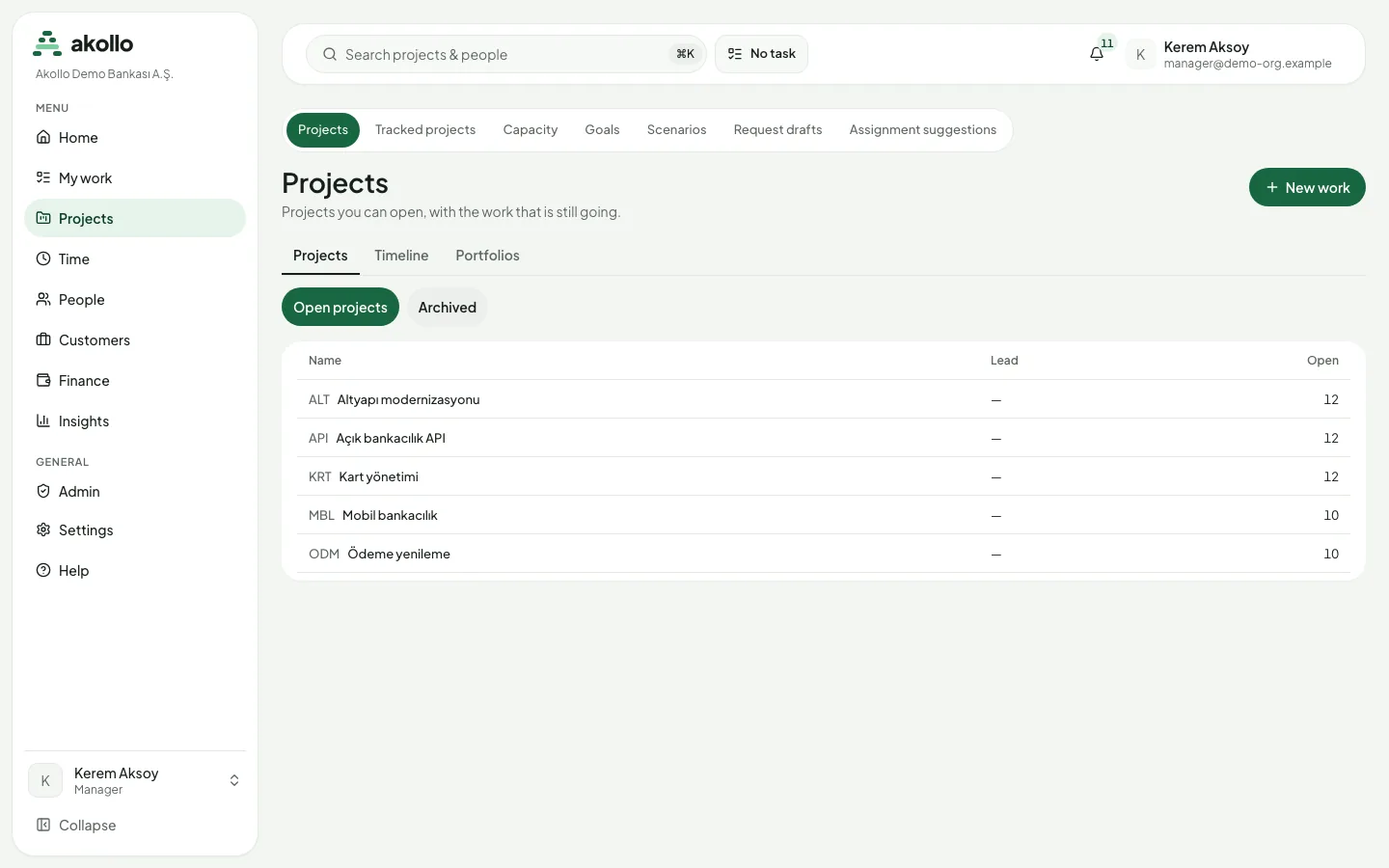
Projects lists the projects you can open, with filters for open and archived projects. A project opens on its Items tab, next to Backlog and Board. From there you also reach Triage, Releases, Trash and, if you manage the project’s configuration, Settings. Sprints appear only when the project has a scrum board. Timeline, Status and Risks appear for people who may read them (see Planning and delivery).
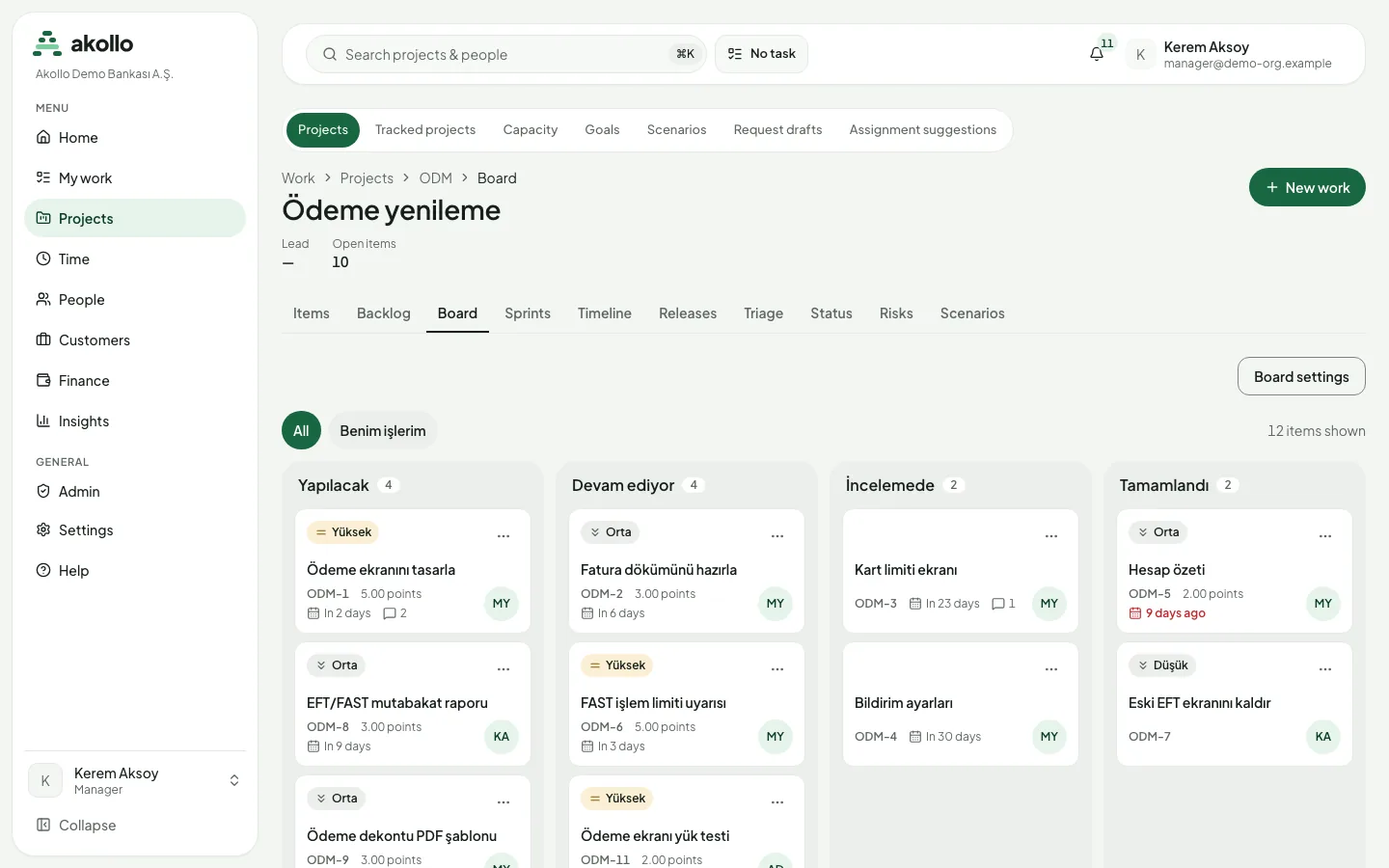
The items list has a list and a table layout. Selecting an item opens a quick preview beside the list.
- New work asks for a project, a type, a title and, optionally, an owner.
- New from template creates a whole item tree from a template. You can set the title, owner and due date of the top item. If the template does not fit the project, nothing is created.
- Saved views keep a layout and filters. A view can be private, shared with a project or shared with the whole organisation. Favourites come first. The owner of a view, or an organisation administrator, can rename it, lock it, hand it over or delete it. The Views page in "My work" lists every view you can see, favourites first, with its layout, who it is shared with and its owner’s name. Anyone can add a view to favourites there; renaming, locking, handing over and deleting are offered only to the view’s owner. Opening a view runs it 50 rows at a time.
- Bulk edit (with the bulk permission, on a wide screen) sets the owner, reporter, priority, start date or due date of the selected items, or applies a status change they all allow. A report per item opens in a side panel.
Create a work item
Start a new item
Select New work. The button is on the Projects page, on every project page and on My work.
Choose the project and type
Pick the Project and the Type: task, epic, story or bug.
Name it and assign it
Enter a Title. Choose an Owner, or leave it blank to open the item without one.
Create it
Select Create. The item gets a stable key and a permanent link, and starts in the initial status of its workflow.
Tip
For work you repeat, use New from template to create a whole item tree at once, or set up a recurring rule under the project settings.
The item page
Each item has a stable key and a permanent link. An old key still opens the item.
The header shows key, type, priority, due date and status, and an "On legal hold" badge when the item is held. You can change the status to one the workflow allows, watch or unwatch the item, edit its title and copy its link. When a status change needs approval, the status control says so. While the approval is open, the other changes are shown but disabled. A returned request can be sent again with Resubmit (see Workflows).
In the details panel you can change the owner (or assign the item to yourself), reporter, priority, labels, components, start and due dates, original and remaining estimate, and story points. Severity, contributors, custom fields and alias keys are shown. If someone else saves the same field first, your value is kept and the saved value is shown beside it.
The page also shows the description, acceptance criteria, child items with their progress, related items, attachments and checklists. You can tick checklist entries on the page.
Attachments lists each file with its version, size and scan state. Select a file name to download it. A file that is still being scanned, or was found harmful, cannot be downloaded. With the attach permission you can add a file, upload a new version of a file and remove a file. A file can be up to 50 MB. Attachments cannot be changed on an archived item, an item in the trash, an item in an archived project or an item on legal hold.
The activity area has tabs:
| Tab | What it shows |
|---|---|
| Comments | Add, reply to, edit and delete comments. People with the permission can mark a comment as internal. |
| History | Every field change (old and new value) and every status change. |
| Time | Credited time per person, taken from the time records. |
An archived item, or an item in an archived project, is read-only.
Archive, trash and legal hold
The item page has a menu to Archive or Unarchive an item and to Move to trash (after a confirmation). An item in the trash leaves every list; its key shows that it was deleted.
Each project has a Trash page. It lists deleted items, newest first, with who deleted them ("You" or "Someone else"), whether they are on legal hold and the date from which they can be purged. Items are purged 30 days after deletion unless they are on legal hold.
Open the project’s trash
In the project, open Trash.
Find the item
Deleted items are listed newest first, with who deleted them and the date from which they can be purged.
Restore it
Select Restore. This works until the item is purged.
People who manage the configuration can Place legal hold on an item, from the item page or the Trash page, and release it again. A reason of one line, up to 500 characters, is required both times and is written to the audit log. An item on legal hold is never purged and its attachments cannot be changed. A hold can also be placed on an archived item or in an archived project.
Warning
After 30 days in the trash an item is purged and can no longer be restored, unless it is on legal hold.
My work and the inbox
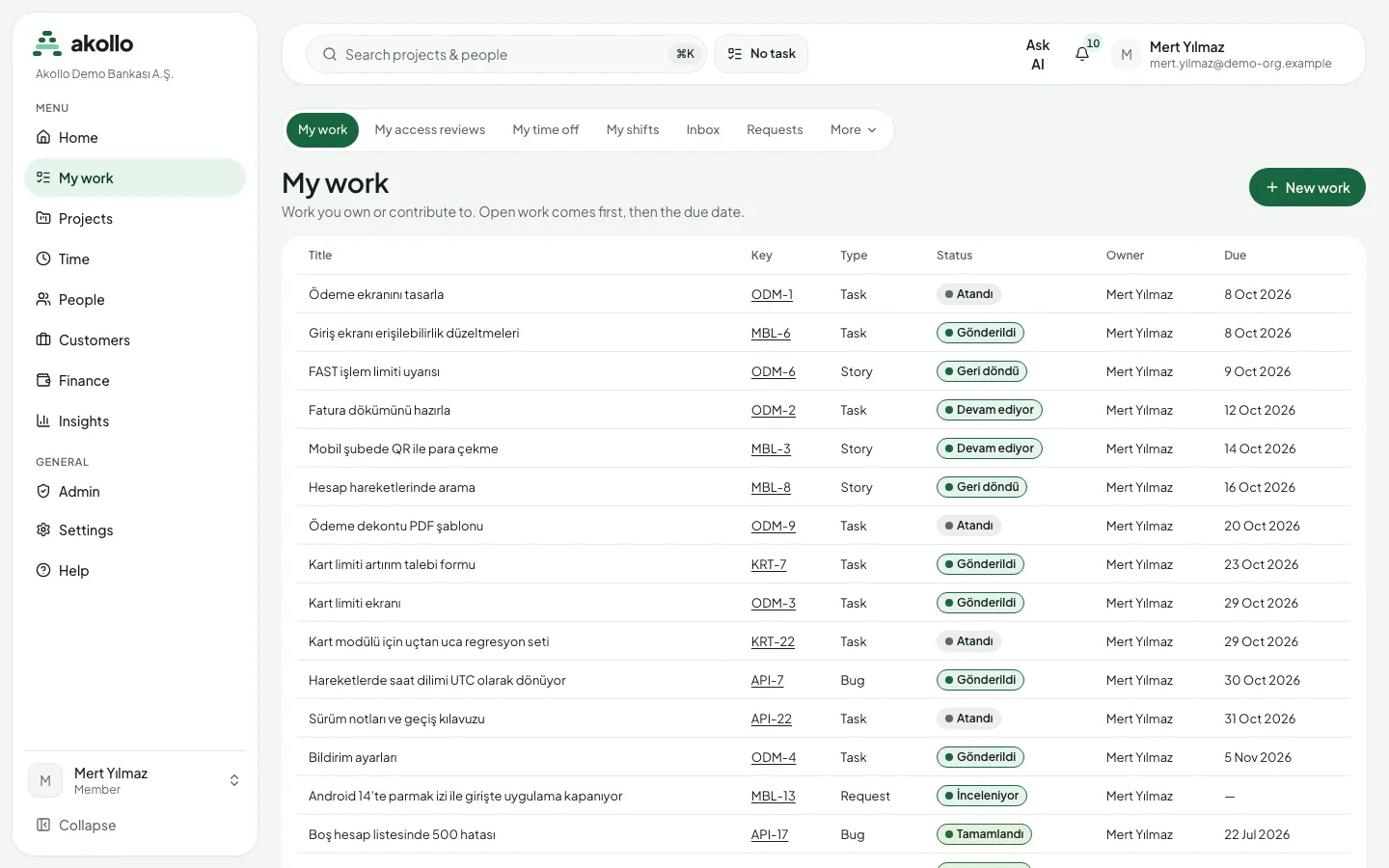
My work lists the items you own or contribute to: open work first, then by due date.
The inbox groups mentions, assignments, approvals and due-date reminders by the item they belong to. Owners and contributors get a reminder the day before an item is due and when it becomes overdue, once for each due date. You can filter by kind and by state (open, unread, read, snoozed, archived), mark notices read or unread, archive them, snooze them until a date, or mark all as read.
Approvals
Approvals lists the requests waiting for your decision, the one due soonest first. Each row shows the item, the requested status change, the approval step, the round and the due date, with an "Overdue" label when it has passed. The home page shows a "Waiting for your approval" card with the first requests.
Open your approvals
Choose My work › Approvals.
Open the request
Select Decide on the row.
Decide
Choose Approve, Reject or Send back for correction. You can add a comment of up to 4,000 characters; rejecting and sending back need one. If someone else acted first, you are asked to refresh.
Requests and triage
Requests lists the request forms you may use. Filling one in creates a request in the project’s triage; sending the same form twice by accident creates only one. In Triage, the project team accepts a request (optionally with an owner), declines it with a reason, marks it as a duplicate of another item, or snoozes it until a date.
Search
Search has a basic mode (project, status category, owner, labels, text, sort) and an advanced mode that uses a query language, for example owner = currentUser() AND statusCategory != "done". Results can be saved as a filter, shared with you only, a project or the organisation, and subscribed to daily or weekly. A filter that no longer works is marked "Needs repair". A search can also be saved as a view.
Project settings
People who manage a project’s configuration can use these settings pages:
- Templates: an item tree with type, priority, estimate, points, acceptance criteria, checklists and field values for each item. Titles can use placeholders such as the creation date. A template belongs to the project or to the whole organisation.
- Recurring items: a rule creates an item from a template on each date (daily, weekly, monthly, on weekdays, a day of the month, or a custom rule). You set the start and end, the time zone and the owner, and see the next dates in a preview. A date can be skipped or moved; the rule can be paused, resumed, run now or archived. A rule pauses itself if its owner loses access or its template no longer fits.
- Import: a CSV file of up to 5 MB and 5,000 rows. You map columns to item fields; a key column updates the existing item. A dry run shows how many items would be created, updated, skipped or set aside before anything is written. The import report can be downloaded as CSV.
- Request forms: a form for one item type, with ordered fields, required fields and help text, open to everyone in the organisation or to selected roles. Forms can be switched on or off and archived.
- Boards: see Planning and delivery.
FAQ
No. The owner is optional. Leave it blank to open the item without an owner and assign it later.
Yes, from the project’s Trash page with Restore, until it is purged 30 days after deletion. Items on legal hold are never purged.
Attachments cannot be changed on an archived item, an item in the trash, an item in an archived project or an item on legal hold. You also need the attach permission.
If someone else saves the same field first, your value is kept and the saved value is shown beside it, so nothing is lost.
A status change on the item is waiting for approval. While the approval is open, the other changes are shown but disabled.