

Team workload and capacity
Planned
What it is
Team activity, workload and technology use are drawn from approved totals, not from a ranking of people. The views show how applications are grouped, how focus and collaboration sit in the week, and whether the load is shared across the team. They also show which tools and licences are actually used. When the underlying data is too thin, the figure says so.
Capacity planning available today
Note
The workload analytics above are planned. The two capacity views below are already in the product.
Projects → Capacity compares the capacity of a team and its people with planned work, by week or by day (for up to 2 weeks).
- Choose the Team, add a single person with Add a person, and set the Length of the period.
- The Team total chart shows planned time as bars and available time as a dashed line. Show table shows the same figures as a table.
- Load per person lists each member's planned load week by week.
- Leave that is still waiting for approval is not taken off capacity. The page tells you when this is the case.
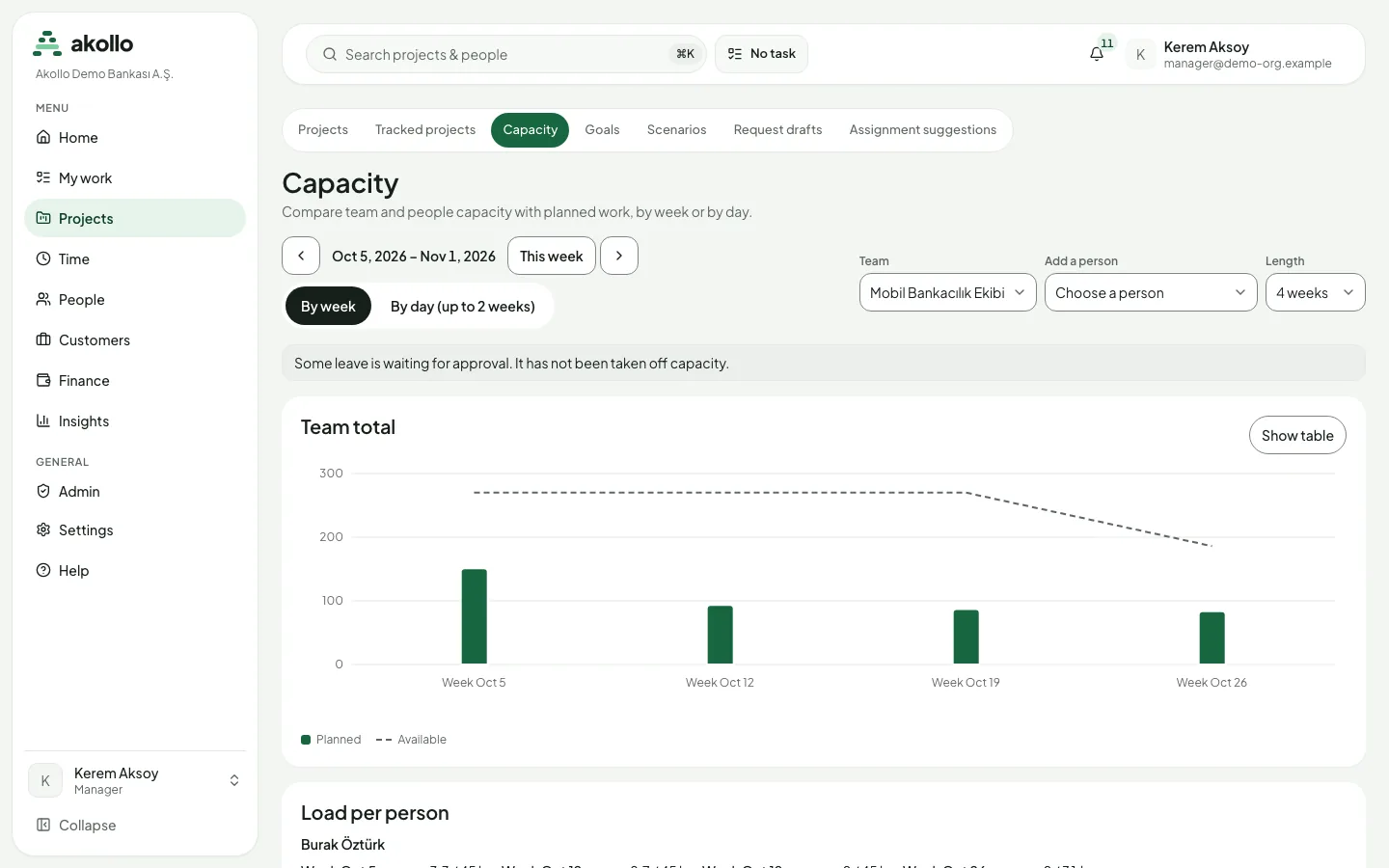
Open Capacity
Choose Projects in the sidebar and open the Capacity tab.
Choose the team and period
Pick the Team and the Length. Use the arrows or This week to move the period, and switch between By week and By day (up to 2 weeks).
Compare planned and available time
Read the Team total chart, then check Load per person to see who carries the load.
Team capacity report
The Team capacity report in Insights → Reports shows, for each team, weekly available and planned time. Unknown values are never counted as zero; they are shown separately.
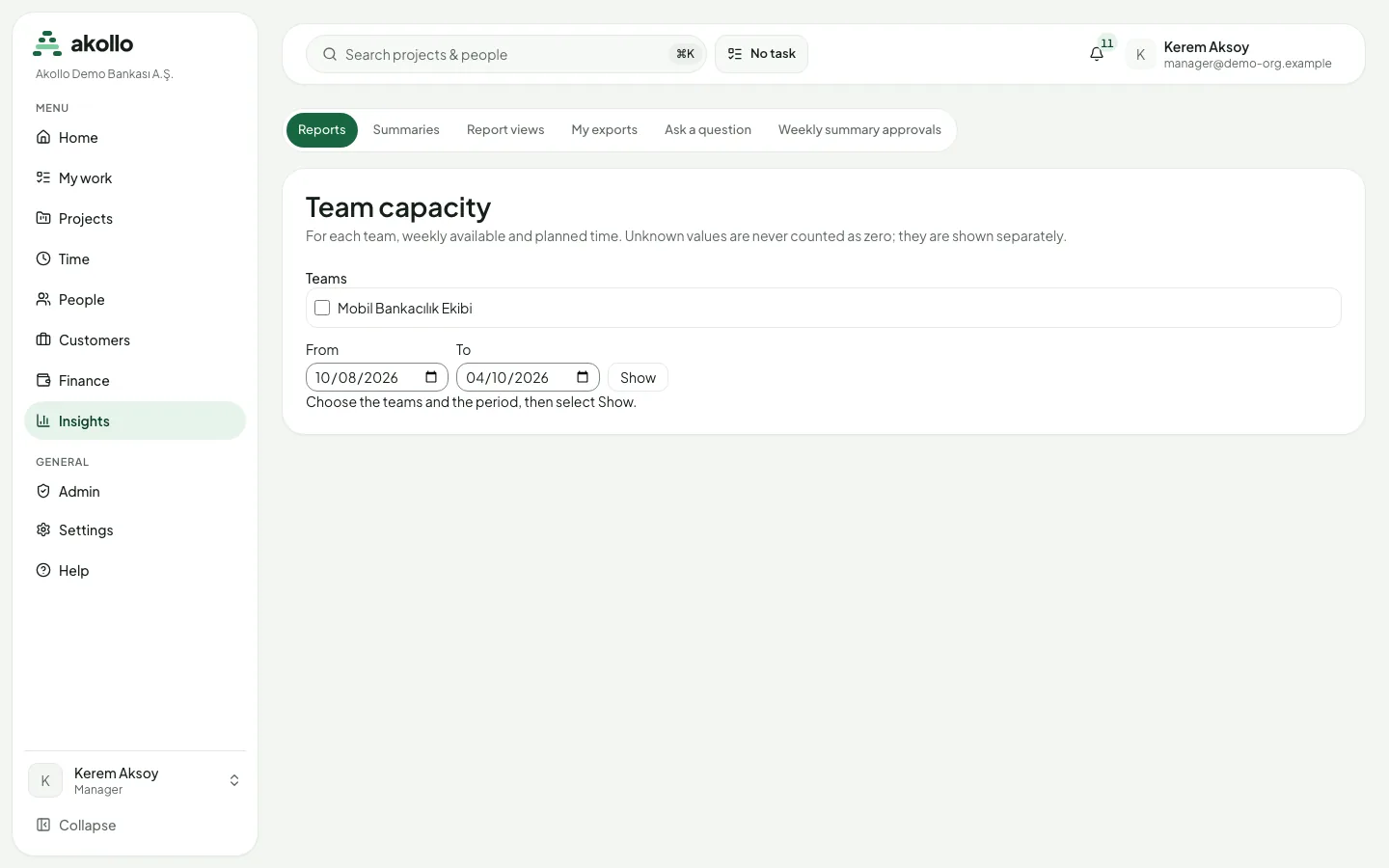
Open the report
Choose Insights → Reports and open Team capacity.
Select teams and period
Tick one or more Teams, set From and To, and select Show.
For planning work against this capacity, see Planning.
FAQ
No. Team workload and technology use are drawn from approved totals, not from a ranking of people.
Leave that is still waiting for approval is not taken off capacity. The Capacity page shows a note when this is the case.
The Team capacity report never counts an unknown value as zero. It shows it separately.
Yes, for periods of up to 2 weeks. Choose By day (up to 2 weeks) on the Capacity page.
Screen evidence and privacy
Screenshots are taken only when the recording policy turns them on. Who sees captures, what employees see about themselves, and how retention works.
Reports and exports
Time reports are built from measured and credited time and respect your scope. Filter and group them, export CSV or Excel files, and use Insights.