

Desktop app and devices
The Akollo desktop app runs on the employee's computer. It follows the organisation's recording policy: it records the foreground application, activity and idle time, and screenshots when they are enabled, and sends them to Akollo. It sits in the system tray and has no other window.
An optional browser extension for Chrome and Edge tells the desktop app which tab is in front. It talks only to the desktop app on the same computer, never to the server.
How the data flows
The task that time is credited to is the one selected for the device on My tasks (see Time and tasks).
Signing in the desktop app
When the desktop app asks you to sign in, it opens the Desktop sign-in page in your browser. Approve the request there and return to the app. A sign-in request is valid for 10 minutes and can also be declined. Your role must allow enrolling a device, and a support session cannot approve a sign-in.
Start the sign-in from the desktop app
Open the desktop app from the system tray and start signing in. Your browser opens the Desktop sign-in page.
Check the request
The page shows the account, the organisation and the application. Approve only if you started this sign-in from the desktop app on this computer just now.
Approve and return
Select Approve and return to the agent. The desktop app finishes signing in, and you can close the browser tab. To decline, select Cancel sign-in.
Warning
If the request is older than 10 minutes, the page shows that there is no pending sign-in. Start again from the desktop app.
Devices
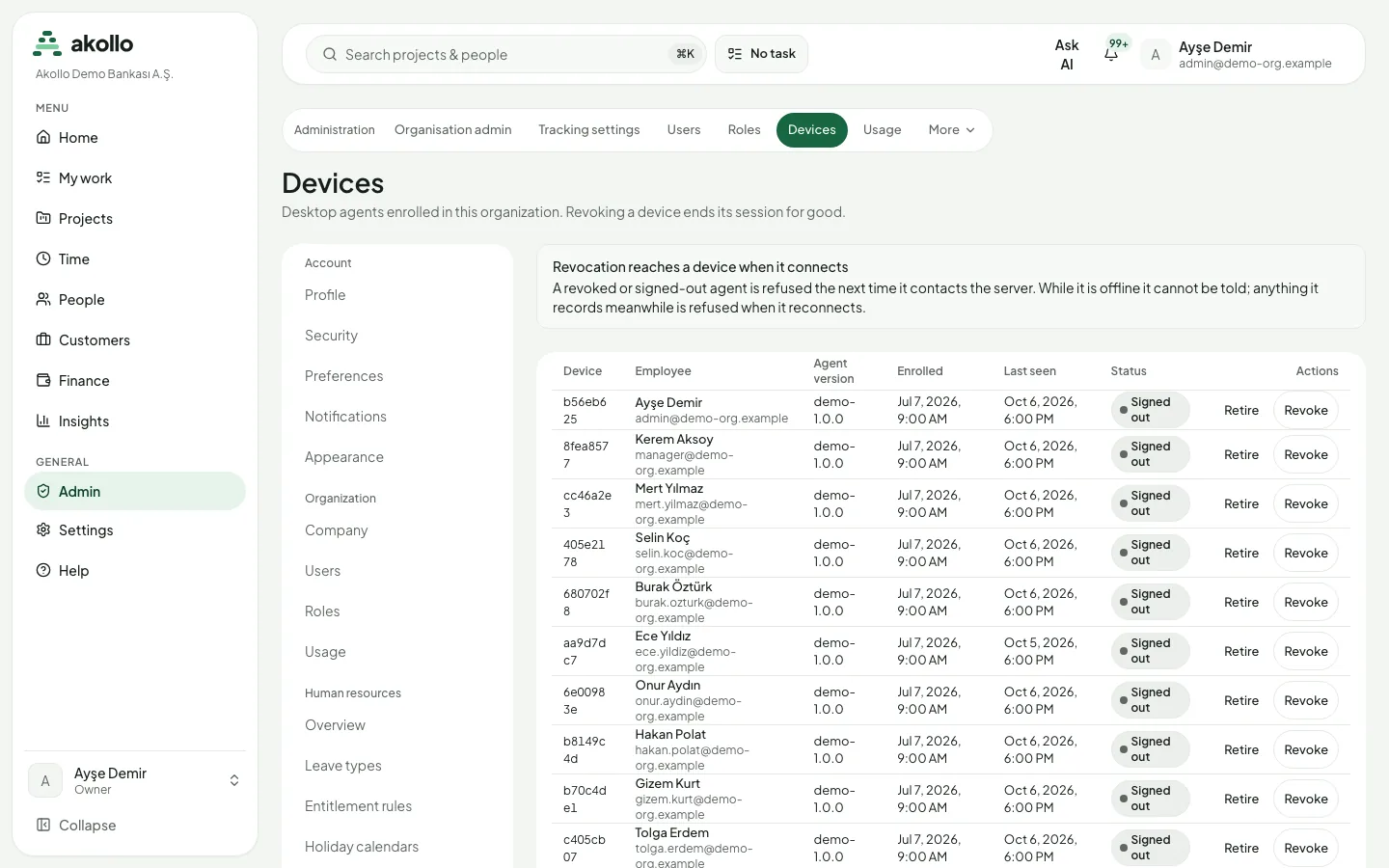
Settings → Devices lists desktop apps: your own, or every device in the organisation for administrators. For each device it shows the employee, the app version, when it was enrolled, when it was last seen and its status (for example signed in, signed out or revoked). A device can be revoked; a revoked device stops sending data.
Open the device list
Choose Settings → Devices.
Revoke the device
Find the device in the list and select Revoke.
Confirm
Confirm with Revoke device. The device is signed out and can never sign in again. The employee can enroll the computer again as a new device.
Note
Revocation reaches a device when it connects. A revoked or signed-out desktop app is refused the next time it contacts the server. While it is offline it cannot be told; anything it records meanwhile is refused when it reconnects.
Device health
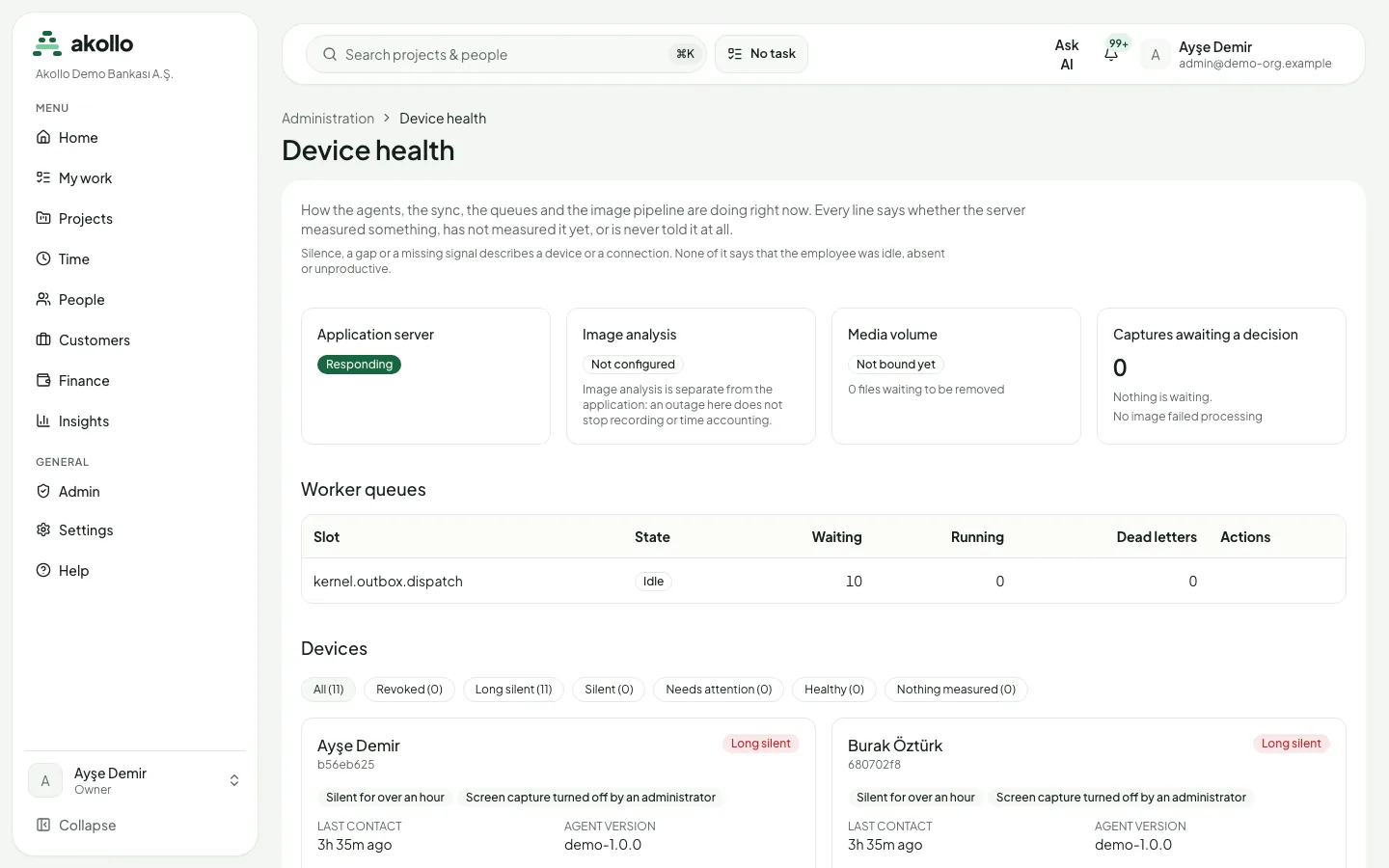
Device health (/tracking/health) is for people who operate the recording service. Each device has a status: healthy, needs attention, silent, long silent or revoked. The reasons are shown, for example an out-of-date policy, missing events, an upload backlog, a missing monitor or browser extension, or a clock offset. A device's page shows its last heartbeat, version, platform, policy revision, sync gap, disk and monitors. The page also shows the state of the service itself (application, image analysis, media storage and background queues) and the thresholds it uses.
People with the operate permission can revoke a device or resend failed background jobs, each with a reason.
Note
Silence, a gap or a missing signal describes a device or a connection. None of it says that the employee was idle, absent or unproductive.
Recording policy
Administrators (organisation owner or administrator with the workforce-management permission) set the recording policy under Settings → Workforce & recording. Each change publishes a new revision with a start date and, optionally, an end date; the revision history is kept.
| Setting | What it controls |
|---|---|
| Schedule | The time zone, working days and start and end time, and whether a regular, holiday or overtime schedule applies. |
| Idle | After how many seconds without input time counts as idle, whether the employee may pause recording, and for how many minutes at most. |
| Categories | Rules that mark an application or site as productive, neutral, unproductive or unclassified, with a priority and whether a task must be selected. Rules can be set for the organisation, a department or a team, with a fallback for unknown applications. |
| Screenshots and Retention | See Screen evidence and privacy. |
FAQ
No. It only tells the desktop app on the same computer which tab is in front. It never talks to the server.
10 minutes. After that, start the sign-in again from the desktop app.
It cannot be told while it is offline. The next time it contacts the server it is refused, and anything it recorded in the meantime is refused too.
The revoked device can never sign in again. The employee can enroll the same computer again as a new device.
No. Device health describes devices and connections only. A silent device says nothing about whether the employee was idle, absent or unproductive.
Time and tasks
How Akollo credits measured time to tasks: choose a task, review your day and timesheet, resolve exceptions, propose corrections and approve work.
Screen evidence and privacy
Screenshots are taken only when the recording policy turns them on. Who sees captures, what employees see about themselves, and how retention works.