

Organisation and access
Employees, teams and departments are connected to the responsibilities that decide who can see and manage information.
Capabilities
- Employee invitations and profiles
- Department and team structures
- Manager access scopes
- Workspace switching
- Multifactor authentication and password recovery
- Temporary delegation and contractor access
- Access reviews with downloadable results
- Read-only support access
Using this area
Check your workspace and the role you were given. If your department or reporting line is wrong, ask your administrator to correct it. Administrators should review access whenever someone changes role or leaves.
The organisation pages sit in two sidebar sections:
| Section | Pages |
|---|---|
| People | Structure, People, Delegations, My delegations, Joiners and leavers |
| Administration | Organisation, Sign-in (sign-in providers and directory sources), Group mappings, Roles & permissions, External access, Access reviews, Audit records |
Each page shows its content only to people whose role or permissions allow it, and only for the organisation you are working in. Anyone else sees that the page is not available. The sidebar lists only the pages you can open. "Delegations", the list of every delegation in the organisation, appears only for administrators who manage delegations. "Organisation" appears only for people who can see the structure. The pages work on phones as well as on larger screens.
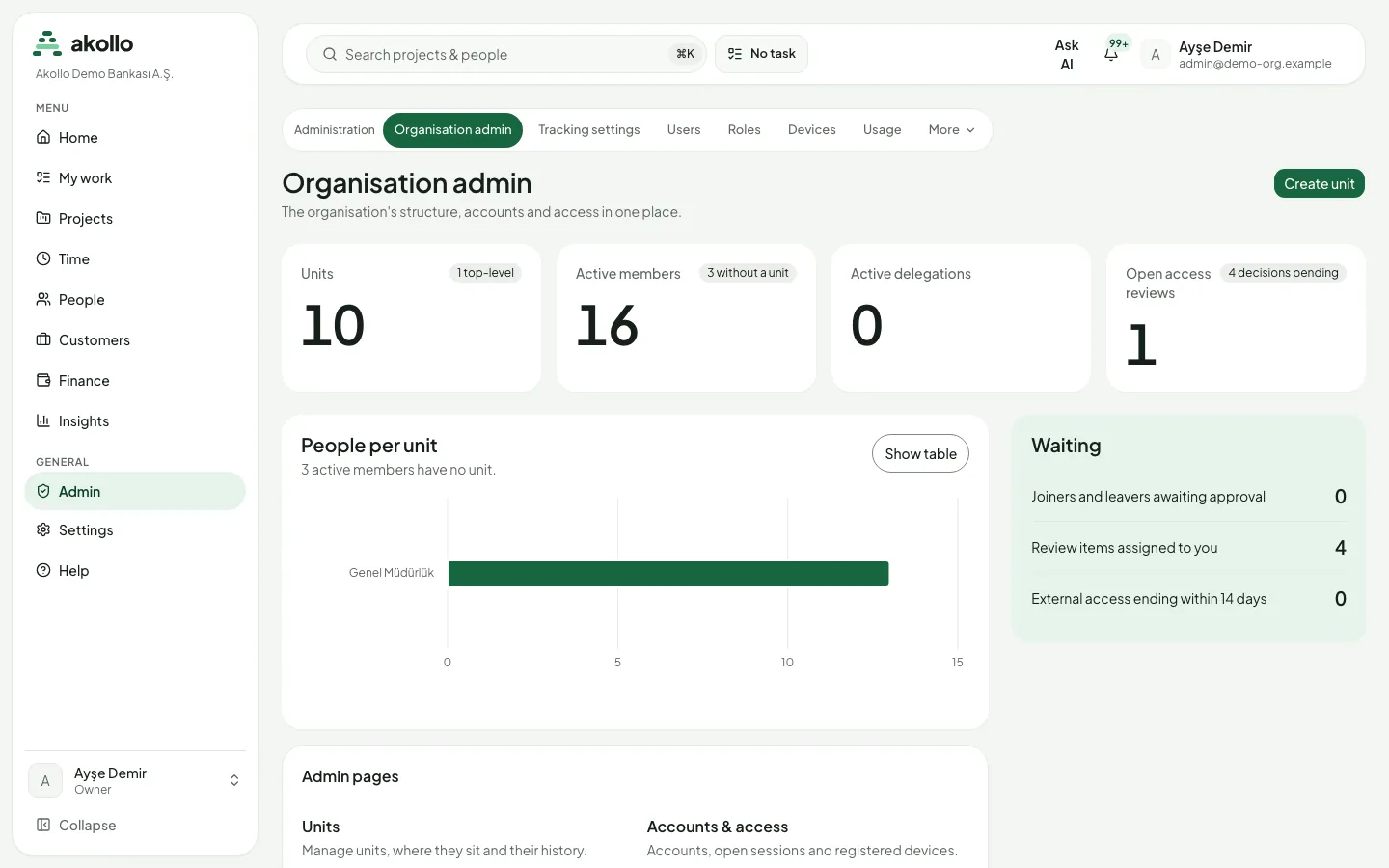
The Organisation admin page brings the structure, accounts and access together. Its counters show units, active members (and how many have no unit), active delegations and open access reviews. The Waiting panel shows joiners and leavers awaiting approval, review items assigned to you and external access ending within 14 days.
Invite users
Administrators add people to the organisation by invitation.
Open the user list
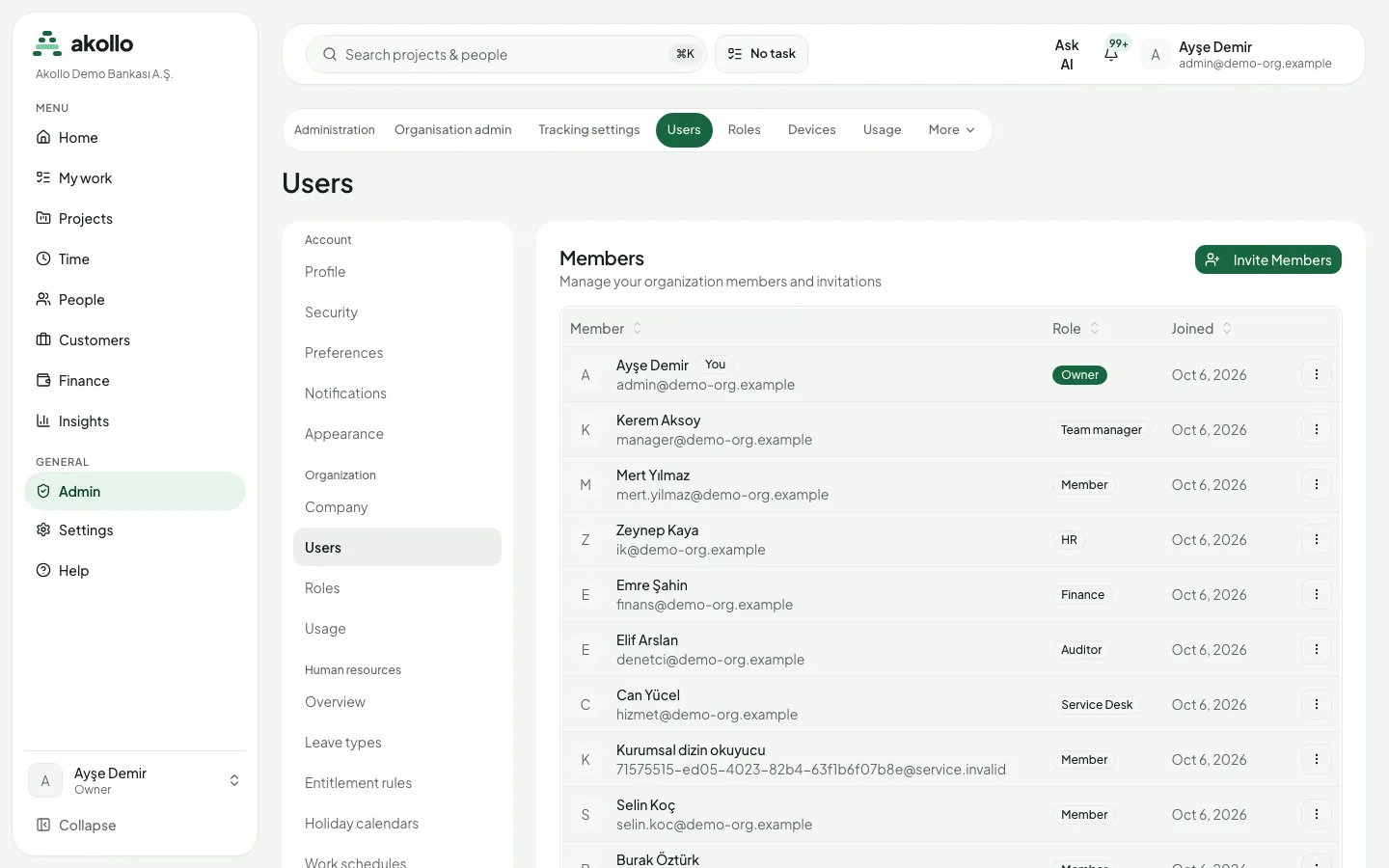
Choose Admin › Users. The Members list shows each person with their role and the date they joined.
Start an invitation
Select Invite Members.
Enter the email and role
Type the person’s email address and choose a role. Member is preselected.
Send the invitation
Select Send Invite. The person receives an email with instructions to join your organisation.
Note
If your organisation connects its directory, people can also arrive through the directory as joiners. See Directory.
Units and structure
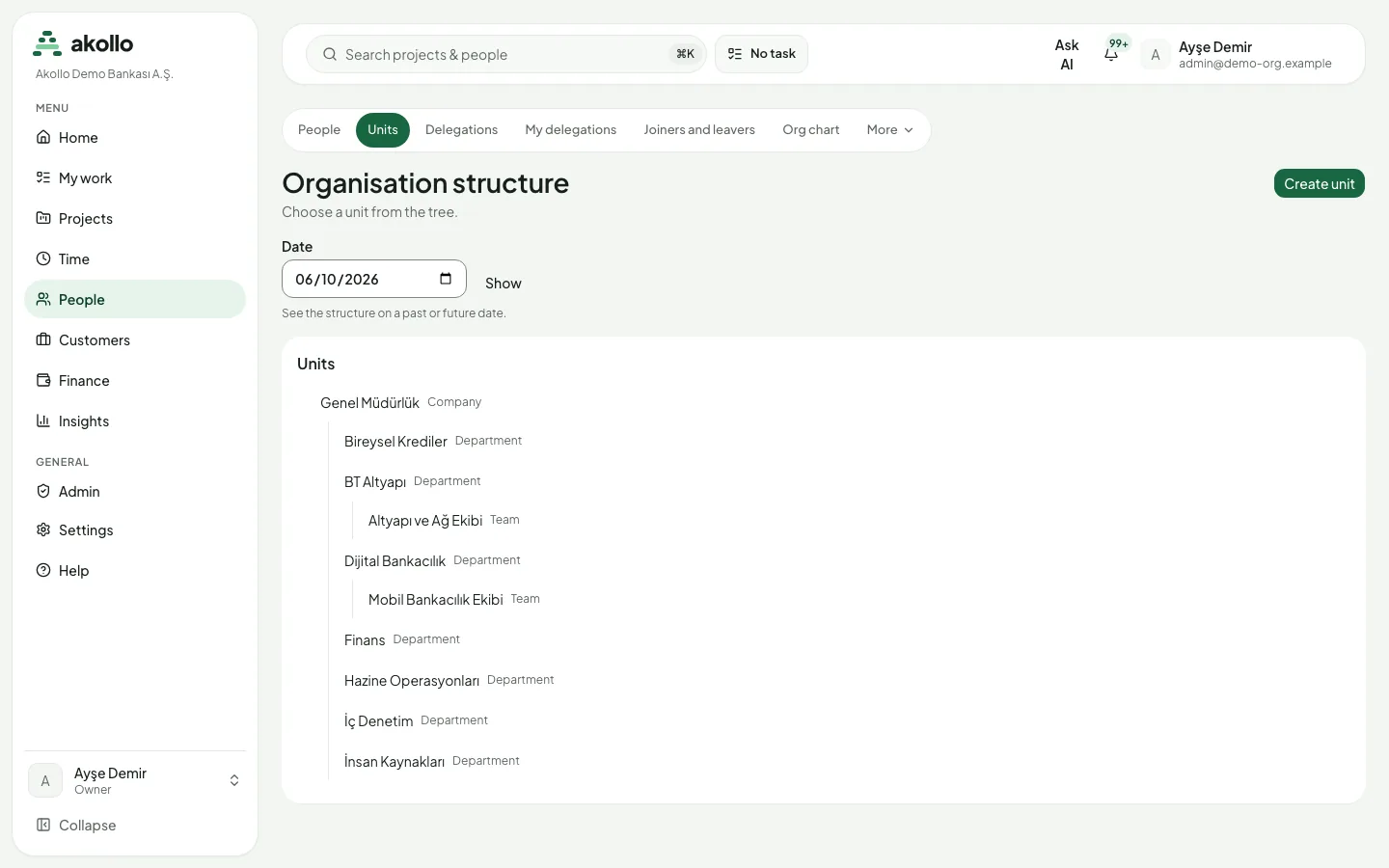
The Organisation structure page shows your units as a tree. A unit has a kind: company, region, branch, division, department or team. To see how the structure looked on another day, or will look, pick a date and select Show.
Open the structure
Choose People › Units.
Create the unit
Select Create unit. In New unit, enter the name, choose the kind and the parent unit.
Set the effective date
Enter the Effective date. The unit takes effect from the start of that day in the organisation’s time zone. Add a reason and select Create unit.
A unit can be moved or archived. An archived unit can no longer be moved, and its history is kept. Archiving asks you to write down why, and it cannot be undone on this page.
People
An administrator who can read the organisation structure opens the people directory. It lists only that organisation’s members, with status, source, unit and role. Filters narrow the same list. Opening a person shows their sessions, devices and service accounts. The system accounts Akollo uses for its own background work are not listed and not counted.
| Action | What happens |
|---|---|
| Revoke sessions | Ends the live sessions and disables the account. |
| Revoke access | Ends the live sessions, disables the account and removes the membership. |
If a service-account key is still waiting to be suspended, the page says the revocation is pending. It does not say the revocation succeeded. A support session can look, but cannot revoke.
Directory
When your organisation connects its directory, for example through SCIM provisioning, each person who joins, moves or leaves in the directory starts the matching joiner, mover or leaver process in Akollo.
The directory alone never gives anyone access and never disables an account. Every change runs as a lifecycle case. A change that would make someone an administrator or owner, or disable many accounts at once, waits for an approver. If a directory record could belong to two people, Akollo does not guess: the record is set aside for an administrator. A person who simply no longer appears in the directory is disabled only after two complete directory reads confirm it. When the directory does not answer or sends an incomplete page, nothing changes.
The sign-in providers page also lists each connected directory: whether it is working, having trouble or turned off, when it last synced, and the last error if there was one. A SCIM connection shows the service account it is tied to and the start of its key, never the key itself. An administrator can turn a directory off and on again. Records set aside because they could belong to two people wait on the same page, with only what is needed to decide, such as the employee number and a masked sign-in name. The administrator picks the right person, and the link is recorded in the audit log.
On "Group mappings" an administrator decides which directory group gives which role, permission set or unit. Changes are made in a draft and then previewed. The preview lists who would gain or lose what, and anyone who would land in two units. The draft is then sent for approval. Another administrator approves or rejects it; the person who sent it cannot. On a phone the rules can be read but not edited.
"Joiners and leavers" is the queue of these processes, in five tabs: awaiting approval, running, failed, set aside and completed. Opening a case shows its steps and any error. An administrator can approve a case someone else opened, retry a failed one or cancel one that has not finished. Cases held because too many accounts would be disabled at once are marked.
Directory changes are turned into cases every 15 minutes. The steps of cases that are ready run on their own every few minutes, and a failed step is retried. Akollo’s own system accounts can never be the subject of a joiner, mover or leaver case, and their access cannot be revoked from these pages.
Delegation
You can hand a permission of yours to someone else for a set period: approving leave while you are on leave, for example. "My delegations" shows who you delegated to, what, and until when, and what has been delegated to you. You can create a new delegation there.
Open My delegations
Choose People › My delegations and select New delegation.
Choose the person and the permission
Under Delegate, type at least two letters of a name or email and pick the colleague. Under Capabilities, choose what to hand over, for example Approve leave requests.
Limit it if needed
Choose a Unit only if the delegation should apply to that unit alone; otherwise it covers all your units.
Set the period and create it
Set Starts (leave it empty to start now) and Ends, add a reason, and select Create delegation.
You can revoke a delegation at any time, and it also ends on its own at the end date. A delegation can never grant more than you hold at that moment, and it cannot be passed on again. Administrators see every delegation in the organisation on "Delegations" and can revoke any of them. A support session can only view these pages; it cannot create or revoke a delegation.
Warning
Revoking takes effect at once: the colleague loses the permission immediately, and this cannot be undone.
Roles and permissions
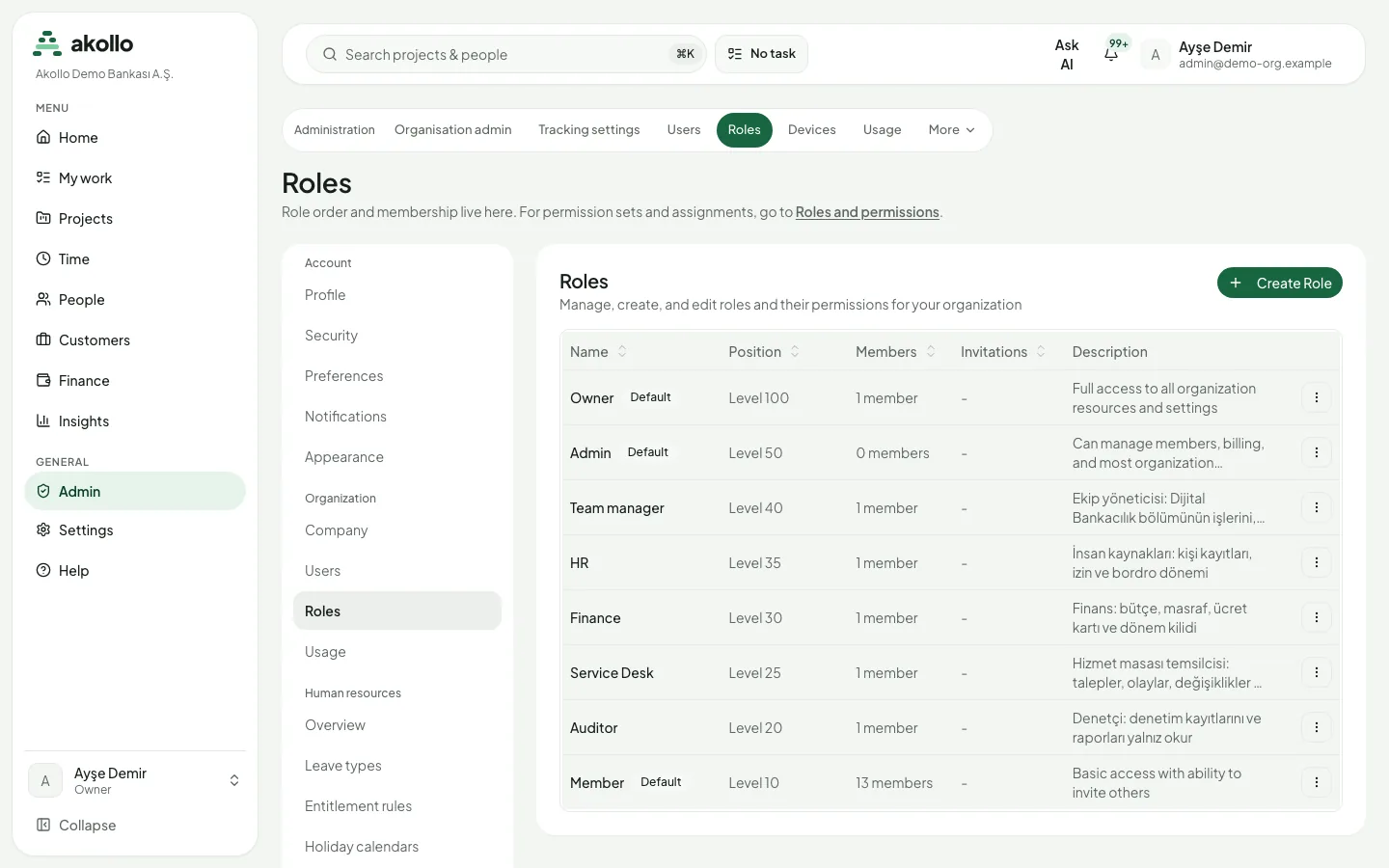
Every member has a role. The Roles page (Admin › Roles) lists the roles in order, with their level, members and description. Three roles are built in:
| Role | Level | What it allows |
|---|---|---|
| Owner | 100 | Full access to all organisation resources and settings |
| Admin | 50 | Manage members, billing and most organisation settings |
| Member | 10 | Basic access, with the ability to invite others |
Your organisation can add its own roles between these with Create Role.
"Roles & permissions" is where administrators decide in detail who can do what. The registry lists every area Akollo’s modules publish, the actions available in each, and the fields they treat as sensitive, such as a national ID number. A permission set bundles actions from that list, for example "approve leave". It is given to a person, a role, a directory group or a service account, optionally for a limited period. Only listed actions can be chosen; nothing is typed in freely.
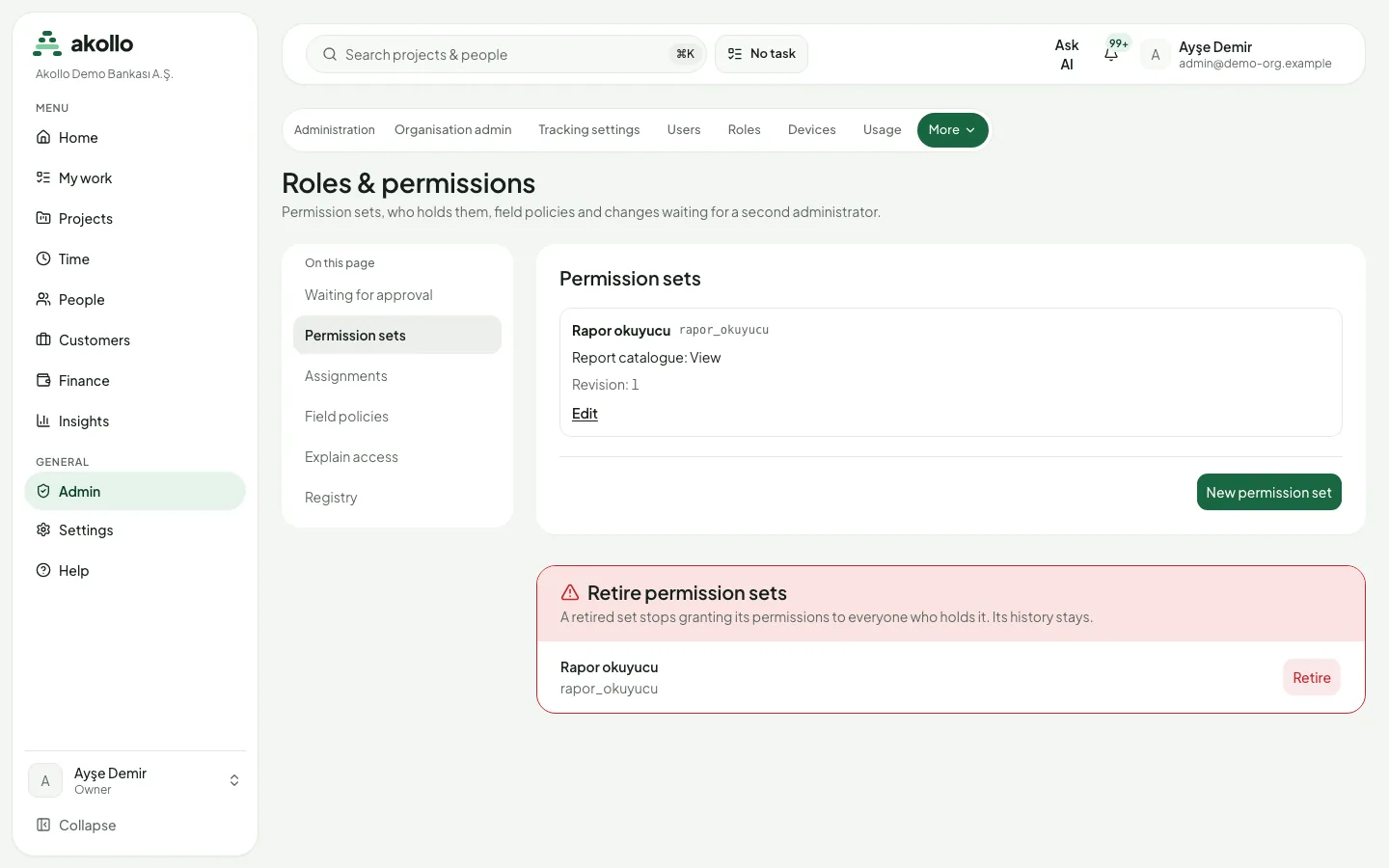
Field policies decide how a sensitive field appears to a person, a role, a group or a permission set: hidden, masked, read-only or editable. When several policies apply to someone, the strictest one wins. This applies to administrators too.
Some changes need a second administrator:
| Change | Takes effect |
|---|---|
| Creating or changing a set that includes administrative rights | After a second administrator approves |
| Giving such a set to someone | After a second administrator approves |
| Loosening a field policy, for example from masked to readable, or removing one | After a second administrator approves |
| Removing a set from someone | Immediately |
| Retiring a set | Immediately |
Changes that need approval wait in "Waiting for approval" until another administrator approves them. The person who asked cannot approve their own request. A retired set stops granting its permissions to everyone who holds it; its history stays.
"Explain access" shows, for one person, each permission they hold and where it comes from: their role, a set given directly or through a role, group or service account, a delegation, or an access grant. A support session can view this page but cannot change anything.
Contractor access
Someone working for you from outside the organisation, such as a consultant, gets time-bound access from the "External access" page. Every contractor has a sponsor, who must be an active employee, and a mandatory end date. If you do not pick a sponsor, you are the sponsor. Only administrators can add a contractor, and an administrator or owner cannot be made one.
A contractor holds only the permissions of sets marked as safe for contractors. Permissions from their role and from unmarked sets never count for a contractor, and an unmarked set cannot be given to one.
| Rule | Value |
|---|---|
| Longest access period | 180 days |
| "Expiring soon" filter | Access ending in the next 14 days |
| Reminders to contractor and sponsor | 14 and 3 days before the end |
| Time to find a new sponsor after the sponsor leaves | 7 days |
The page shows each contractor’s sponsor, company and how many days their access has left. To extend access, use "Request renewal" to choose a new end date, and a new sponsor if needed. The renewal takes effect once an administrator other than the person who asked approves it. If the whole period would then exceed 180 days, neither the sponsor nor the person who added the contractor can approve the renewal.
When the end date arrives, or someone ends the access by hand, every permission of the contractor stops at once and the leaver process that closes the account starts. If the sponsor leaves the organisation, the contractor’s access must be renewed with a new sponsor within seven days; otherwise it ends at the end of the seventh day.
When a directory mapping marks a person as a contractor, Akollo never creates a contractor without a sponsor. The record waits until an administrator adds the access by hand. Only people allowed to see contractor records can open this page. A support session can view it but cannot change anything.
Access reviews
Administrators can run an access review: a campaign that asks whether each person should keep the access they have. A campaign covers a unit, a role, everyone with administrative rights, all contractors, all service accounts or one shared resource. When the campaign starts, Akollo records every piece of access in scope at that moment: roles, permission sets (including those that come through a role or a directory group), access to shared records, contractor access, service accounts and delegations.
Each item goes to one reviewer, in this order:
- the person’s manager;
- otherwise the owner of that access, for example the contractor’s sponsor or the service account’s owner;
- otherwise the reviewer the administrator named;
- otherwise another administrator.
Nobody ever reviews their own access. A reviewer sees only the items given to them and decides to keep, remove or narrow each one. Removing or narrowing needs a reason. Access that comes through a role or a directory group can only be kept here; change the role or the group mapping instead. A decision cannot be changed afterwards.
The review itself does not apply a removal. A removal starts a joiners-and-leavers case, which removes that one piece of access and follows the usual approval rules, so a change for an administrator waits for a second administrator. Reviewers get reminder notifications 7, 3 and 1 days before the due date. On the due date the campaign closes. If the administrator chose so, access nobody answered for is removed the same way. A closed campaign can no longer be changed.
The results can be downloaded as CSV or Excel. Each file lists every item with its reviewer, decision, reason and the state of its removal. It comes with a checksum and the version of the generator that produced it. The file of a closed campaign is always the same, and its checksum matches the one recorded when the campaign closed. Values that a spreadsheet could run as a formula are written as plain text. Every download is recorded in the audit log.
Pages
Access reviews are on the "Access reviews" page in the Administration section. The list shows each campaign’s state, due date and how many items have a decision, and can be filtered by state.
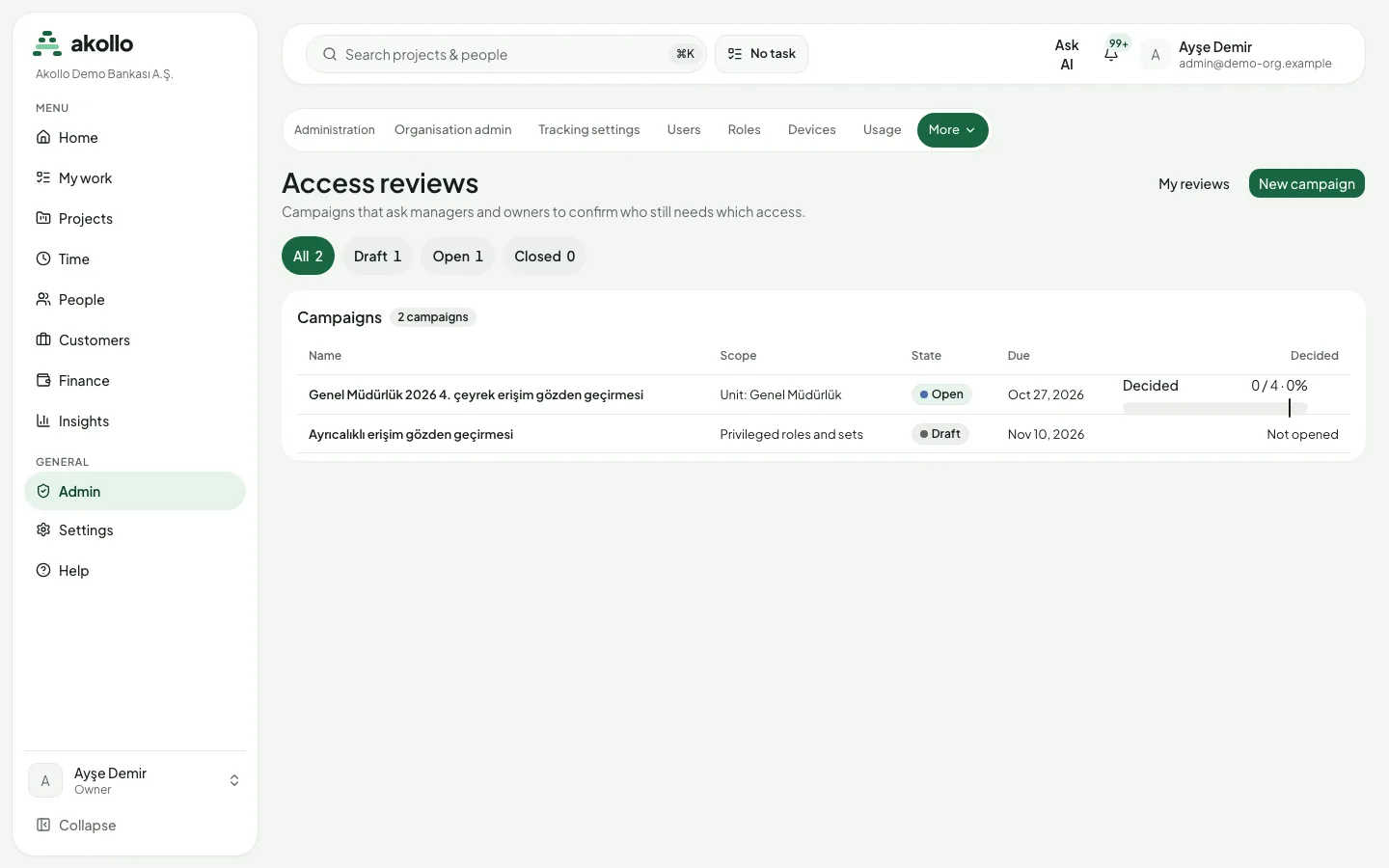
People who manage campaigns start one like this:
Create the draft
Select New campaign. Enter a name and choose what to review: a unit (optionally with the units below it), a role, everyone with administrative rights, contractors or service accounts.
Set the due date and the default outcome
Choose the due date and what happens to access nobody answered for: keep it or revoke it. If you like, name a fallback reviewer; it defaults to you. Select Create draft.
Open the campaign
Nothing is recorded while the campaign is a draft. Select Open campaign to record the access and hand it to the reviewers.
Items assigned to you are on "My reviews", grouped by campaign.
Open My reviews
On the Access reviews page, select My reviews.
Decide each item
Choose Keep or Revoke. Revoking asks for a reason of 1 to 500 characters.
Keep several at once
Select several items and choose Keep selected. Revoking is always one item at a time.
The pages currently offer keeping and revoking only. Narrowing access and campaigns for one shared record are not available on these pages.
The campaign page shows the items, decisions and reasons. Its "Remediation" tab lists the joiners-and-leavers cases that remove access. Administrators can move an item to another reviewer there and close the campaign before its due date. People allowed to download the results get the CSV or Excel file from the same page. A closed campaign shows no buttons. A support session can view the pages and download the results, but cannot decide or change anything. The pages work on a phone as well.
FAQ
Each organisation page shows its content only to people whose role or permissions allow it, and the sidebar lists only the pages you can open. Ask your administrator if you need access.
No. The directory never gives access or disables an account by itself. Every change runs as a lifecycle case, and a change that would make someone an administrator or owner, or disable many accounts at once, waits for an approver.
No. A delegation cannot be passed on again, and it can never grant more than the person delegating holds at that moment.
No. Changes involving administrative rights wait for a second administrator, and the person who asked cannot approve their own request.
The review does not remove the access itself. It starts a joiners-and-leavers case that removes that one piece of access and follows the usual approval rules.
At most 180 days in total. Renewals need an administrator other than the person who asked, and access ends at once on the end date.
Related pages
Settings
Every settings page in one place: your account, the organisation, recording, devices, integrations and audit, with who may change what.
Tasks and projects
Work items keep the work, the people responsible and its context together; projects group related items. Create, track, approve and archive work.