

People and HR
People and HR keeps the employee record that sits behind a login: who works here, in which job and unit, who they report to, how much leave they have and what still has to happen when they start. Employees use it to request time off and see their own record; managers approve leave for their team; HR administrators keep records, leave rules, holiday calendars and checklists up to date.
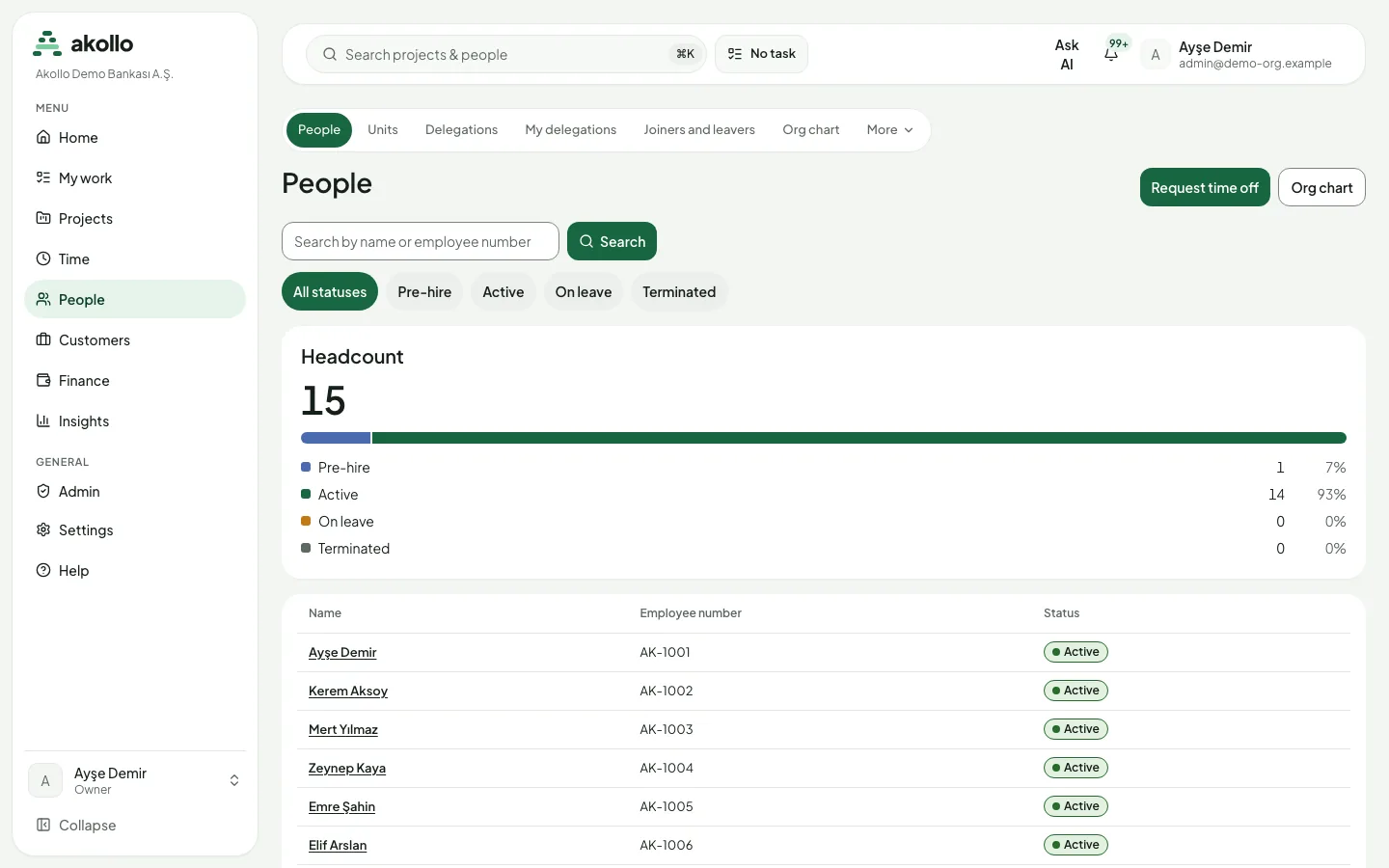
You find it in the People section of the sidebar. The People page is the directory; buttons and tabs at the top lead to My time off, the Org chart, Checklist tasks and, for approvers, Leave approvals. HR administrators set the rules under Settings → HR. For every field and status in detail, see People.
Who uses it
| Role | What they do here |
|---|---|
| Employee | Reads their own profile and leave balances, requests time off, asks to cancel approved leave, completes their own onboarding tasks and sees their week under My shifts. |
| Manager or unit head | Sees the people in their team on the org chart, decides leave requests and cancellations under Leave approvals, and completes the checklist tasks assigned to them. |
| HR administrator | Manages profiles, employment data, leave balances, leave types, entitlement rules, holiday calendars, custom profile fields and onboarding templates. Sees the whole organisation. By default, organisation owners and administrators have this role. |
| People with the sensitive-data permission | See birth dates, national ID numbers and health-related documents. Nobody gets this permission automatically, not even owners and administrators. |
| Support session | Can open the pages to help, but cannot change, approve or complete anything. Restricted values are left out. |
Main screens
| Screen | What it shows |
|---|---|
| People | The directory: search by name, filter by Pre-hire, Active, On leave or Terminated, and a headcount card per status. |
| Person page | Tabs for Overview, Job & employment, Time off, Onboarding, Documents and Custom fields. |
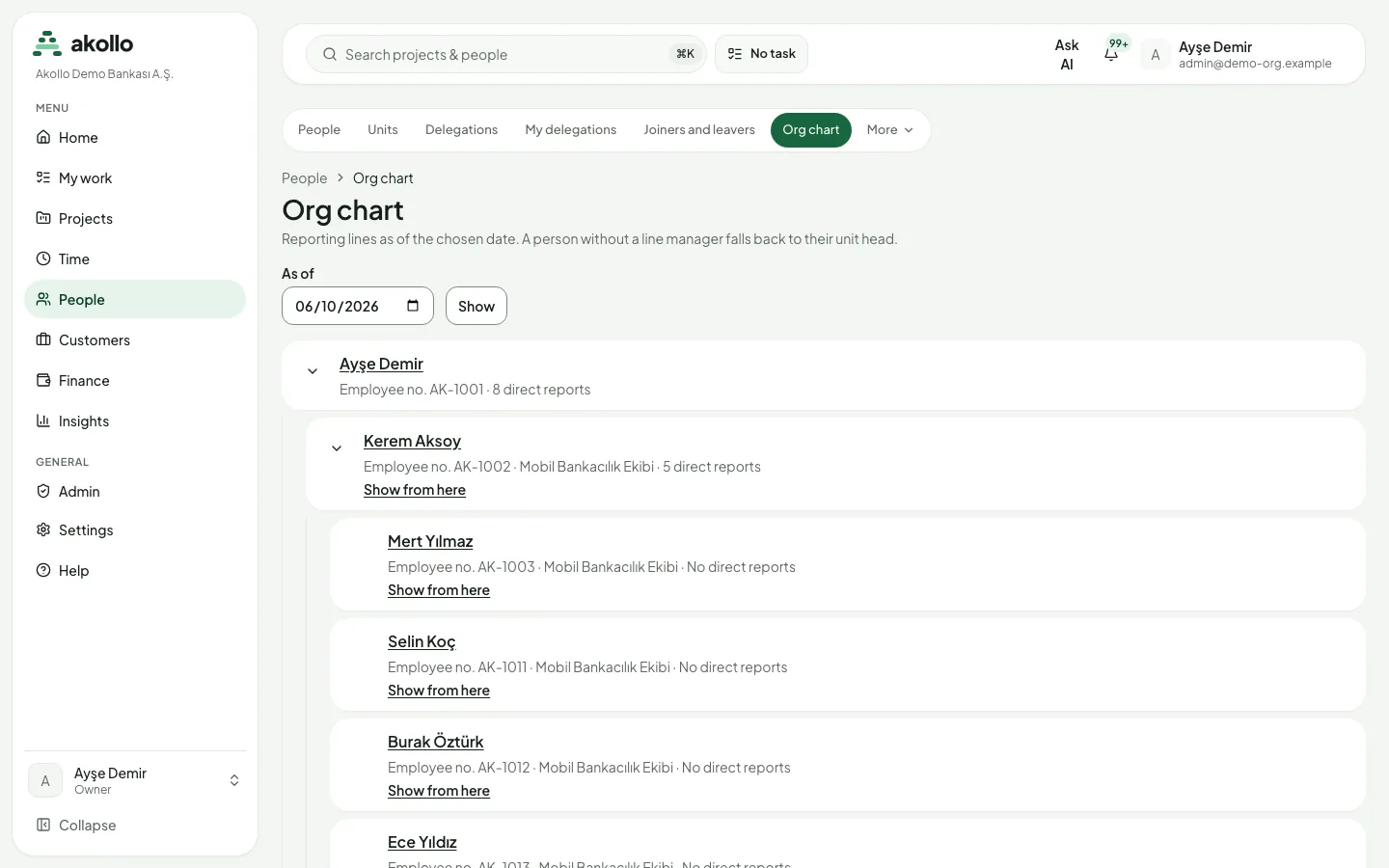
| Org chart | Reporting lines as of a date you choose, starting from you or from any person with Show from here. |
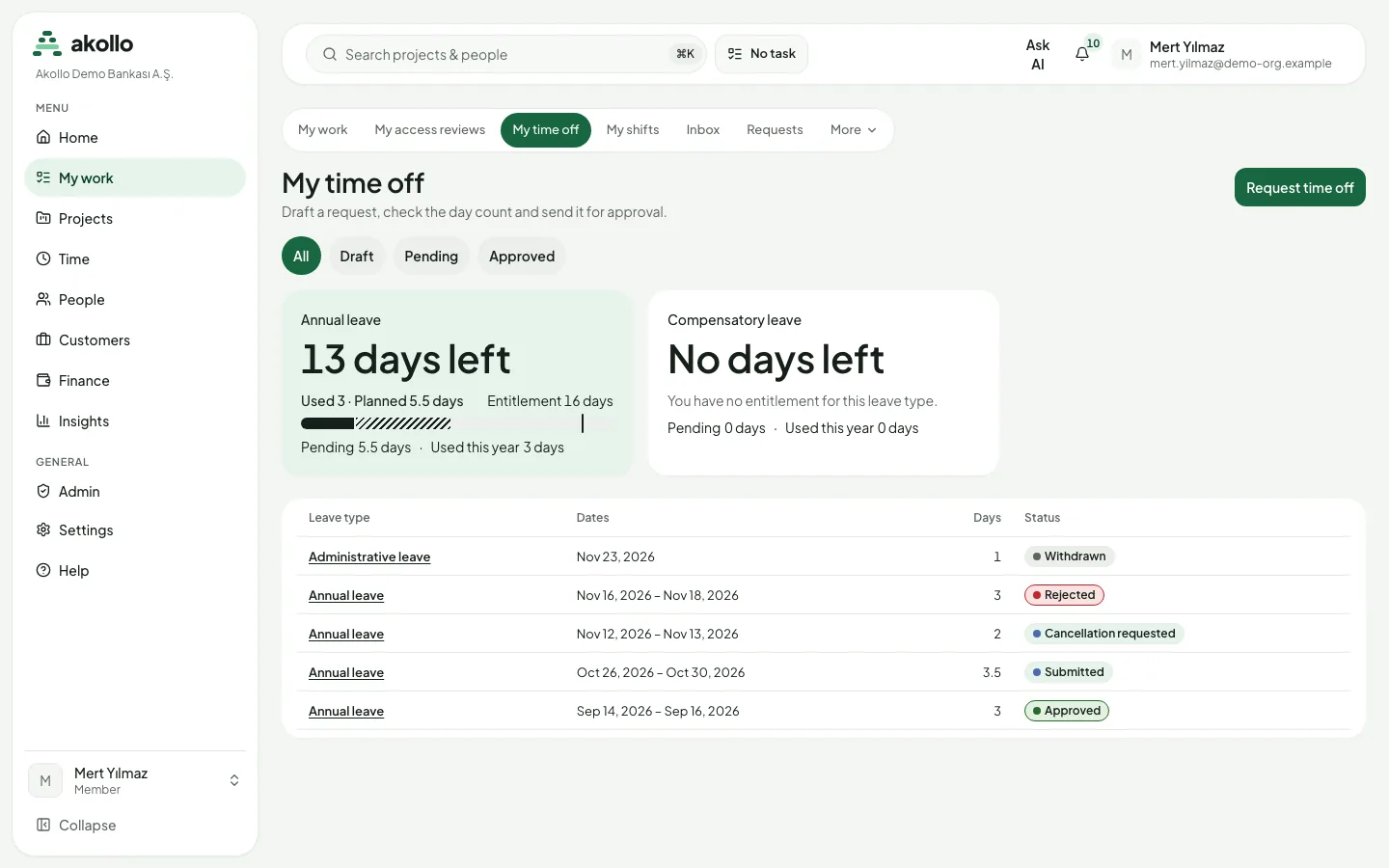
| My time off | Your balance per leave type and every request with its status. |
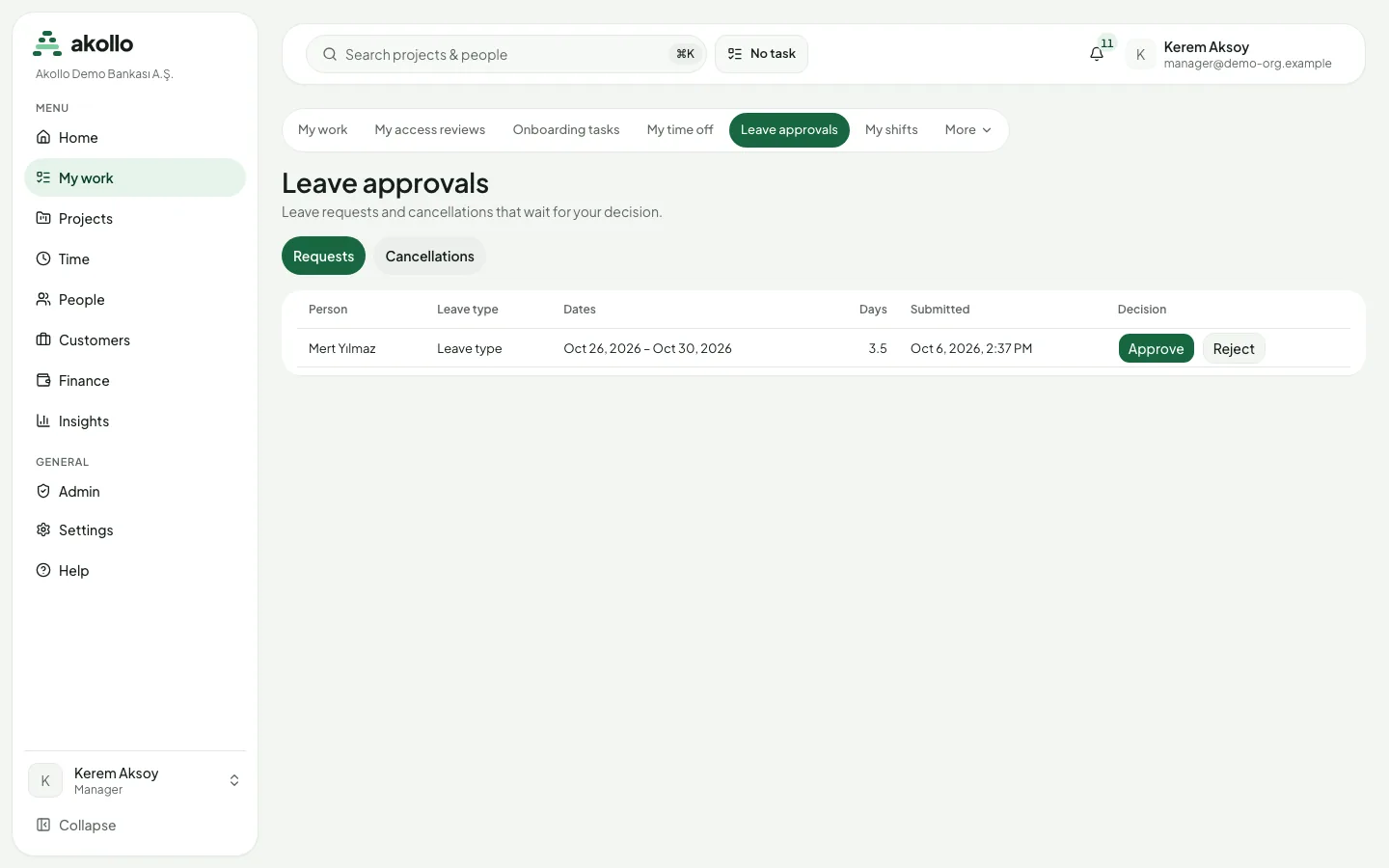
| Leave approvals | Requests and cancellations waiting for your decision, in the Requests and Cancellations tabs. |
| Checklist tasks | Your open onboarding tasks across all checklists, ordered by due date. |
| My shifts | Your week day by day, open shifts in your unit and your claims. |
| Settings → HR | Leave types, Profile fields, Entitlement rules, Holiday calendars and Checklist templates. |
Key tasks
Request time off
Start the request
Choose Request time off on the People page or on My time off.
Fill in leave type and dates
Pick the Leave type, Start date and End date. For the first day choose Full day or Half day (afternoon); for the last day Full day or Half day (morning).
Check the day count and save
Choose Save draft and open the draft. It shows which days were counted, which were left out (weekends, public holidays) and your projected balance on the start date.
Submit
Choose Submit. The request waits for your approver. Until they decide, you can Withdraw it.
Approve or reject leave
Open Leave approvals
Open the Leave approvals tab. Requests lists new requests with person, leave type, dates, days and submission time.
Decide
Choose Approve, with an optional comment, or Reject with a reason. Approved days are booked against the balance and the employee is told.
Handle cancellations
On the Cancellations tab, choose Approve cancellation to return the days, or Keep leave to let the leave stand.
Look up a person and their reporting line
Find the person
Open People, type part of the name and, if needed, filter by status.
Read the record
Open the person. Overview shows contact details and whether the record is kept in Akollo or by a connected HR system; Job & employment shows hire, seniority and termination dates with earlier versions.
See where they sit
Choose Show in org chart in the page header. Pick another date to see the reporting line as it was or will be.
Prepare a new starter
Create a checklist template
Under Settings → HR → Checklist templates, create a template with its tasks, the owner of each task and the number of days after the start date when it is due.
Let the checklist open
When the person's employment starts, the matching onboarding checklists open automatically.
Work through the tasks
Each owner finds their tasks under Checklist tasks and chooses Mark done. Progress shows on the person's Onboarding tab.
Set up leave rules for the year
Fill the leave catalogue
Under Settings → HR → Leave types, add your leave types. An empty catalogue can be filled with the Turkish standard set.
Confirm the holiday calendar
Under Holiday calendars, add the Turkish national calendar or a local one, check the full and half days, and confirm the year. Assign calendars to units, people or workplaces.
Publish entitlement rules
Under Entitlement rules, draft a rule with its seniority ladder, use the preview to see how each person's entitlement changes, and send it for approval. A second administrator approves; the person who prepared or sent it cannot.
Permissions
- Everyone sees their own profile, their own leave balances and ledger, and their own requests.
- Managers and unit heads see the people in their team on the date they pick. A manager outside that team appears as Hidden manager, without a name. They decide leave for the people they approve for.
- HR administrators see and manage the whole organisation. Larger leave balance adjustments, and entitlement rules, need a second administrator.
- Sensitive data (birth date, national ID number, health documents and the reason for sick leave) needs a separate permission. A field you may not see is left out of the page, not masked.
- Pay data (compensation and payroll) is also separate. Owners and administrators do not get it automatically.
- Nobody approves their own leave request, and the person who asked for a balance adjustment, or whose balance it is, cannot decide it.
For roles, permission sets and delegation, see Organisation and access.
What the AI can do here
- Answer availability questions. In the assistant, the Who is free card shows free hours per person for a date range and marks people who are on leave. Leave appears only as "on leave", never with its type or reason. See Planning and staffing with AI.
- Respect your scope. The assistant reads only what you could open yourself. When your manager asks about you, it sees your leave days if your manager could see them anyway, never why you took leave. See AI and you.
- Suggest skill updates. Skill signals can suggest raising a skill by one level from finished work. The person can object and only a manager can accept. See Skill signals.
- No AI in the numbers. Leave day counts, balances, entitlements and holiday calculations are fixed rules, never a model's guess. Pay is never used by the AI.
FAQ
Your role cannot see the leave catalogue yet, or no leave type is active. Ask your administrator.
No. Withdraw it and create a new one. A withdrawn request cannot be reopened.
Your approver, usually your line manager. You can never approve your own request.
When someone has no line manager on record, the head of their unit is shown instead.
Birth date and national ID number need the sensitive-data permission. Without it, the fields are left out of the page entirely.
Closing a leaver's access runs as a joiners-and-leavers case under the organisation pages; see Organisation and access. HR departure checklists have no page yet.
No. Akollo prepares approved time and leave that your payroll provider uses. See Payroll.
Related
- People: every tab, status and setting in detail
- Payroll: what Akollo hands over to payroll
- Organisation and access: structure, roles, delegation, joiners and leavers
- Time and tasks: payable time, timesheets and approvals
- Capacity: how leave affects available hours
Tracking and activity
What the Akollo desktop app records, the recording policy behind it, screenshots and analyses, reports and exports, retention, device health and what employees can see.
Payroll
What Akollo prepares for payroll: payable time, approved timesheets, approved leave and employment dates, ready to hand over to your payroll provider.