

Reports and exports
Time reports are built from measured and credited time. They respect your scope: you see only the people you are allowed to see.
Time reports
Time reports (/tracking/reports) cover a period of your choice. Every number comes from the same accounting that the day screens use, and approved corrections are applied on top.
- Group the report by day, task, application, site, category or employee.
- Filter by team or department, employee, device, task, project and category. You can include time with no task and leave out dates such as public holidays.
- Totals show credited, worked, overlapping and no-task time, and the figures after corrections next to the figures before them. Time that two devices recorded at once is shown but never counted twice.
- A diagnostics panel explains time that produced no interval.
- A Data freshness panel says when some days have not been summarised yet. Daily summaries are prepared every night; Prepare summaries now prepares them for the period at once. The totals themselves are computed from the intervals and are current.
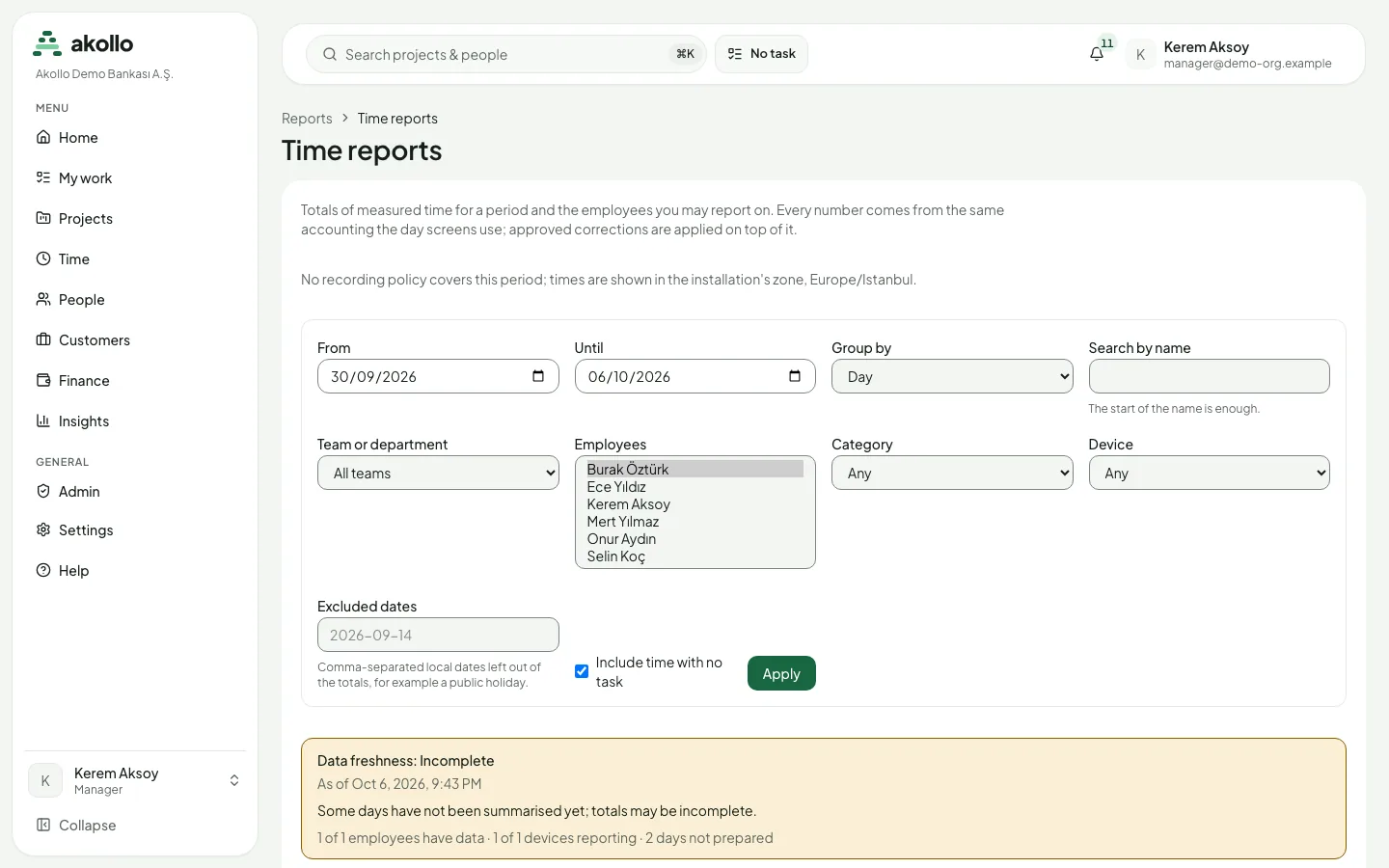
Open Time reports
Open /tracking/reports.
Set the period and grouping
Enter From and Until, and choose how to Group by.
Narrow the report
Choose a Team or department, one or more Employees, a Category and a Device as needed. Under Excluded dates, list local dates to leave out, separated by commas. Tick Include time with no task if you want that time in the totals.
Apply
Select Apply. Check the Data freshness panel before you rely on the totals.
Exports
With the export permission, Create export on Time reports produces a CSV or Excel (XLSX) file of the report. Exports (/tracking/exports) lists your exports with their report, format, period, state, size, number of rows and expiry date. A ready export can be downloaded until it expires; each download checks your scope again. An export that has not finished can be cancelled.
Create the export
On Time reports, set up the report and select Create export. Choose CSV or Excel (XLSX).
Wait until it is ready
Open Exports (/tracking/exports). The export moves from waiting to building to ready.
Download
Download the file before its expiry date. Akollo checks your scope again on every download.
Note
Your scope is checked again at the moment of each download, not only when the export is created.
Insights
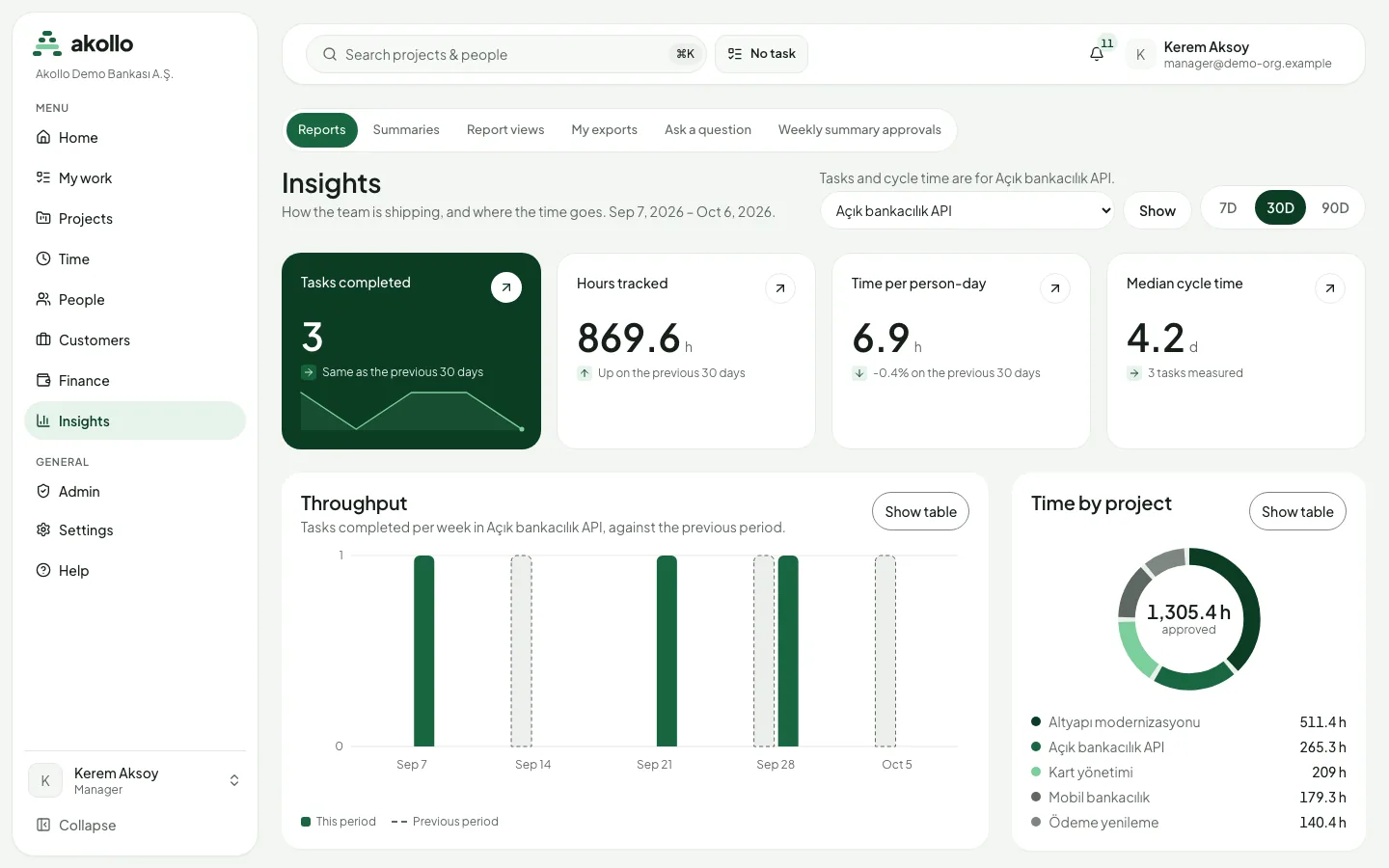
Insights in the sidebar shows how the team is shipping and where the time goes, for the last 7, 30 or 90 days. Its tabs include Reports, Summaries, Report views, My exports, Ask a question and Weekly summary approvals.
- Cards show tasks completed, hours tracked, time per person-day and median cycle time, each compared with the previous period. Tasks and cycle time refer to the project you choose.
- Throughput shows tasks completed per week against the previous period.
- Time by project breaks down approved hours by project.
- Show table shows the figures of a chart as a table.
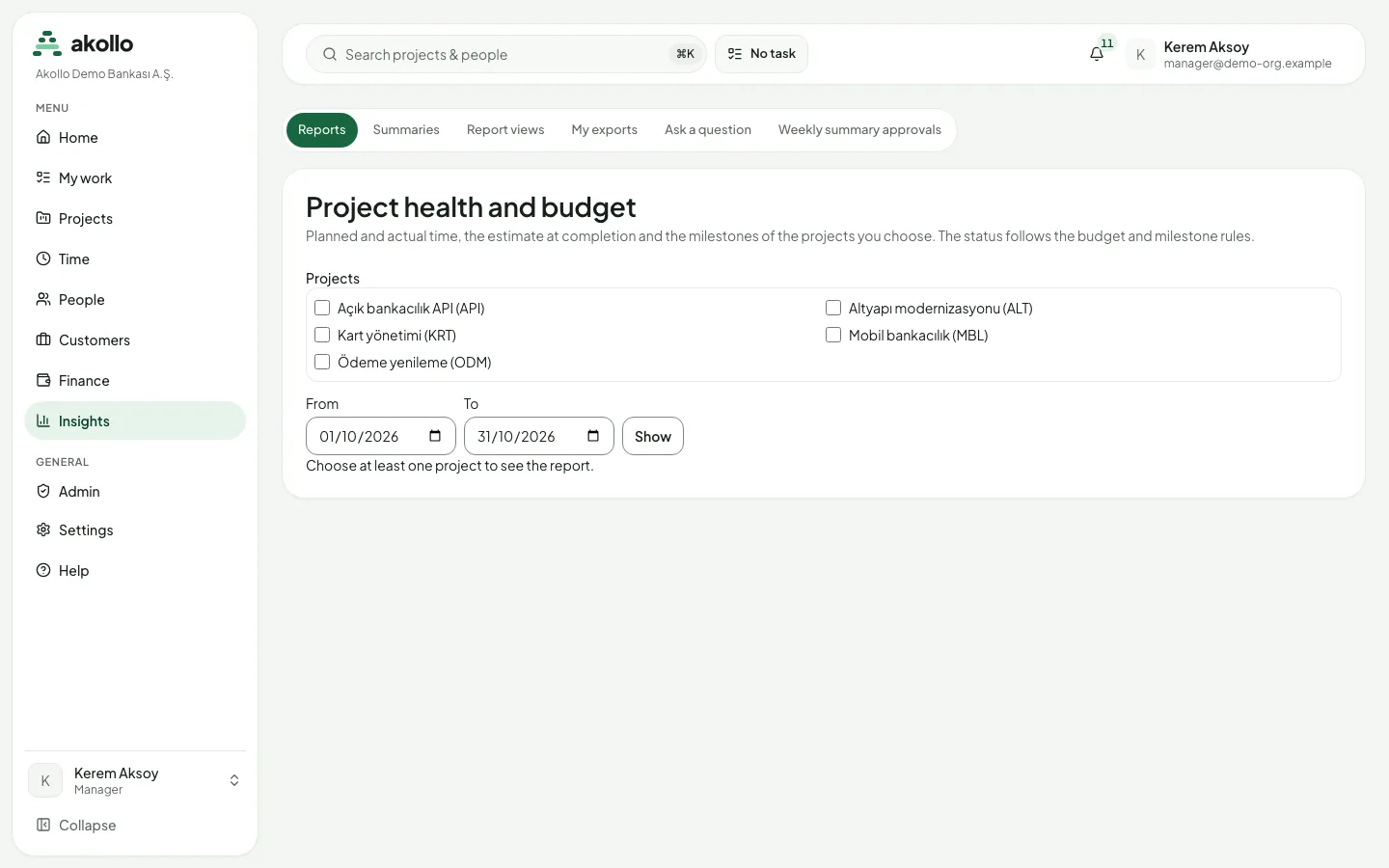
The Reports tab also holds focused reports. Project health and budget shows planned and actual time, the estimate at completion and the milestones of the projects you choose; the status follows the budget and milestone rules. Choose at least one project and a period, then select Show. For Team capacity, see Team workload and capacity.
For detailed time figures and files, use Time reports and Exports.
FAQ
Reports respect your scope. You see only the people you are allowed to see.
Yes. Approved corrections are applied on top, and the report shows the figures after corrections next to the figures before them.
No. Overlapping time is shown, but never counted twice.
CSV and Excel (XLSX). You need the export permission.
Until its expiry date, shown in the Exports list. After that the export is marked expired.