

Governance and privacy
Governance and privacy covers the rules around your organisation's data: what employees are told before anything is recorded, what each person can see about themselves, who opened which evidence, who still needs which access, how long each kind of data is kept and what may leave the organisation. Employees find their side on My data. Administrators work under Admin (audit records, access reviews, usage, data out) and Settings → Workforce & recording (retention and deletion).
Planned
Who uses it
| Role | What they do here |
|---|---|
| Employee | Reads and acknowledges the recording notice, checks My data, sees who opened their evidence |
| Manager | Decides on access review items for their people; sees employees only inside their granted scope |
| Administrator or owner | Publishes the recording notice and retention rules, runs access reviews, reads audit records, follows usage and controls data out |
| Security officer, data protection officer, auditor | Read audit records and access review results; use the planned Governance area |
Main screens
| Screen | What it shows |
|---|---|
| Recording notice | The organisation's notice in Turkish and English, shown in the app and in the desktop app's own dialog until you acknowledge it |
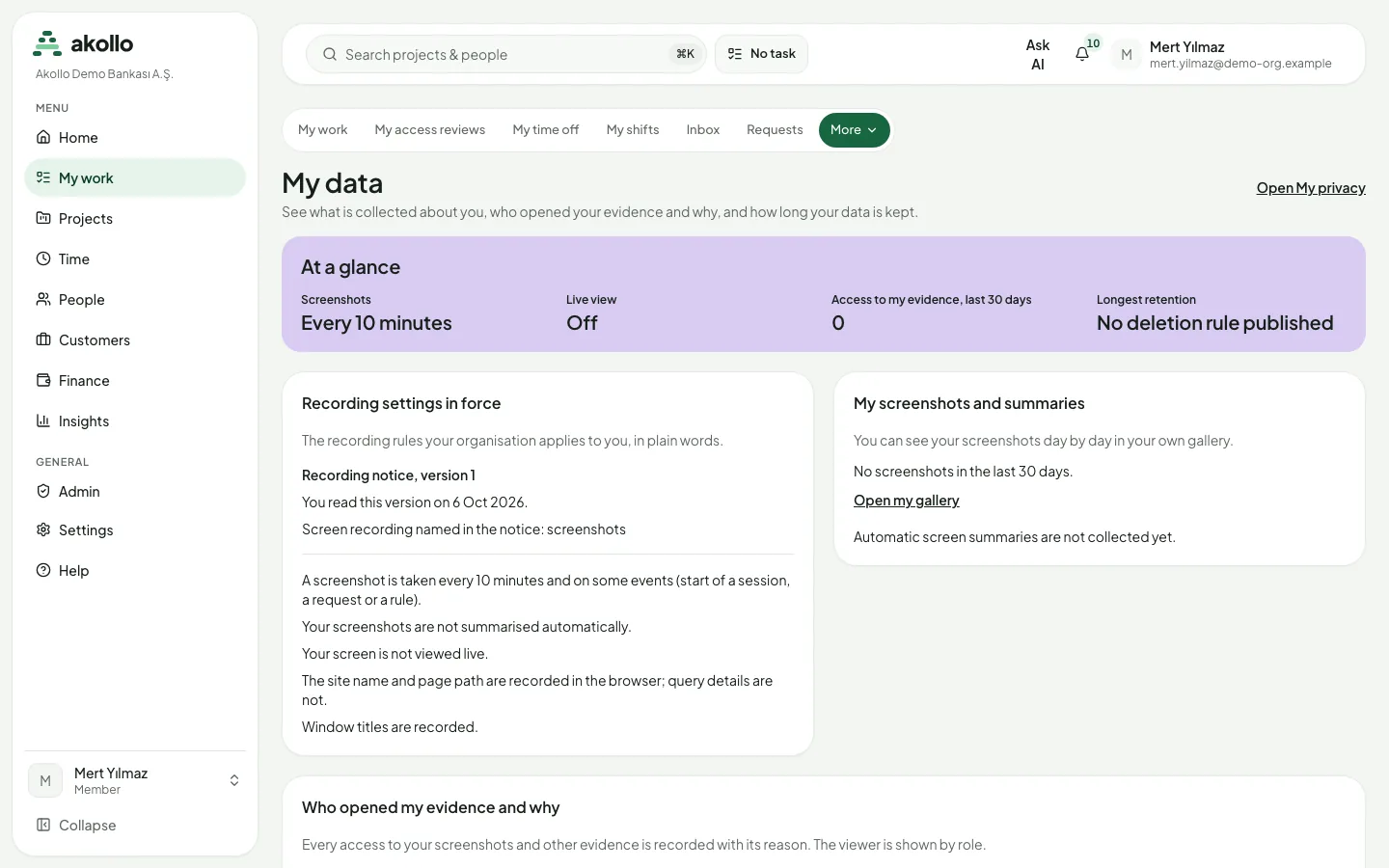
| My data | The recording settings in force, your own screenshots, who opened your evidence and why, and how long your data is kept |
| Admin → Audit records | Changes to privileges and configuration, and other recorded actions |
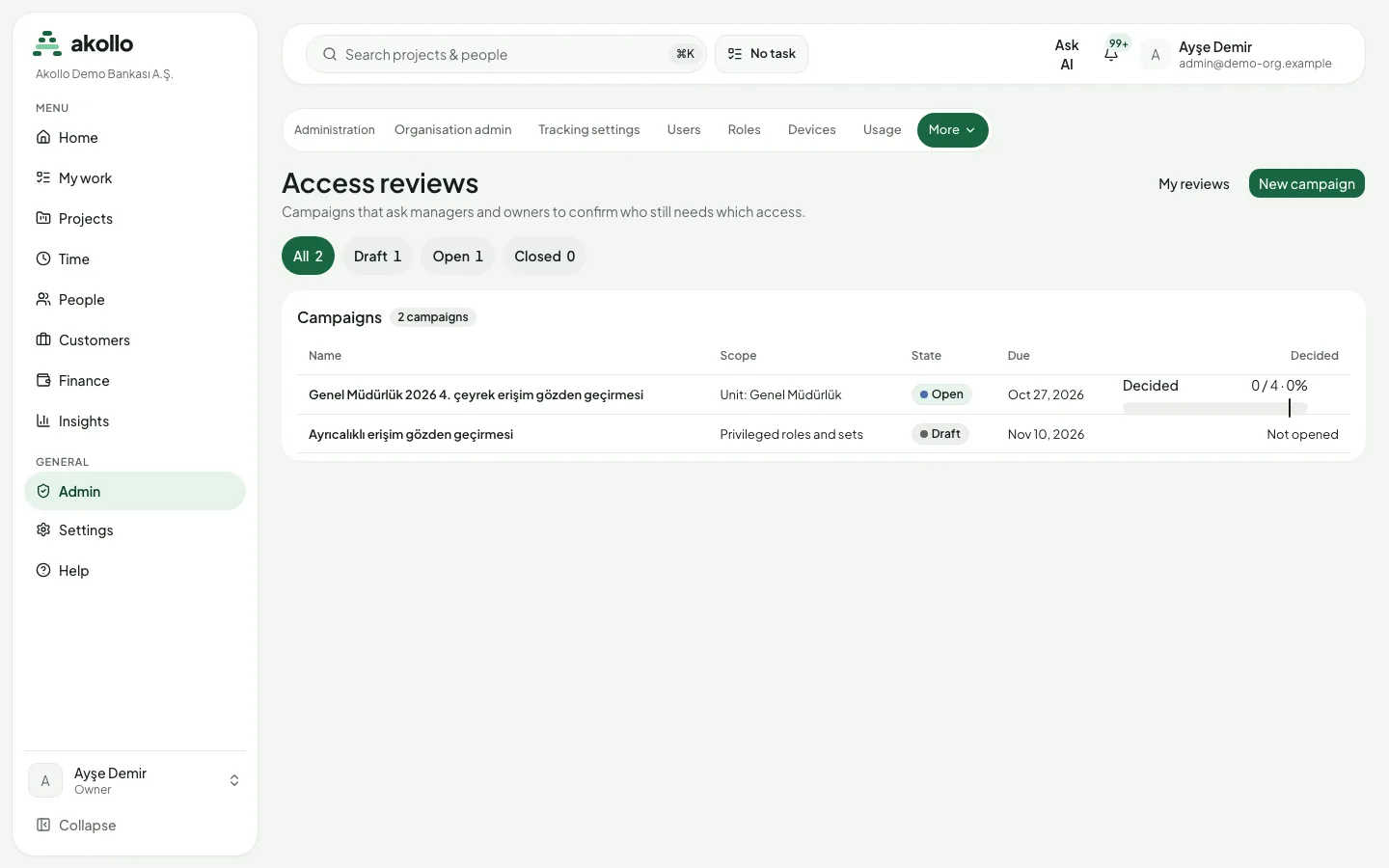
| Access reviews and My reviews | Review campaigns with their scope, state, due date and progress; the items assigned to you |
| Settings → Workforce & recording → Retention and deletion | One rule per kind of data, checked against the recording notice |
| Integrations → Data out | Export targets such as Azure Blob, Power BI and Analytics SQL |
| Admin → Usage | Usage per meter per day, including exported rows, with monthly budgets and Download CSV |
What is recorded, and what is not
Before collection starts, an administrator publishes a recording notice in Turkish and English. The words are the organisation's own. Collection stays blocked until you have read and acknowledged the current version, and a new version asks everyone to acknowledge again. A recording policy cannot be published until a notice exists.
During the hours the policy allows, Akollo can record which application is in front (and the site when you work in a browser), the time the server can credit from the desktop app's measurements, and screenshots at the interval and on the screens the policy sets. It never collects keystrokes, the clipboard, form contents, the microphone or the camera, message text, the contents of a web page, or where you are.
Key tasks
Check what is recorded about you
Open My data
Open My data. The At a glance strip shows the screenshot interval, access to your evidence in the last 30 days and the longest retention.
Read the settings in force
Recording settings in force explains the rules applied to you, including the notice version and when you read it.
See who opened your evidence
The access list shows every opening of your evidence with its reason, the viewer shown by role.
Run an access review
Create the draft
On Access reviews, select New campaign, enter a name and choose what to review: a unit, a role, everyone with administrative rights, contractors or service accounts.
Set the due date and default outcome
Choose the due date and whether access nobody answered for is kept or revoked. Select Create draft.
Open the campaign
Select Open campaign. Akollo records the access in scope and hands each item to a reviewer. Nobody reviews their own access.
Download the results
When the campaign closes, download the results as CSV or Excel. Each file carries a checksum, and every download is recorded in the audit log.
Decide your review items
Open My reviews
On the Access reviews page, select My reviews.
Keep or revoke
Choose Keep or Revoke for each item. Revoking needs a reason of 1 to 500 characters. Keep selected keeps several at once. A removal starts a joiners-and-leavers case that follows the usual approval rules.
Set how long data is kept
Open retention settings
Choose Settings → Workforce & recording → Retention and deletion.
Set the rule
Under Rules per store, enter the Days, the Effective from date and a Reason.
Check and publish
Check how many records are already past the new limit, then select Publish. A nightly retention run removes data that a published rule covers.
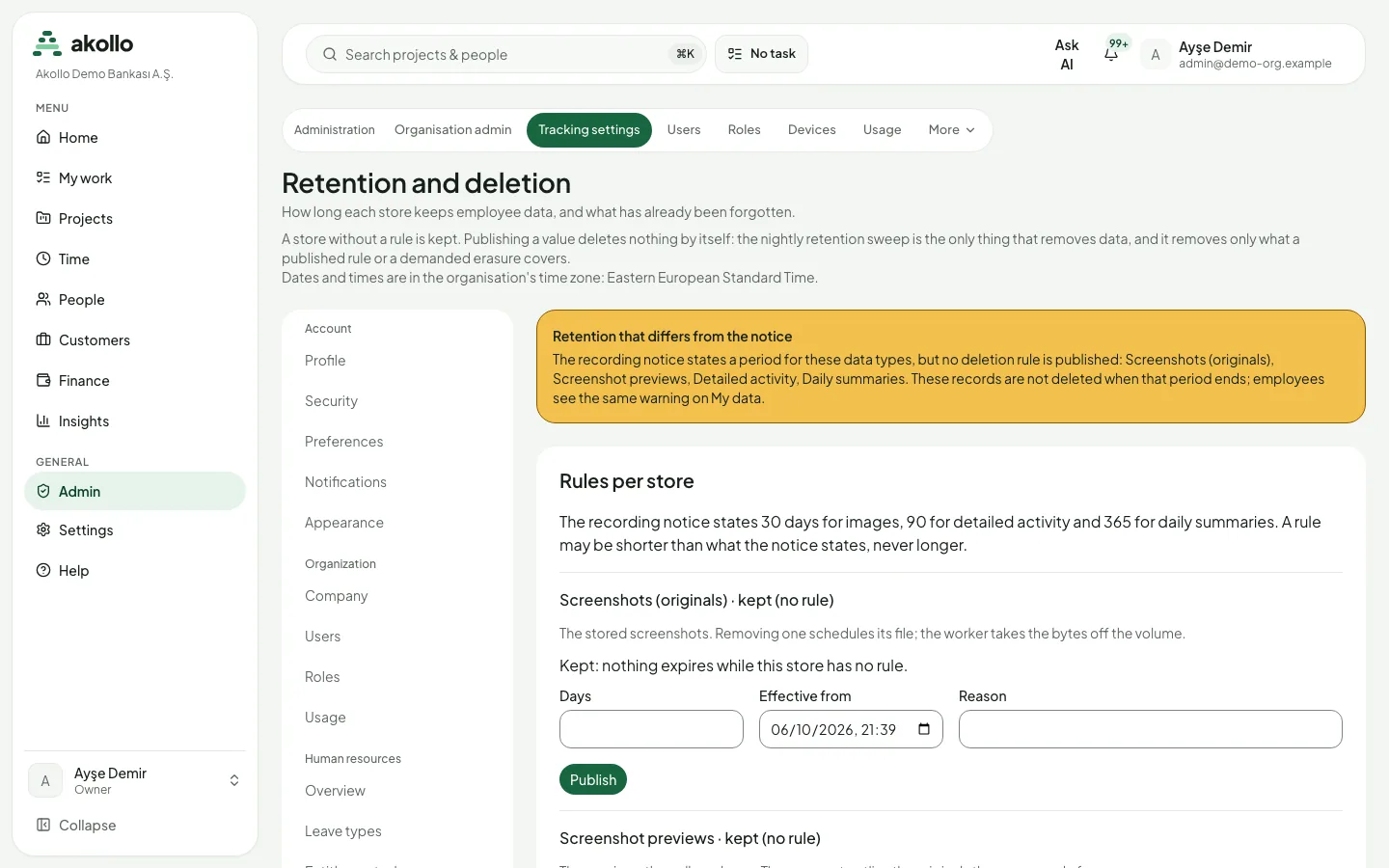
A rule may be shorter than the period in the recording notice, never longer. A kind of data without a rule is kept. Other periods are fixed:
| Data | How long it is kept |
|---|---|
| Work items in a project's trash | 30 days, then purged, unless on legal hold |
| Assistant conversations | 90 days after the last message, or until you delete them |
| AI request log | At least six months, usually about 13 months |
| Report exports | Until the expiry date shown in the exports list |
People who manage the configuration can Place legal hold on a work item with a one-line reason. An item on legal hold is never purged, and the reason goes to the audit log.
Permissions
- Every employee sees their own data on My data and acknowledges the notice. Nobody needs a special permission for that.
- Managers see people only inside the scope they were granted, and decide only the access review items assigned to them.
- Owners and administrators publish notices and retention rules, read Admin → Audit records, run access reviews and control data out. Erasing an employee's or the organisation's data is an administrator action that must be confirmed by typing "erase", cannot be undone and is recorded with a name and reason.
- Support sessions do not inherit anyone's access. They cannot open your day, change tasks or change anything else, and sensitive fields stay hidden.
- Every page, list, export and API response contains only the data of the organisation you are working in.
What the AI can do here
- AI reads only what the person asking may open, and restricted data is never sent outside the installation. See What assistance can see.
- Each AI request is logged with who asked, which feature, when and the outcome, never the question or the answer. See AI and you.
- Turning skill signals on adds their purpose to the recording notice, and everyone is asked to accept the new version. Measured skill data is included when a person asks for a copy of their data and deleted when their data is erased. See Skill signals.
- Changes to AI settings and connections are recorded with who made them and when, and the Emergency stop halts all AI requests at once. See AI access and tokens.
FAQ
The organisation published a new version. Every employee acknowledges again, and collection stays off for you until you do.
Open My data. It shows what is collected about you, who opened your evidence and how long it is kept, and it is where you start when you want to see or correct the data held about you.
No. Publishing deletes nothing by itself. A nightly retention run removes the data that a published rule covers. Check how many records are past the new limit before you publish.
No. Administrators read the audit records under Admin → Audit records. A security audit trail that can be verified as unchanged is part of the planned Governance area.
No. A decision cannot be changed afterwards, and a closed campaign can no longer be changed.
No. A support session does not inherit anyone's access and cannot open an employee's day or change anything.
Only what an administrator turns on: for example API keys for BI tools, webhooks or an Azure Blob export target. Azure Blob export only writes new files and never deletes, changes or reads existing ones. Connectors reach only external hosts on your installation's allowed list.
Related
AI
Start here for AI in Akollo: the assistant, plain-language search, planning help, skill signals, writing help, connections, local models and privacy.
Admin
Where administrators shape the organisation: units and teams, members and invitations, roles, permission sets and which modules each person can use.