

AI assistant
What it is
The AI assistant answers questions about your own records in Akollo and helps you prepare changes. It works only with what you are already allowed to see. It never changes anything on its own: every change it suggests waits until you review and confirm it.
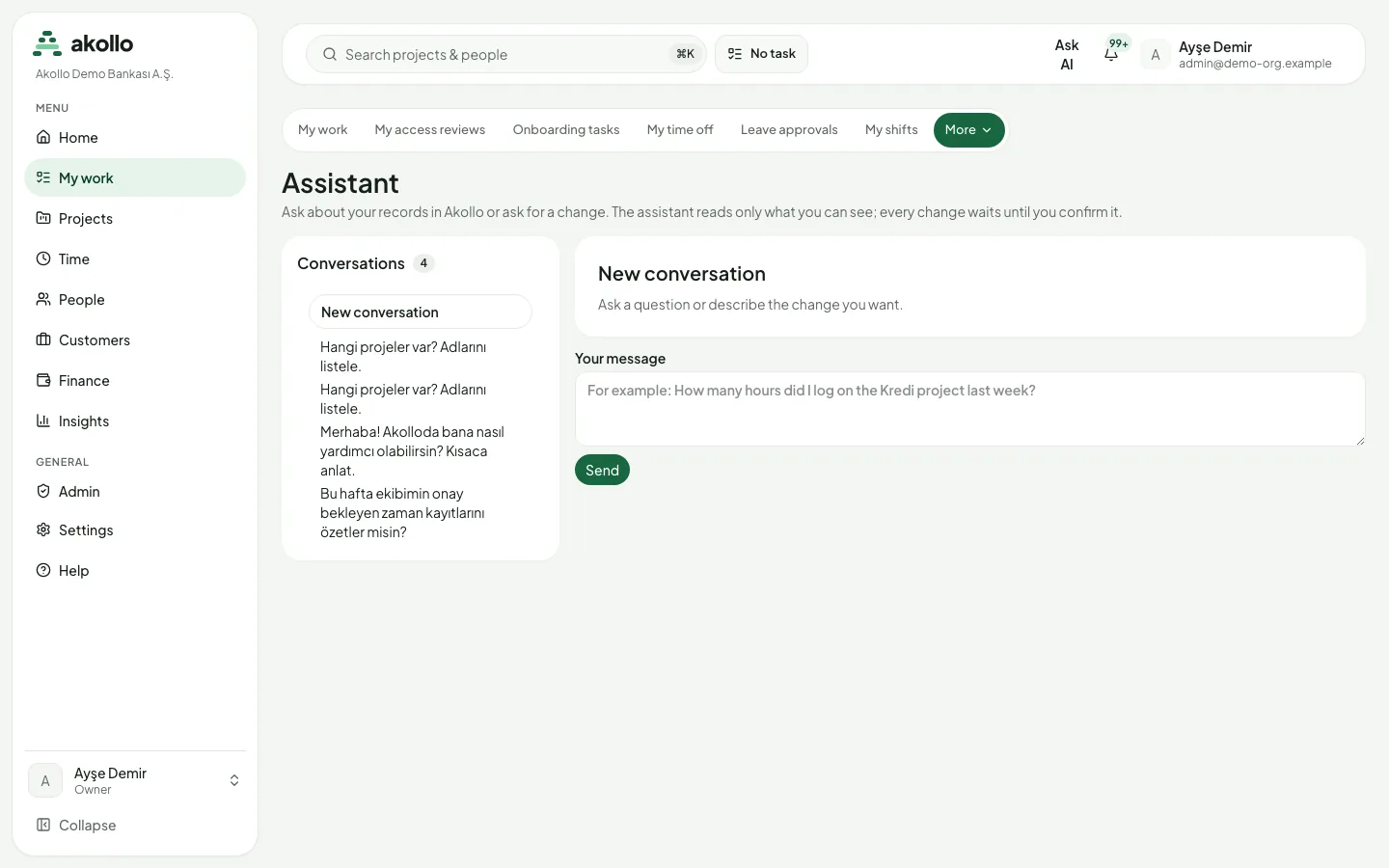
Opening the assistant
- Press ⌘J (Mac) or Ctrl+J (Windows) on any page, or select Ask AI in the top bar. The assistant opens on the right side of the page. On a phone it fills the screen.
- To close it, press the same keys again, press Esc, or select the close button. What you were doing on the page stays as it was.
- Open the full page takes the current conversation to the Assistant page, where your conversations are listed side by side.
Note
If you do not see Ask AI, your organisation has not given you access to the assistant. Ask your administrator. See AI access and tokens.
Asking a question
Open the assistant
Press ⌘J or Ctrl+J, or select Ask AI in the top bar.
Write your question
Type your question in the message box. Use Shift+Enter for a new line.
Send it
Press Enter. The answer appears word by word as it is written. Select Stop if you want to end it early.
Check where the answer comes from
Open the "n steps" line to see which records the assistant read. Under the answer, Sources lists the records the answer is based on. Select one to go to where those records live.
Every answer shows a few details:
- Steps: when the assistant looks something up, a short "n steps" line shows it. Open it to see which records it read.
- Sources: the records an answer is based on are listed under the answer. Select one to go to where those records live.
- AI badge and model: every answer is marked as an AI answer, and the line under it names the model that wrote it.
- AI tokens: the same line shows how many AI tokens the answer used. When your organisation uses its own model connection or a local model, no AI tokens are used and the line says so.
- Stop: stops an answer that is still being written.
When the assistant suggests a change, it shows Review and confirm. Nothing is changed until you open it and confirm.
Changes always wait for you
The assistant never changes anything on its own. When you ask for a change (for example, a time entry for tomorrow morning), it prepares it and shows a confirmation card. Nothing happens until you confirm it. One answer prepares at most one change.
Confirming a change
Ask for the change
Describe what you want, for example "add a time entry for tomorrow morning" or "start the timer on this task".
Open the proposal
Select Review and confirm under the answer. The card shows what would change, before and after.
Decide
Select Confirm to apply the change, or Reject to leave everything as it is.
Conversations
- Conversations lists your earlier conversations, newest first. Select one to continue it.
- New conversation starts again with an empty view.
- Conversations are yours alone. You can delete one on the Assistant page.
Ask about this page
On a project, a work item, your team or a report, the assistant knows which page you are on. An empty conversation shows About this page and three or four suggestions for that kind of page, such as "What is at risk in this project?". Select one to ask it. Elsewhere you see general suggestions.
Commands
Type / in the message box to see the commands:
| Command | What it does |
|---|---|
| /plan | Drafts a project plan |
| /staff | Suggests who should do the work |
| /summary | Summarises |
| /free | Shows who is free |
| /explain | Explains |
Write what the command is about after it, for example "/summary this sprint". On its own, a command is about the page you are on (or this week, for /free).
Mentioning people and projects
Type @ to pick a person from your organisation, or # to pick a project you can open. The assistant then knows exactly whom or what you mean.
Saved prompts
When you write a question you ask often, select Save this prompt and give it a name. Your saved prompts are listed when you start a new conversation. Select one to put it in the message box, edit it if you like, and send it. You can keep up to 50 saved prompts, and only you can see them. To get a summary every week, use Schedule weekly, which takes you to the Summaries page.
Answer cards
Some answers come as a card you can act on:
| Card | What it shows | What you can do |
|---|---|---|
| Suggested people | The people who best fit a task, with a match score, the factors behind it (skills, availability, similar work, workload balance, growth, cost) and the reasons | Review and assign opens the assignment page, where a manager confirms the choice or picks someone else with a reason |
| Draft breakdown | A proposed list of work items with types and estimates | Edit and create opens the request, where you can change the draft and create the items after confirming |
| Chart | A figure from a report | Show table lists every value |
| A change waiting for your confirmation | What would change, before and after | Confirm or Reject |
| Your queue | How many approvals, assigned items, overdue items and other queues are waiting | Each count links to its list |
| Missing time | Days where some work seems unlogged, with the work item and the time | Open the day takes you to that day to add the entry yourself |
| Who is free | Free hours per person for a date range, or that they are on leave | Read only |
| Choose one | Options when the assistant needs a detail | Select one of the options to answer |
Each number on a card names the source it was read from. People and records you are not allowed to see are never named. If a card cannot be shown, a short note says so and the rest of the answer stays.
Writing help
In a work item's description and comment boxes, and in a ticket's reply box, select ✦ Writing help:
- Write from my notes turns short notes into a description, comment or reply.
- Expand, Shorten and Fix grammar work on what you wrote.
- Change tone rewrites it as formal, friendly, neutral or direct.
The suggestion appears under the box with Insert, Replace my text and Discard. Nothing changes until you choose, and nothing is saved until you save as usual. Writing help uses the language of the page. It never adds numbers, names or dates that are not in your text. If you ask for it many times in a row, writing help pauses for a few minutes.
Thread summaries
On a ticket, ✦ Summarise thread gives a short summary of the request and its replies. On a work item, the AI suggestions can summarise the comments, and an account has its own summary. Summaries are read only and are not stored.
How an answer arrives
- The answer appears word by word while it is being written, so you can start reading straight away.
- While it works, you see which records it is looking at, for example "List time entries".
- Under the answer, "Sources" shows where each figure came from. The assistant never shows a figure it cannot point to a source for. Instead, the answer is withdrawn and you see a short note.
- If you ask from a work item or a project page, the assistant knows which page you are on. You can say "this item" instead of typing its key.
Your own work
Ask about your own day and the assistant reads it for you:
- "What should I do today?" lists your open tasks, overdue and due-today ones first, then by priority. It also shows how much of today's working time is still free.
- "Did I miss time anywhere?" finds the recent days where you logged at least 15 minutes less than your working hours (leave days never count). It shows a card with suggestions from your open tasks. The card only suggests: adding the time is a time entry you confirm.
- "Write my status update" gathers what you finished this week, what is in progress and what is due next week, and writes a short draft. The draft is not sent anywhere. Copy it where you need it.
- "Start the timer on this task" or "stop my timer" prepares the change for you to confirm.
Limits
| Limit | Value |
|---|---|
| Message length | Up to 2,000 characters |
| Messages per hour | Up to 30 |
| Saved prompts | Up to 50 |
| Changes per answer | At most one |
- An answer has a time and step limit. If a question needs more work than that, the assistant tells you and asks you to narrow it down.
- If you close the page or lose your connection, the answer stops. The conversation keeps everything up to that point.
- In a long conversation, the assistant keeps a short running summary of the earlier messages, so it still knows what was asked and found before. The summary is kept with the conversation and deleted with it.
Support sessions
During a support session, the assistant shows conversations but does not accept new messages.
Privacy
The assistant reads only records you can open yourself, with your own permissions. Answers are AI-generated. Numbers in an answer come from the sources listed under it.
- Personal data such as e-mail addresses, phone numbers, IBANs, card numbers and national ID numbers is masked before the model sees it, and in what the model writes.
- The assistant does not judge, score or rank people. It does not guess anyone's health, personality or intent.
- In a support session, the conversations can be read, but no message can be sent.
- Your organisation decides which models answer and where they run. Sensitive records are answered only by models running inside the organisation.
A brief can still become a draft breakdown, and a weekly summary still waits for a manager. Those are separate from the assistant page.
FAQ
No. Every change waits on a confirmation card until you select Confirm. If you select Reject, nothing changes. One answer prepares at most one change.
No. It reads only records you can open with your own permissions. People and records you are not allowed to see are never named.
Your organisation has not given you access to the assistant. Ask your administrator.
Answers from managed models use AI tokens, and the line under the answer shows how many. When your organisation uses its own model connection or a local model, no AI tokens are used and the line says so.
Conversations are yours alone. During a support session they can be read, but no message can be sent. You can delete a conversation on the Assistant page.
Related pages
Skills and assistance
An overview of AI in Akollo: what each AI feature does, where you find it, where the models run, and how restricted data is protected.
Searching work in plain language
Describe the work you are looking for in your own words. Akollo turns it into ordinary search filters and runs the search with your permissions.