

BI datasets
Reporting publishes datasets: tables of agreed figures, such as approved hours per person and day. A business intelligence tool (Power BI, Tableau, Looker Studio or a script of your own) reads them over the public API with an API key. The figures are the same as the ones in Akollo's reports. The tool reads; it never changes anything in Akollo.
1. Create a key
Open API keys
Go to Integrations → API keys.
Name the key
Give the key a name that says which tool uses it, for example "Power BI – finance workspace".
Pick the service account
Pick the Service account the tool acts as. The service account must be allowed to read report datasets.
Set the scope
Under Scopes, set reports.dataset (BI datasets, read only) to Read. Leave every other scope at None unless the same tool also needs those records.
Set expiry and addresses
Set an expiry date. If the tool always calls from the same addresses, list them.
Copy the key
Copy the key when it is shown. It is shown once.
A key with only this scope cannot read projects, tasks or people, and cannot change anything.
2. List the datasets
curl https://<akollo-host>/api/public/v1/datasets \
  -H "Authorization: Bearer <api key>" \
  -H "Akollo-Version: 2026-09-24"
The answer lists each dataset the key can read, with its version:
{ "data": [ { "key": "hours.daily", "version": 2 } ] }The version goes up when a dataset's columns change. An empty list means your organisation has not yet given this key's service account any datasets: ask your reporting administrator to grant them.
3. Read the rows page by page
curl "https://<akollo-host>/api/public/v1/datasets/hours.daily/rows" \
  -H "Authorization: Bearer <api key>" \
-H "Akollo-Version: 2026-09-24"{
"data": [ { "person": "…", "date": "2026-09-01", "approved_hours": 7.5 } ],
"has_more": true,
"next_cursor": "eyJ…",
"dataset": { "key": "hours.daily", "version": 2 }
}- Each row is a flat record. A value is text, a number, true/false or empty.
- While
has_moreis true, ask again with?cursor=<next_cursor>. The response also carries aLinkheader withrel="next"that holds the same address. Follow it as it is. - Reporting decides how many rows a page holds. The feed does not accept
limit,$topor$select. - To read only part of a dataset, add
$filter(below). Keep the same$filteron every page: theLinkheader already carries it. - A cursor belongs to one dataset, one version, one
$filterand the key that received it. If the dataset's version changes while you are paging, or you send the cursor with another key (for example after rolling the key), the next call answers400 CURSOR_INVALID: start again from the first page.
Filtering with $filter
$filter narrows the rows reporting already lets the key read; it never widens them. It is a list of comparisons joined with and:
<column> <operator> <value> and <column> <operator> <value> …- Columns are the dataset's own column names (lower case, as they appear in the rows).
- Operators:
eq(equal),ne(not equal),gt,ge,lt,le(greater than, greater or equal, less than, less or equal). Lower case only. - Values: text in single quotes (write a quote inside text as two quotes:
'O''Brien'), whole numbers (600,-15),true,false,null(only witheqorne) and dates asYYYY-MM-DDwithout quotes. - At most 8 comparisons and 1 024 characters.
or,not, parentheses and functions are not supported.
Examples (URL-encode the value when you build the address):
$filter=local_date ge 2026-09-01 and local_date lt 2026-10-01
$filter=team_id eq '018f0000-0000-7000-8000-000000000001'
$filter=local_date ge 2026-09-01 and employee_count gt 5
A filter that names a column the dataset does not have, or compares a column with the wrong kind of value, answers 400 VALIDATION_FAILED.
When a call is refused
| Answer | Meaning | What to do |
|---|---|---|
401 | The key is unknown, expired or revoked | Create or replace the key |
403 SCOPE_MISSING | The key has no BI datasets scope, or the service account lost its read right | Check the key's scopes and the service account's role |
404 NOT_FOUND | The dataset does not exist, or this key cannot read it | Check the dataset key against the list |
400 VALIDATION_FAILED | An unsupported query parameter, such as limit, or a $filter outside the rules above | Send only cursor and $filter; check the filter's columns and values |
400 CURSOR_INVALID | The cursor is damaged, was received with another key, or the dataset changed version | Start again from the first page |
429 | Too many calls in a minute | Wait for the time in Retry-After |
502 integrations.bi.feed_drift | Reporting sent data in an unexpected shape; no rows were sent | Try again later; if it repeats, tell your Akollo administrator |
503 integrations.bi.feed_unavailable | Reporting is turned off for your organisation | Try again later |
Power BI Desktop
Use Get data → Blank query, open the Advanced Editor and paste the query below. Put the host, the dataset key and the API key in. For scheduled refresh in the Power BI service, keep the host as the first argument of Web.Contents and the path in RelativePath, as below, and set the data source's credential to Anonymous: the key travels in the header.
let
    Host = "https://<akollo-host>",
    Dataset = "hours.daily",
    ApiKey = "<api key>",
    GetPage = (cursor as nullable text) =>
        Json.Document(
            Web.Contents(
                Host,
                [
                    RelativePath = "api/public/v1/datasets/" & Dataset & "/rows",
                    Query = if cursor = null then [] else [cursor = cursor],
                    Headers = [Authorization = "Bearer " & ApiKey, #"Akollo-Version" = "2026-09-24"]
                ]
            )
        ),
    Pages = List.Generate(
        () => GetPage(null),
        each _ <> null,
        each if _[has_more] then GetPage(_[next_cursor]) else null
    ),
    Rows = List.Combine(List.Transform(Pages, each _[data])),
    Result = Table.FromRecords(Rows, null, MissingField.UseNull)
in
    Result
Store the key as a Power BI parameter rather than in the query text when the report file is shared.
Tableau
Tableau reads the feed in either of two ways.
- Web Data Connector. A small connector page calls the same two addresses: it lists the datasets for the table picker and pages the rows by following
next_cursor. The key is entered in the connector's authentication step, not in the page. - Scheduled extract. A script reads every page into a CSV file (or a Hyper file through Tableau's Hyper API), and Tableau Server or Tableau Cloud refreshes the extract from that file on a schedule. For example:
import csv, os, requests

host = "https://<akollo-host>"
headers = {"Authorization": f"Bearer {os.environ['AKOLLO_API_KEY']}", "Akollo-Version": "2026-09-24"}
url = f"{host}/api/public/v1/datasets/hours.daily/rows"
rows, cursor = [], None

while True:
    page = requests.get(url, headers=headers, params={"cursor": cursor} if cursor else None, timeout=60)
    page.raise_for_status()
    body = page.json()
    rows.extend(body["data"])
    if not body["has_more"]:
        break
    cursor = body["next_cursor"]

with open("hours_daily.csv", "w", newline="", encoding="utf-8") as file:
    columns = sorted({name for row in rows for name in row})
    writer = csv.DictWriter(file, fieldnames=columns)
    writer.writeheader()
    writer.writerows(rows)
Keep the key in the environment or a secrets store, never in the script file.
Looker Studio
Looker Studio reads the feed in either of two ways.
- Community connector. An Apps Script connector calls the same addresses, asks for the key in its authentication step (key type) and pages the rows by following
next_cursor. - Google Sheets on a schedule. An Apps Script in a sheet reads the rows on a time-driven trigger and writes them to a tab; Looker Studio uses that sheet as its source. For example:
function pullAkollo() {
  const key = PropertiesService.getScriptProperties().getProperty('AKOLLO_API_KEY');
  const base = 'https://<akollo-host>/api/public/v1/datasets/hours.daily/rows';
  const headers = { Authorization: 'Bearer ' + key, 'Akollo-Version': '2026-09-24' };
  let rows = [];
  let cursor = null;

  do {
    const url = cursor ? base + '?cursor=' + encodeURIComponent(cursor) : base;
    const body = JSON.parse(UrlFetchApp.fetch(url, { headers: headers }).getContentText());
    rows = rows.concat(body.data);
    cursor = body.has_more ? body.next_cursor : null;
  } while (cursor);

  const columns = [...new Set(rows.flatMap((row) => Object.keys(row)))];
  const sheet = SpreadsheetApp.getActive().getSheetByName('hours.daily');
  sheet.clearContents();
  sheet.getRange(1, 1, 1, columns.length).setValues([columns]);
  if (rows.length > 0) {
    sheet
      .getRange(2, 1, rows.length, columns.length)
      .setValues(rows.map((row) => columns.map((name) => row[name] ?? '')));
  }
}
Keep the key in the script properties, and share the sheet only with the people who may see the figures.
Other ways to get data out
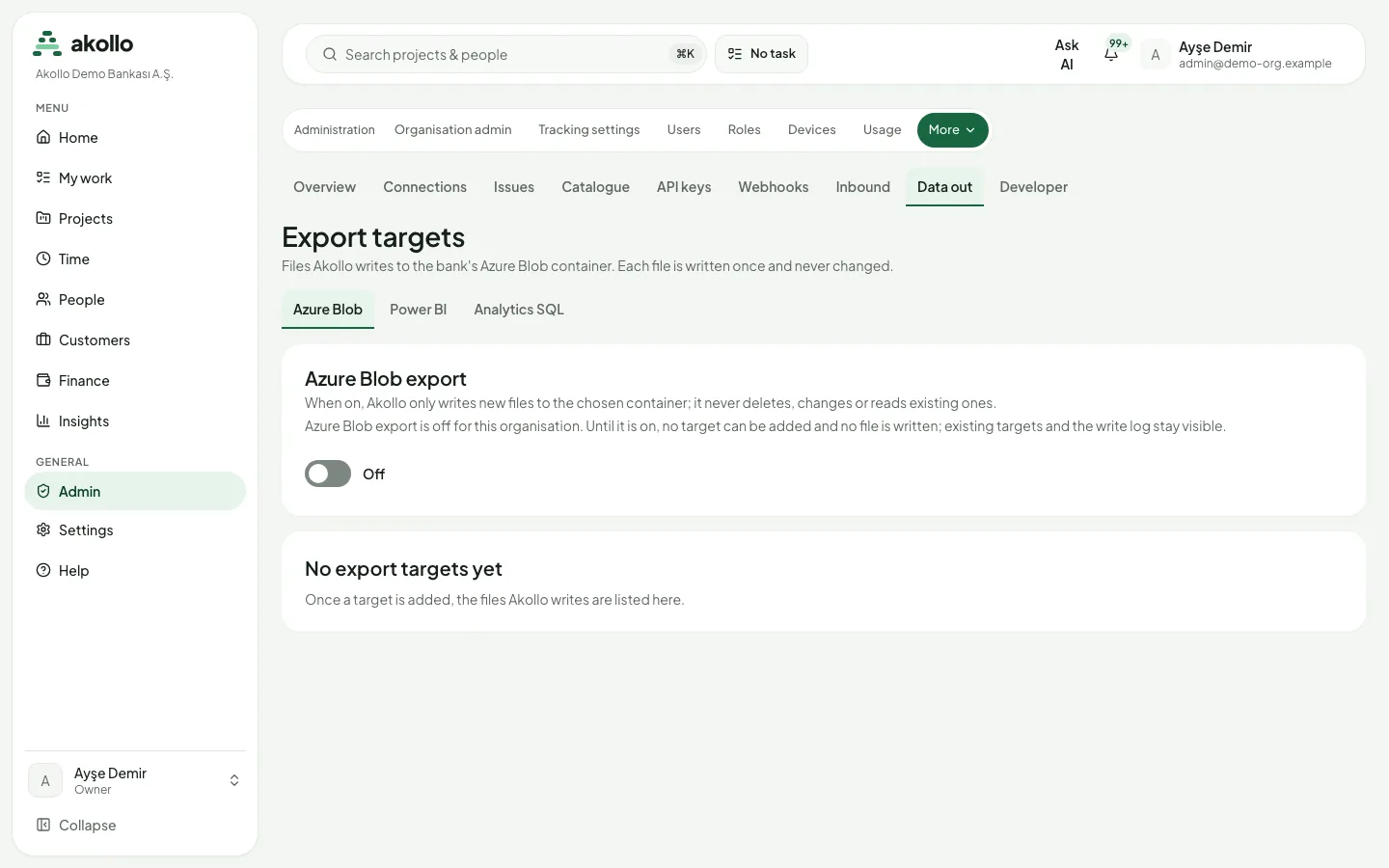
Besides the datasets feed, Integrations → Data out lists export targets: Azure Blob, Power BI and Analytics SQL. With Azure Blob export on, Akollo writes each file once to the chosen container and never changes it; it never deletes, changes or reads existing files. To read datasets straight from the database, see Connecting a BI tool over SQL.
Good practice
- One key per tool and per workspace, so a key can be replaced without stopping the others.
- Refresh as often as the figures change, not every few minutes; each call counts against the key's per-minute limit and is recorded as API use.
- Replace a key before it expires: Integrations → API keys → Roll keeps the previous key working for a short grace period while you update the tool.
Warning
Never put an API key in a shared report file, a script file or a sheet. Use a parameter, the environment, a secrets store or the script properties instead.
FAQ
Your organisation has not yet given this key's service account any datasets. Ask your reporting administrator to grant them.
No. Reporting decides the page size. The feed does not accept limit, $top or $select.
The dataset's version changed while you were paging, the cursor was sent with another key (for example after rolling the key), or the cursor is damaged. Start again from the first page.
No. The tool only reads. A key with only the BI datasets scope cannot read projects, tasks or people and cannot change anything.
Yes. Datasets carry the same figures as Akollo's reports.
Related pages
Webhooks
Webhooks move events between Akollo and other systems as they happen: inbound webhooks notify Akollo, outbound webhooks notify another system.
Connecting a BI tool over SQL
Let Power BI, Tableau or Excel read approved reporting datasets straight from the database, with its own read-only login.