

Customers
The Customers module is Akollo's CRM. It keeps customer accounts, their contacts, sales opportunities and follow-up activities in one place, next to the projects you deliver for those customers, so an account team can follow a relationship in context. Open it from the Customers section of the sidebar: Accounts, Contacts, Pipeline, Forecast, Contracts and Activities. You see a link only when you have the permission that page needs.
Who uses it
| Role | What they do here |
|---|---|
| Account owner or salesperson | Keeps accounts and contacts up to date, logs calls, meetings and notes, creates opportunities and moves them through the pipeline. |
| Account team member | Works on the accounts their team may see, including restricted accounts they have been given access to. |
| Sales manager | Follows the pipeline totals, assigns activities to colleagues and reviews matched records. |
| Project manager | Sees which customer a project is delivered for, from the account's Projects tab. |
| Administrator or compliance | Decides who may read restricted accounts, who may see tax numbers, and reviews an account's access list. |
Main screens
| Screen | What it shows |
|---|---|
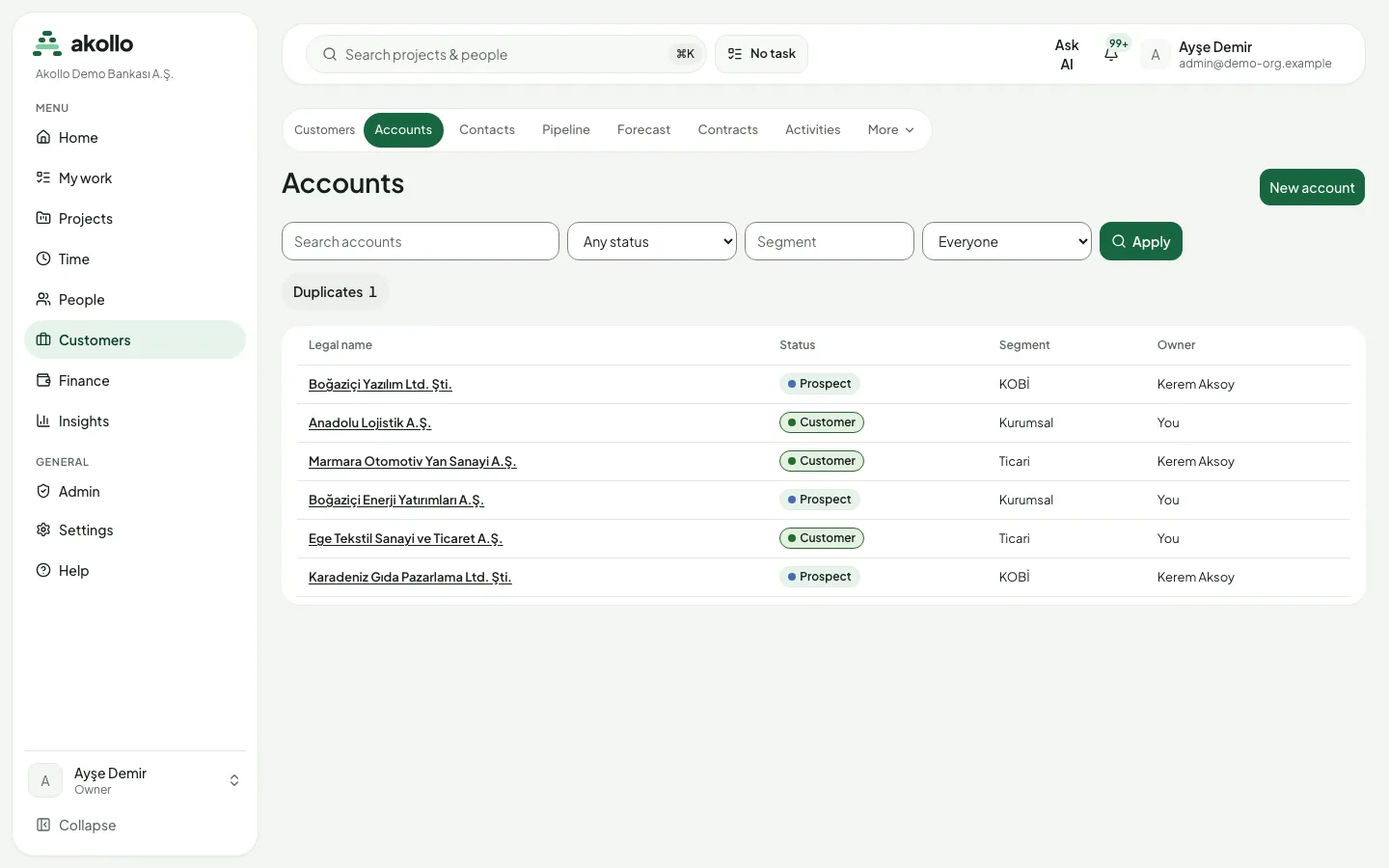
| Accounts | Every account you may read, searchable by name and filterable by status (Prospect, Customer, Former), segment and owner. Duplicates in the header opens matches waiting for your decision. |
| Account page | Tabs Overview, Contacts, Projects, Activities and, for people who may review it, Access. A side panel shows status, revision, domains and addresses. |
| Contacts | Contacts filterable by name and title. A contact page holds name, title, email and phone, and the contact's activities. |
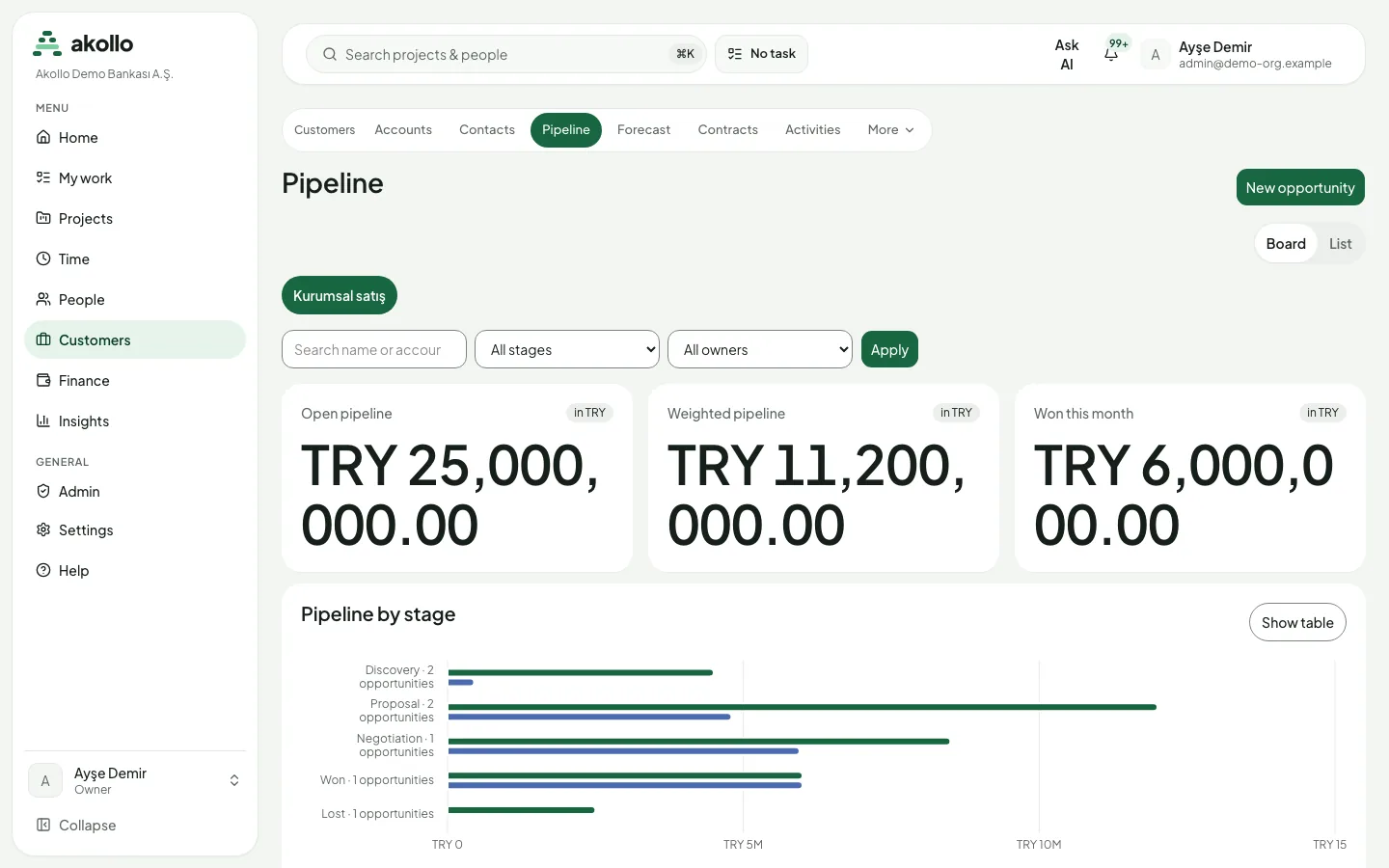
| Pipeline | The opportunities of one pipeline as a Board or a List, with Open pipeline, Weighted pipeline and Won this month cards and a Pipeline by stage chart. |
| Activities | Your calls, meetings, emails, notes and tasks in the tabs Open, Overdue, Completed and All. |
Key tasks
Add an account and its contacts
Create the account
On Accounts, choose New account and fill in the legal name, status and segment. You need the create permission to see the button.
Add the contacts
Open Contacts and create the people you work with: given name, family name, title, email and phone.
Link them to the account
On the account's Contacts tab, link each contact with a role and mark one as primary.
Create an opportunity and move it through the pipeline
Open the form
On Pipeline, choose New opportunity.
Fill it in
Enter the Opportunity name, choose the Account, Pipeline and Initial stage, then the Amount, Currency, Close date and Owner. Use a dot or a comma as the decimal separator and no thousands separators.
Create it
Choose Create opportunity. The card appears in its stage on the board.
Move it on
As the deal progresses, pick the next stage in Move to stage… on the card and choose Move. Moving into a won or lost stage needs the time it closed, and a lost opportunity also needs a reason.
Log an activity with a reminder
Start from the record
On an account's Activities tab, choose New activity. An activity must be linked to at least one account, contact or opportunity.
Describe it
Pick the kind (call, meeting, email, note or task), write a one-line subject and an optional description, and set the due date.
Set a reminder
Optionally set a reminder time. When it comes, the owner gets a notification, unless the activity is already complete.
Complete it
When it is done, open it from Activities and mark it complete. A completed activity can no longer be edited.
Decide on a matched record
Open Duplicates
On Accounts, choose Duplicates. The count shows how many matches wait for you.
Compare the records
Each row names both records and the shared email or phone, or the project with two customers.
Decide
Choose Choose customer for a project match, Publish for an email or phone match, or Dismiss to leave the waiting record as it is.
Permissions
- Reading accounts: you see the accounts your role allows. A restricted account is visible only to its account team and to people allowed to see restricted accounts. A restricted account you may not read never appears in a list, a search or the API.
- Changing records: creating and updating accounts, contacts and opportunities each need their own permission. Without it the forms stay closed.
- Tax numbers are masked unless you may see them.
- Access to a restricted account is granted by someone who may review the account's access list, always with a reason. Nobody can grant access to themselves.
- Activities: you own the activities you log. People with the manage permission can assign an activity to another active member who can see the linked records. Activity lists show only records you can see; a linked record you cannot see appears as "A record you cannot see".
- Matched records are decided by someone who can see both records and owns one of them.
- Support sessions can open the pages, but every form stays closed.
- API: customer records are also available through the Akollo API with the same permissions as the screens. A contractor's access ends when their access period ends.
Permissions from your roles and from permission sets assigned to you count together. See Organisation and access.
What the AI can do here
The customer screens do not have AI features of their own yet. The AI assistant works only with records you are already allowed to see, and anything it proposes waits until you review and confirm it. It never sends messages to customers on its own. See AI and you for how Akollo uses AI.
FAQ
The account is restricted and you are not on its account team. Restricted accounts you cannot read do not appear in lists or search. Ask someone who reviews the account's access list.
You do not have the permission to see tax numbers. People with that permission see the full number.
Each open amount is weighted by its stage. A won opportunity counts in full and a lost one counts as zero.
No. Move to stage… offers every other stage of the pipeline, so you can skip or go back.
Its email or phone matches another contact. The contact is saved, and the match goes to the account owner, who can publish it or dismiss the match.
After repeated attempts the activity shows Reminder could not be sent. Choose a new reminder time to try again.
Connections to other systems are set up under Integrations, and the catalogue lists CRM connectors such as Salesforce, HubSpot and Pipedrive. When another customer-management system is connected, use the agreed source for each kind of update. See Connected systems.