

People
The People page is the employee directory. You find it in the People section of the sidebar, next to the organisation structure and delegation pages (see Organisation and access). Buttons at the top of the page lead to time off requests and the organisation chart. Further pages, such as your checklist tasks and, for approvers, leave approvals, are in the tabs above the page.
Every member can read their own profile, see their own leave balance and create their own leave requests. Organisation owners and administrators can read and manage profiles, employment data, leave, holiday calendars, leave policy and onboarding checklists. Sensitive personal data and payroll data need a separate permission.
Directory
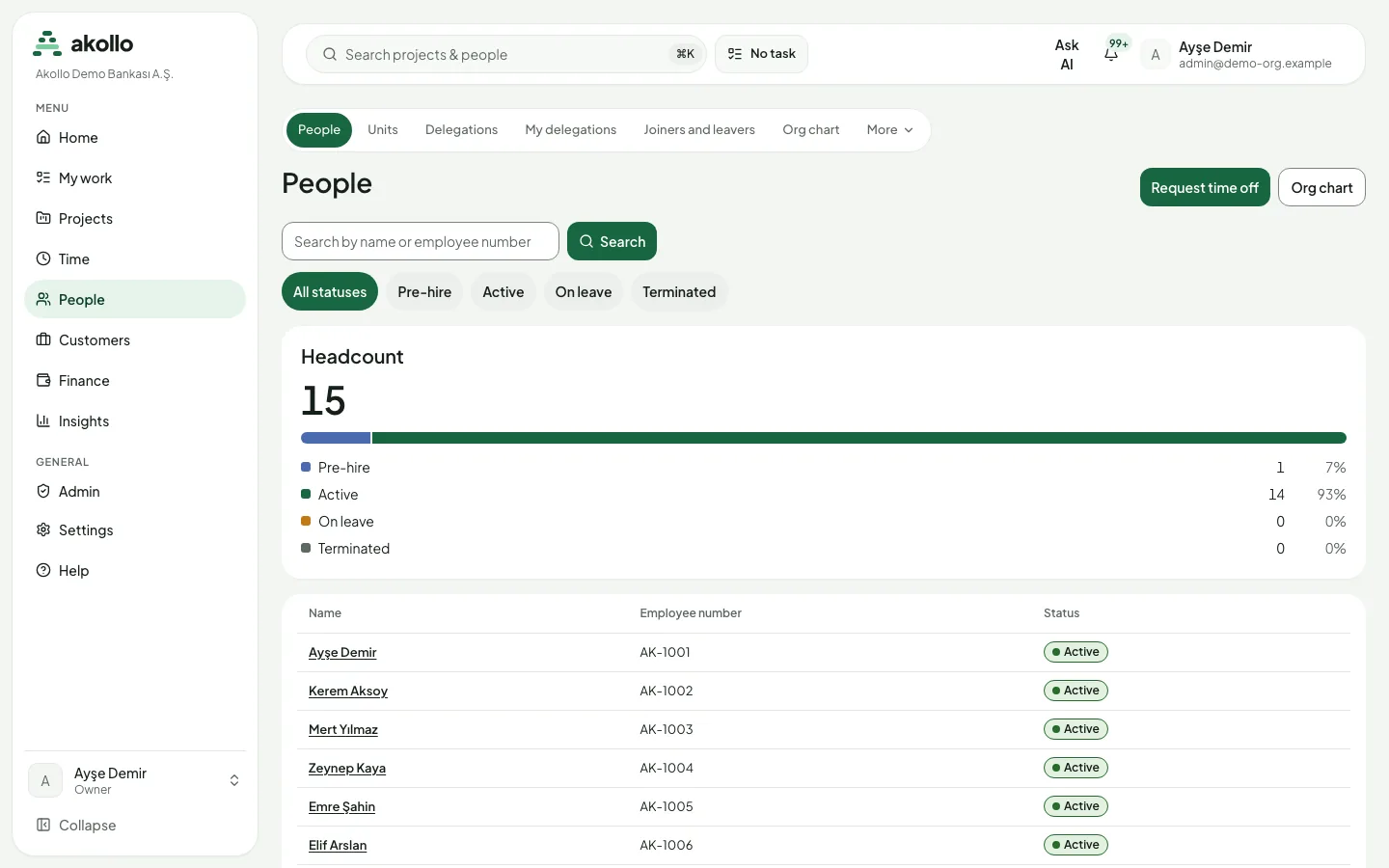
Search by name and filter by status: Pre-hire, Active, On leave or Terminated. A headcount card shows how many people are in each status. The list shows name, employee number and status, 20 people at a time, with Load more for the rest. Pre-hire people are marked. The directory is read-only.
Person page
A person's page has these tabs:
| Tab | What it shows |
|---|---|
| Overview | Employee number, status, work email and work phone. Birth date and national ID number appear only for people with the sensitive-data permission; a field you may not see is left out entirely. The side panel shows whether the record is kept in Akollo or managed by the connected HR system. |
| Job & employment | Hire date, seniority date and termination date. When the record has changed, earlier versions appear with their validity dates. |
| Time off | One card per leave type with the current balance and the projected balance (including entitlements that are already due), and the leave ledger with every grant, adjustment and expiry. |
| Onboarding | The person's onboarding checklists with progress, open required tasks, due dates and Mark done. HR administrators see everyone's checklists; employees see their own. |
| Documents | Each document's kind and retention class. |
| Custom fields | Extra profile fields defined by HR, with the person's values. |
HR administrators can adjust someone else's leave balance with a reason. Small adjustments are posted at once. Larger ones wait for a second administrator, and so do several adjustments by the same person that add up to more than 5 days within a day.
On Custom fields, you set a value directly where this is allowed. A field that requires approval takes a change request instead and shows Pending approval until HR approves or rejects it.
Show in org chart in the page header opens the chart from that person.
Organisation chart
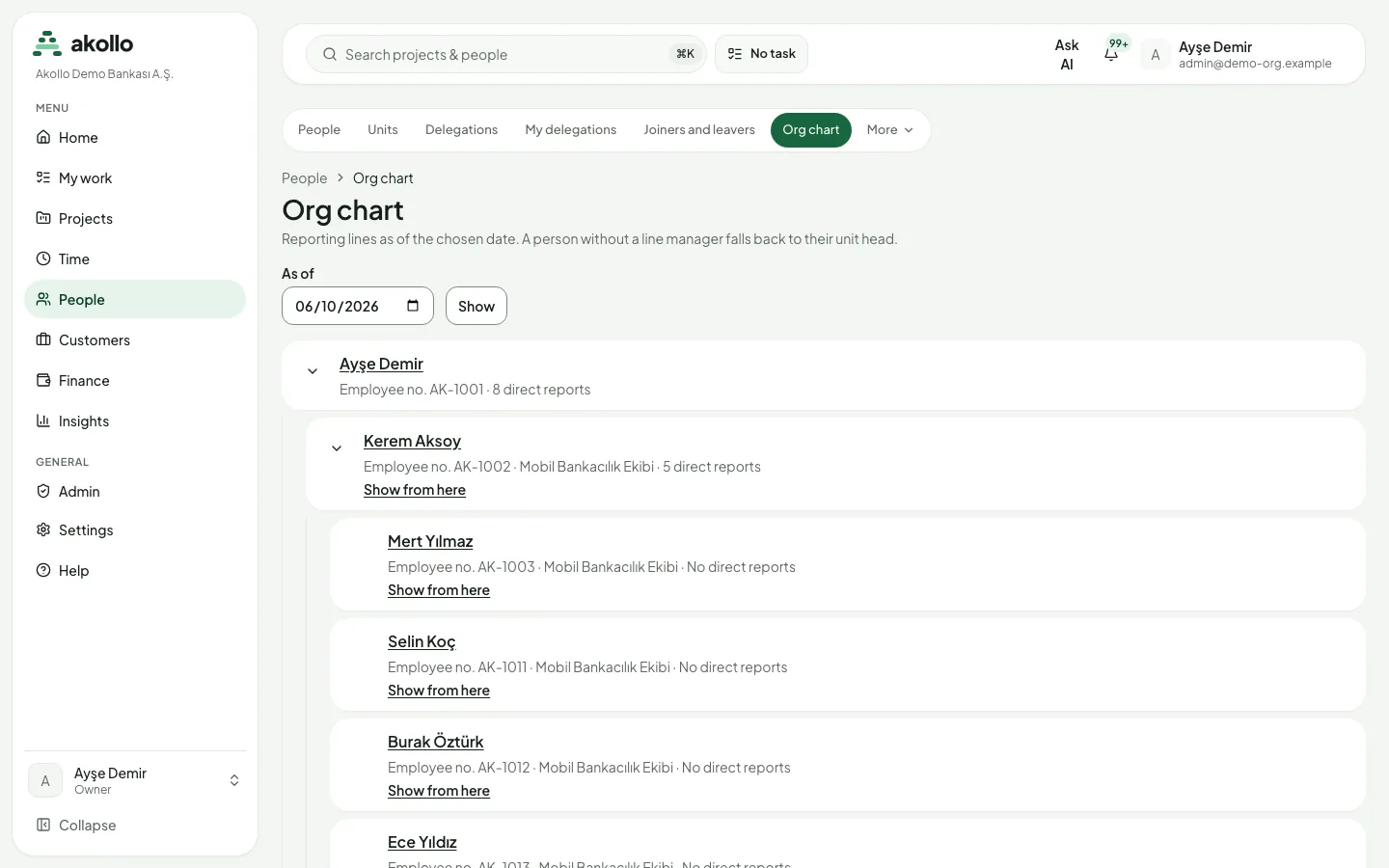
The organisation chart shows the reporting lines as of a date you pick. It starts from you, or from any person via Show from here. Each person shows their unit, employee number and number of direct reports. When someone has no line manager on record, the head of their unit is shown instead.
Managers and unit heads see only the people in their team on the chosen date. A manager outside that team appears as Hidden manager, without a name. HR administrators see the whole organisation. Very deep chains are cut after 20 levels and continue from Show from here.
Leave requests
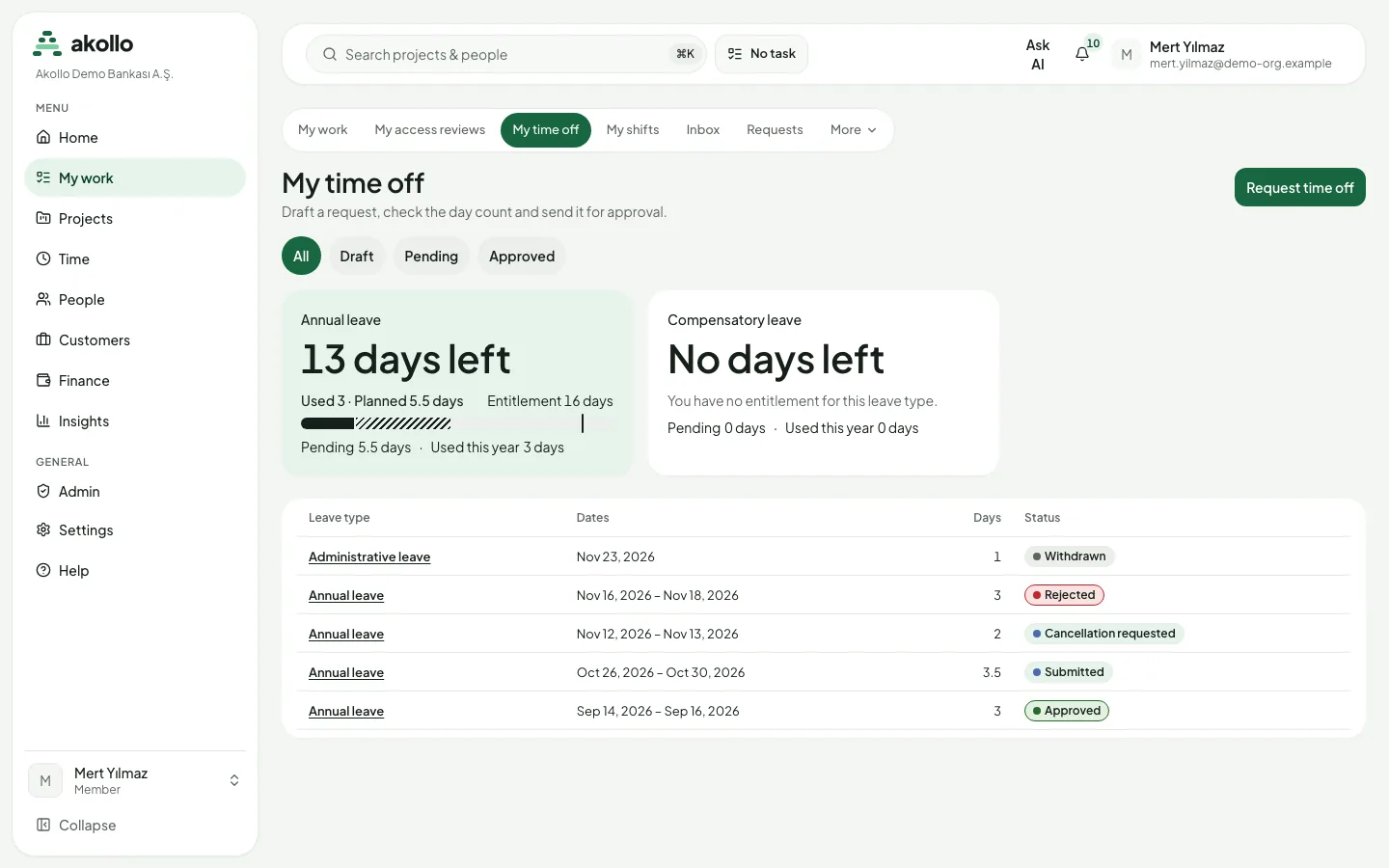
My time off lists your own requests with your balances. Each leave type has a card with the days left, the days used, planned and pending, and your entitlement. You can filter the list by Draft, Pending and Approved.
Akollo counts the days in half-day steps. Weekends and public holidays are left out, and on the eve of a religious holiday only the morning counts. The request page shows which days were counted, which were left out and why, and your projected balance on the start date. The day count is fixed when you submit the request. If the leave falls in a year whose religious holiday dates are not confirmed yet, the request is saved with a warning.
Request time off
Start a new request
Choose Request time off on the People page or on My time off.
Fill in the dates
Pick the Leave type, the Start date and the End date. For the first day you can choose Full day or Half day (afternoon); for the last day, Full day or Half day (morning).
Save the draft
Choose Save draft. Open the draft to check the day calculation and your projected balance. You can still edit or withdraw it.
Submit for approval
Choose Submit. The request now shows Submitted and waits for your approver. Until they decide, you can still Withdraw it. A withdrawn request is closed and cannot be reopened.
A request is refused when it:
- overlaps another of your requests,
- exceeds your balance,
- starts too soon for the leave type's notice period,
- is longer than the leave type allows, or
- uses half days on a leave type that does not allow them.
Leave types that require a document cannot be sent yet; contact HR for these. If the form offers no leave type, your role cannot see the leave catalogue yet; ask your administrator.
Cancel approved leave
Open an approved request and choose Ask to cancel. The cancellation request goes to your approver. Until they decide, the leave stays approved and your days are not returned. If the cancellation is refused, the leave stands.
The request page keeps a Status history: when the draft was created, when it was sent for approval and every decision after that.
| Status | Meaning |
|---|---|
| Draft | Saved, not yet sent. You can edit, submit or withdraw it. |
| Submitted | Waiting for the approver. You can withdraw it. |
| Approved | The days are booked against your balance. You can ask to cancel. |
| Rejected | Nothing was booked. You can read the approver's reason. |
| Withdrawn | You withdrew the request. It cannot be reopened. |
| Cancellation requested | You asked to cancel approved leave; the approver decides. |
| Cancelled | The approver accepted the cancellation. |
Leave approvals
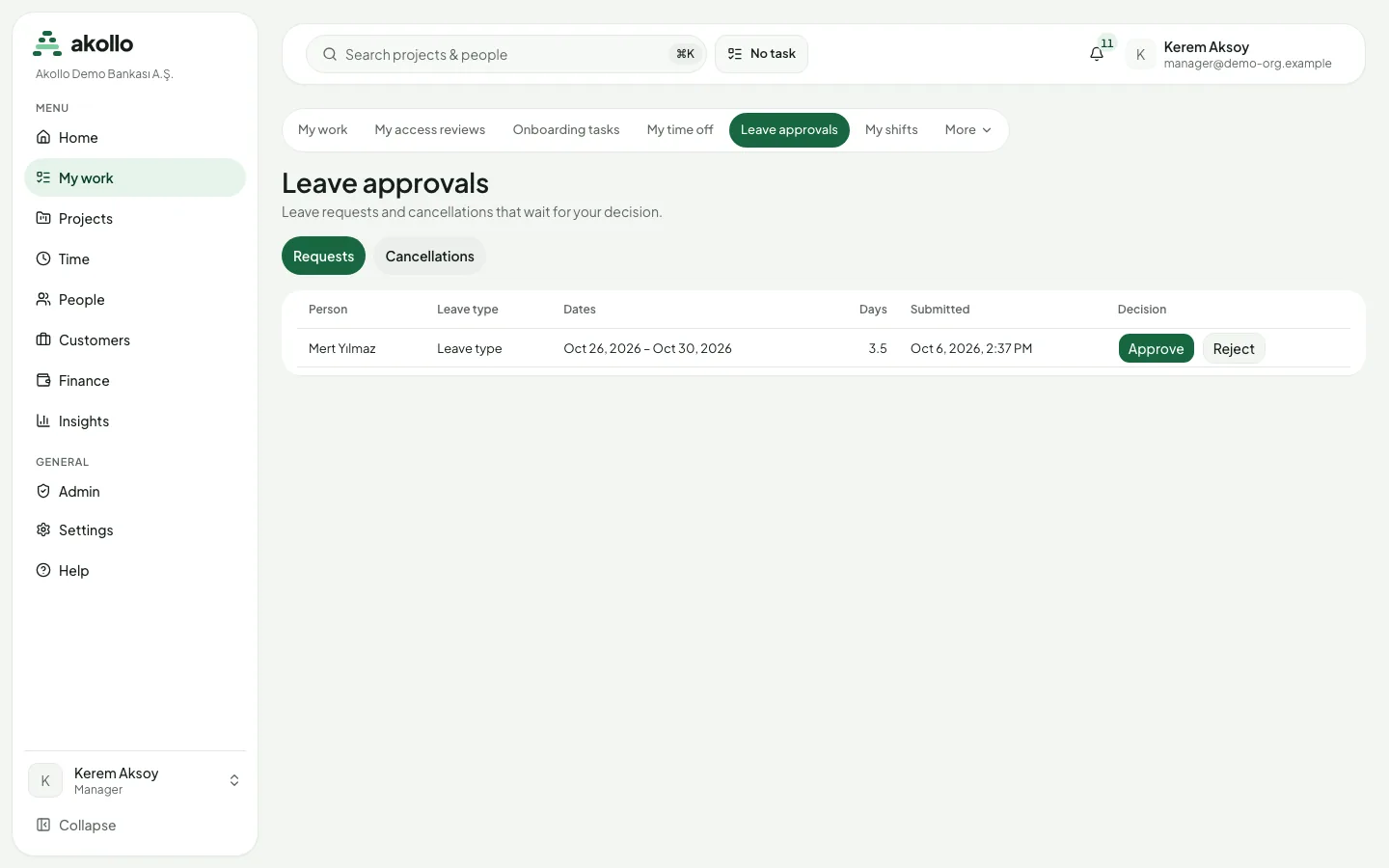
Leave approvals lists the leave requests and cancellations that wait for your decision, in two tabs: Requests and Cancellations. Each row shows the person, leave type, dates, days and when the request was submitted.
Approve or reject a leave request
Open Leave approvals
Open the Leave approvals tab. The Requests tab is selected.
Approve
Choose Approve on the row. You can add an optional comment. The days are booked against the balance and the employee is told.
Or reject
Choose Reject and enter a reason. Nothing is booked, and the employee can read your reason.
On the Cancellations tab, choose Approve cancellation to cancel the approved leave, or Keep leave to let it stand.
Balance adjustments that wait for a second administrator also come to HR administrators for a decision. Each one shows the person, leave type, days, effective date, who asked and the reason. The person who asked for an adjustment, and the person whose balance it is, cannot decide it. Reject needs a reason.
Checklist tasks
Checklist tasks lists your open onboarding tasks across all checklists, ordered by due date, with Mark done. When an employee starts, the onboarding checklists that match them open automatically.
My shifts
My shifts shows your week day by day: expected hours, the shift with its times, working time and break, and days off. Below it, Open shifts lists shifts in your unit that take claims; your eligibility is checked when you claim. My claims shows your open-shift claims for the week.
HR settings
HR administrators manage these sections under Settings → HR:
- Leave types: the leave catalogue with its reasons. An empty catalogue can be filled with the Turkish standard set.
- Profile fields: define custom fields with a Turkish and an English label, and activate or deactivate them.
- Entitlement rules: draft a rule with its seniority ladder, send it for approval and publish it. A second administrator must approve; the person who prepared or sent the rule cannot. Preview shows how the rule would change each person's entitlement. Published rules are assigned to everyone, or to a person, grade, unit or employment type.
- Holiday calendars: add the Turkish national calendar or a local calendar, add full or half days, confirm a year, and open a new revision of a confirmed year. Assign a calendar to a unit, a person or a workplace, see who uses it and remove an assignment.
- Checklist templates: create onboarding templates with their tasks, owners and due days.
Entitlements are granted automatically every day on each person's anniversary, and unused days expire as the rule sets. Next year's holiday calendar is opened as a draft on 1 November.
Support sessions
A support session can open all of these pages but cannot change, approve or complete anything. Restricted values such as health documents and adjustment reasons are hidden.
Not yet available
Departure checklists, compensation, payroll inputs and exports, and the HR system synchronisation have no pages yet.
FAQ
Your role cannot see the leave catalogue yet, or no leave type is active. Ask your administrator.
Akollo counts in half-day steps. Weekends and public holidays are left out, and on the eve of a religious holiday only the morning counts. The request page lists the days that were not counted and why.
No. You can withdraw a submitted request and create a new one. A withdrawn request cannot be reopened.
Until your approver decides, the leave stays approved and your days are not returned. If the cancellation is refused, the leave stands.
Only people with the sensitive-data permission. For everyone else these fields are left out of the page entirely.
Reports and exports
Time reports are built from measured and credited time and respect your scope. Filter and group them, export CSV or Excel files, and use Insights.
Finance
Finance overview, expenses and their approval, reimbursement, budgets, profitability, billing, rates, periods and finance settings.