

Service desk
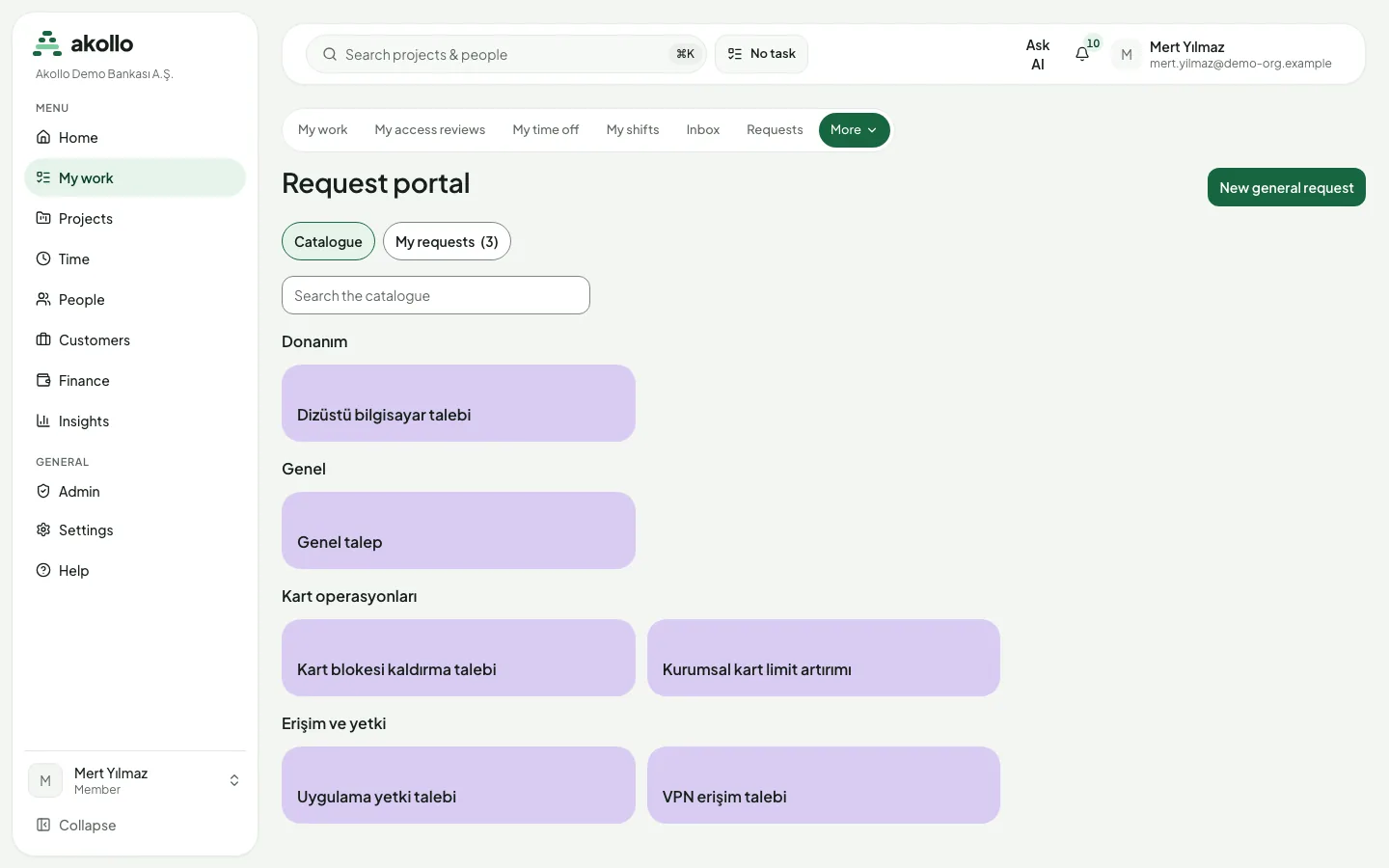
The service desk is where employees ask for help inside your organisation, for example with a timesheet problem, an access request or equipment. It keeps the issue, the person responsible and the resolution together. Employees open it under My work → Portal: the Catalogue lists what can be requested and My requests follows what they have asked for.
Note
This release covers the employee side: the portal, the catalogue, request forms, routing to queues and business calendars. The screens for the teams that handle requests (queues, triage and escalation) are not available yet, and response-time targets are not measured yet.
Who uses it
| Role | What they do here |
|---|---|
| Employee | Browses the catalogue, submits requests, adds comments and files, and rates the help once a request is resolved. |
| Service agent | Receives requests through the queue they belong to. A queue with an assignment rule assigns a new request to an agent straight away. |
| Service desk administrator | Sets up the catalogue, request forms, queues and business calendars. |
| Support session | Can look at the portal but cannot submit, comment or attach anything. |
Main screens
| Screen | What it shows |
|---|---|
| Catalogue | The services you may request, grouped by category, with Search the catalogue. Items offered only to other departments or roles do not appear. |
| Request form | The fields of the chosen item. Required fields are marked. Submit request sends it. |
| My requests | The requests you opened, with subject, reference and status. |
| Request page | The status and description of one request, its comments and attachments, and the rating once it is resolved. |
Key tasks
Ask for help
Open the portal
Choose My work → Portal. The Catalogue tab opens.
Find the service
Browse the categories or type in Search the catalogue, then open the item.
Describe the problem
Fill in the form. Say what is affected (for example the task, report or period), roughly when it happened and what you saw. Share only what the request needs.
Submit
Choose Submit request. The request goes to the queue that matches it.
Follow a request and add information
Open My requests
Choose My requests in the portal and open the request.
Check the status
The page shows where the request stands: New, In progress, Waiting, Resolved or Closed.
Add comments or files
Add a comment or attach a file when the person handling it needs more information.
Rate the help you received
Wait until it is resolved
Rating is offered once the request is Resolved.
Rate it
On the request page, give your rating and, if you like, a short note. Each request can be rated once, and only by the person who opened it.
Business calendars
Administrators can define business calendars through the API. A calendar has a time zone, weekly working hours, the end time of half days and a list of holidays. When the HR module is in use, the holidays of an organisational unit come from its HR holiday calendar and are combined with the calendar's own days. Each change is published as a new version that starts now or later; published versions never change. Calendars are not yet used to measure response times.
Permissions
- Every employee can submit requests, see their own requests, comment on them and rate them once they are resolved.
- Catalogue items can be limited to certain departments or roles. Items you are not eligible for do not appear.
- Someone else's request is not shown to you.
- Agents work on the requests of the queues they belong to. Queue membership is set by the service desk administrator, not by a role.
- Configuration (catalogue, forms, queues, calendars) needs the service desk configuration permission.
- Support sessions are read-only.
- API: service desk records are also available through the Akollo API with the same permissions as the screens.
What the AI can do here
The service desk does not have AI features of its own yet. The AI assistant works only with what you are allowed to see and never changes anything without your confirmation. See AI and you.
FAQ
Some catalogue items are offered only to certain departments or roles. Items you are not eligible for do not appear in your catalogue.
The item has no published form yet. Until a form is published, the item cannot be requested, and the page says so.
The request goes to the queue that matches it. If that queue has an assignment rule, an agent is assigned straight away; otherwise it waits in the queue for the team.
Yes. Open the request under My requests to add comments and attach files.
Once the request is resolved. Only the person who opened it can rate it, once.
Not yet. Business calendars can already be defined, but they are not yet used to measure response times.