

My work
My work gathers everything that is about you: the work items you own or contribute to, your inbox, your requests and the approvals waiting for you. Your own time lives next door in the Time section: My day, My tasks, Timesheet and My exceptions. Notifications reach you through the bell in the top bar. In the sidebar, My work is the second item of the Menu group, right below Home; Time follows Projects.
Who uses it
| Role | What they do here |
|---|---|
| Employee | Follows their work items, chooses the task for each device, checks their day, submits tasks and the timesheet, answers access reviews and reads notifications. |
| Manager or approver | Uses the same pages for their own work, and decides time and work requests under Approvals. |
| Anyone who needs help | Opens a request in the Portal and follows it. |
| Administrator | Uses these pages for their own work like any member. Organisation-wide settings are in Admin and Settings. |
Main screens
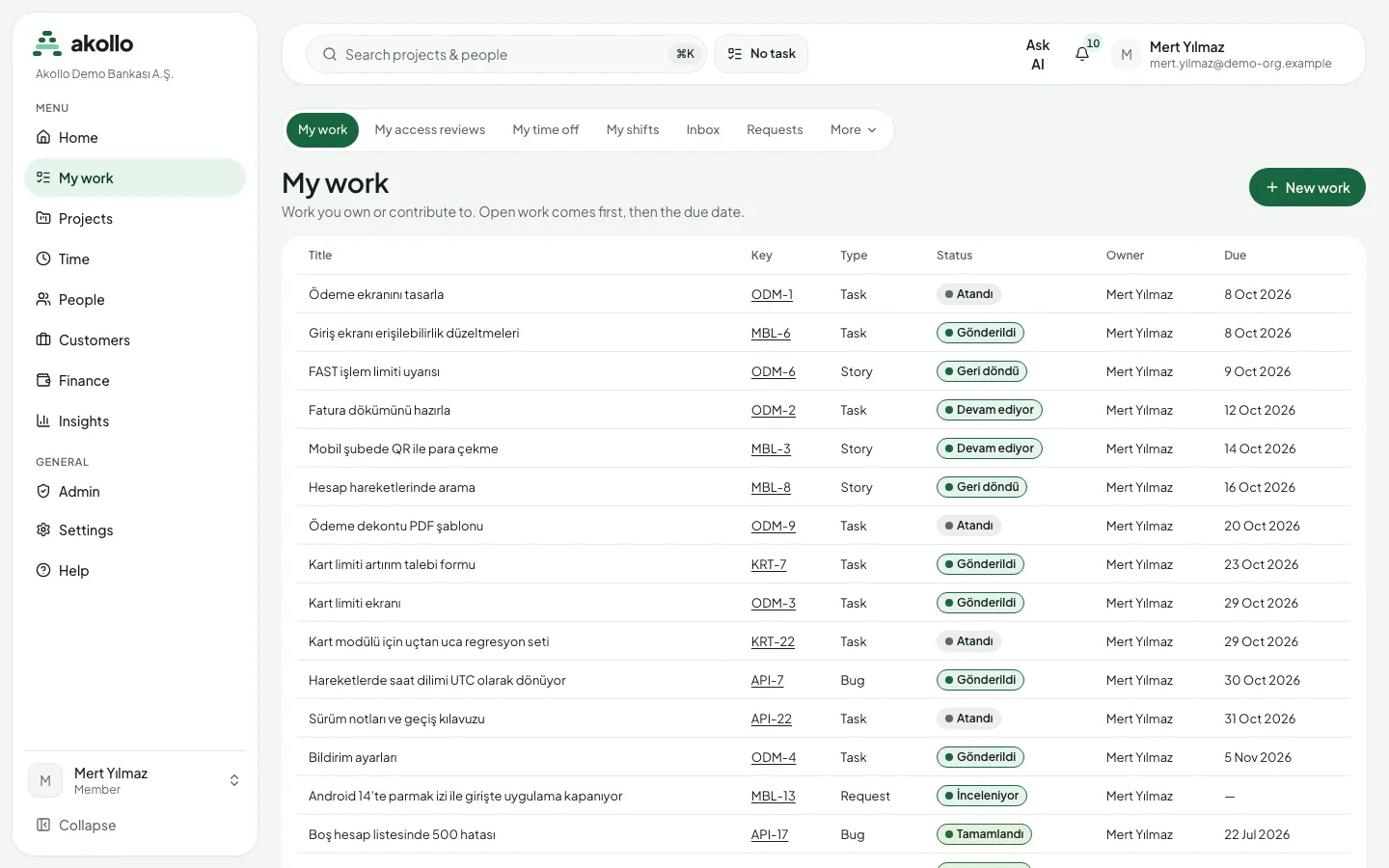
The My work section has tabs at the top of the page. Tabs that do not fit are under More.
| Screen | Where | What it shows |
|---|---|---|
| My work | My work | Work items you own or contribute to: title, key, type, status, owner and due date. Open work first, then by due date. New work creates an item. |
| My access reviews | My work | Access review items assigned to you, to keep or revoke. |
| My time off | My work | Your leave balances and requests. |
| My shifts | My work | Your week day by day, open shifts and your claims. |
| Inbox | My work | Mentions, assignments, approvals and due-date reminders, grouped by work item. |
| Requests | My work | The request forms you may use. |
| Approvals | My work → More | Work requests waiting for your decision, the one due soonest first. |
| Search, Views | My work → More | Searching work items, and the saved views you can open. |
| Portal | My work → More | The service request portal. |
| AI and you | My work → More | What the AI features can see about you and what is recorded. |
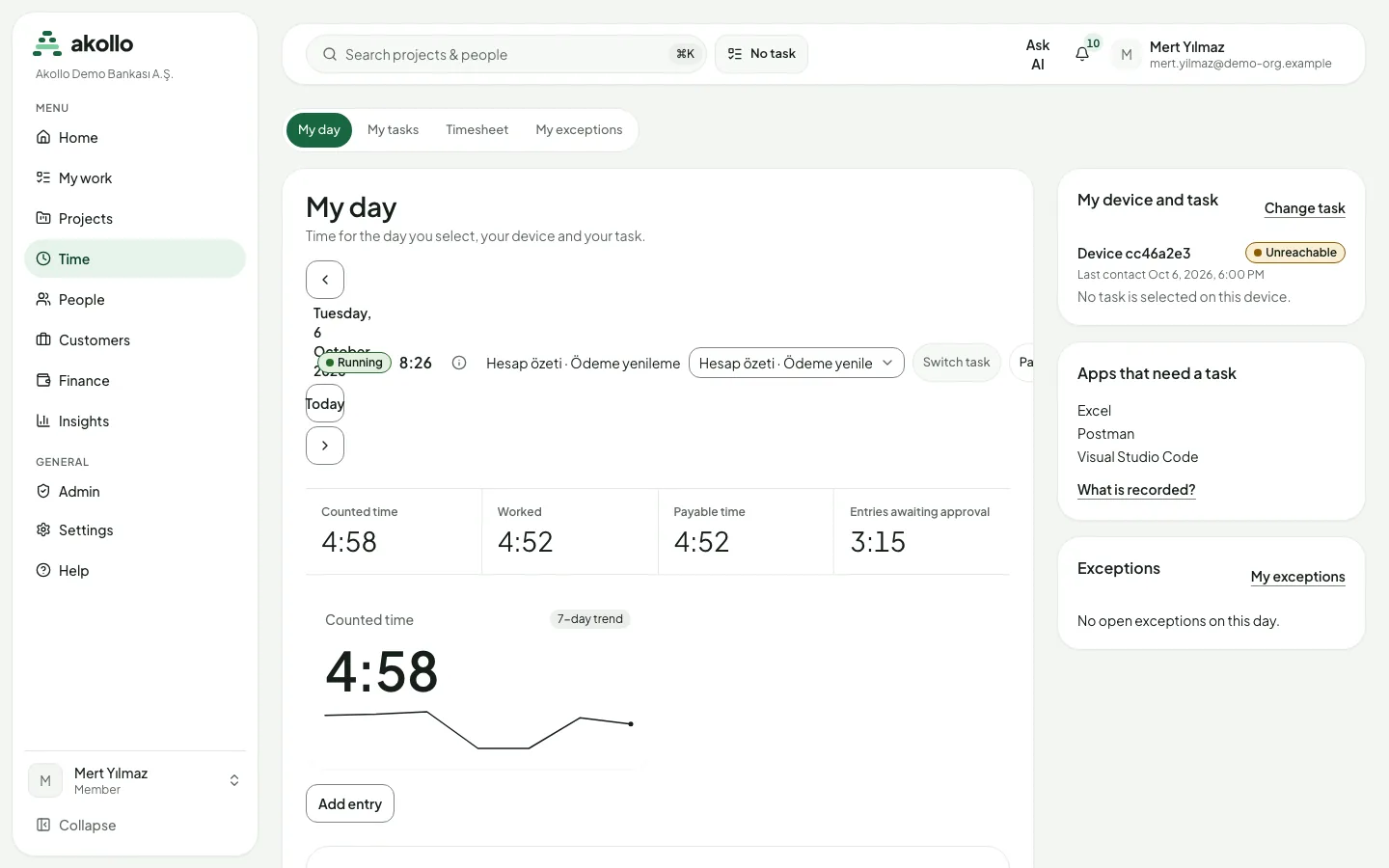
| My day | Time | Today’s counted, worked and payable time, a 7-day trend, your device and its task, apps that need a task, and open exceptions. |
| My tasks | Time | The task chosen for each device and the tasks assigned to you. |
| Timesheet | Time | An ISO week in daily, weekly or calendar view, with the period to submit. |
| My exceptions | Time | Days in the last 62 days where your time needs attention. |
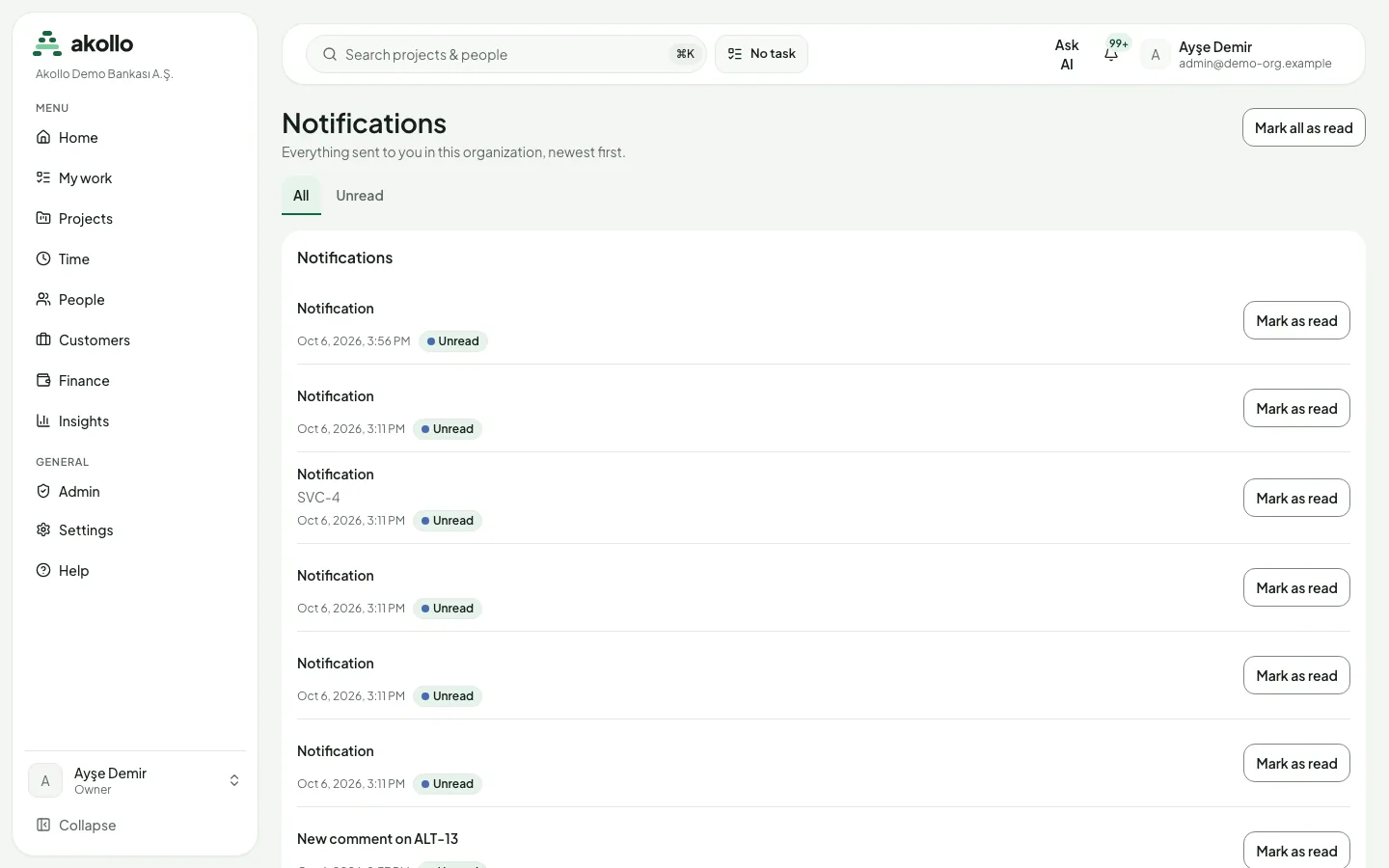
| Notifications | Bell in the top bar | Every notice sent to you in this organisation, newest first. |
Key tasks
Choose the task for your device
Time recorded by the desktop app is credited to the task selected for that device. Each enrolled device has its own selection.
Open My tasks
Choose Time → My tasks, or select the task chip in the top bar (it reads No task when none is set).
Pick the task and apply it
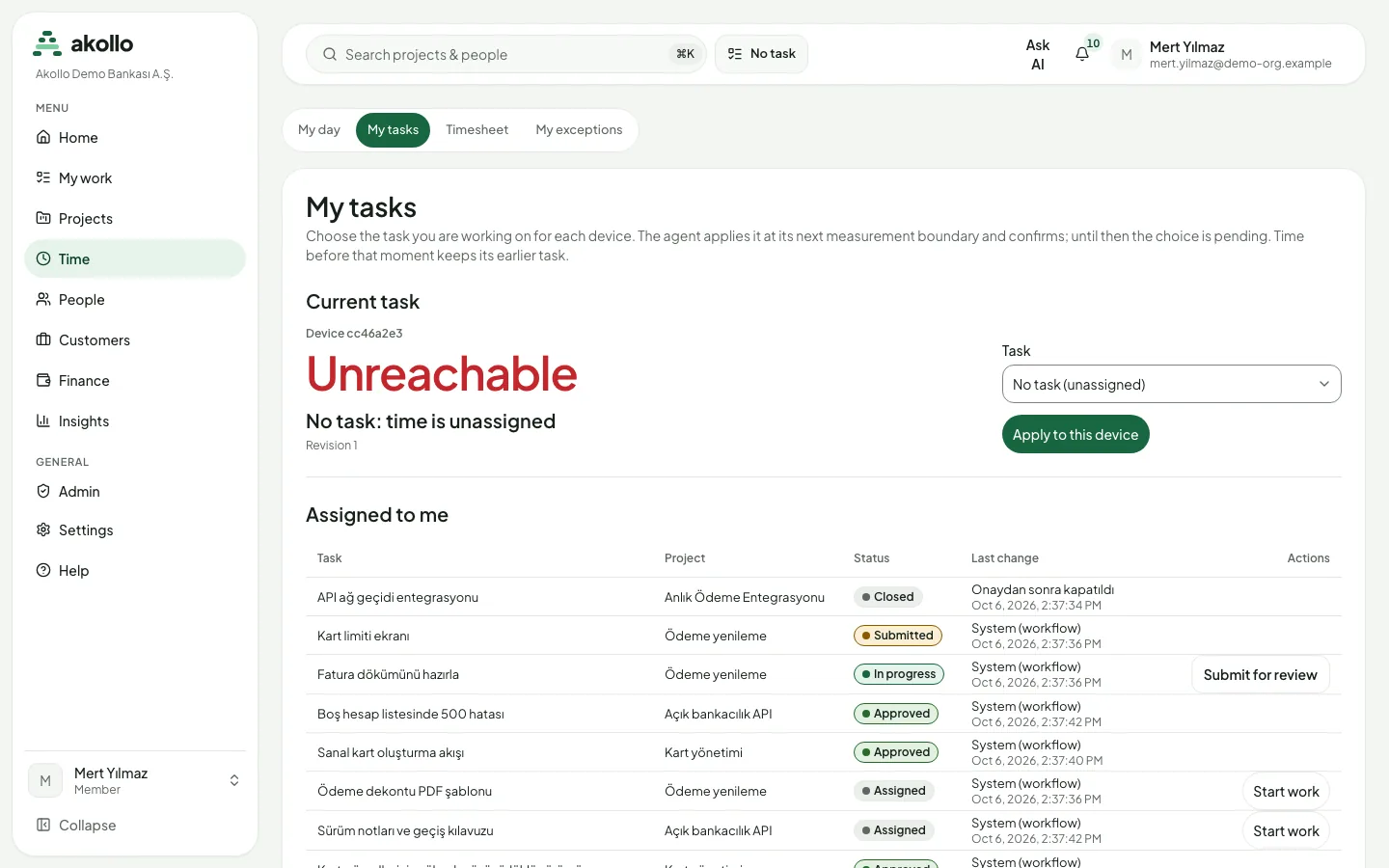
Under Current task, pick the task in the Task list and select Apply to this device. You can only pick a task assigned to you that is not waiting for review or already finished.
Check that the device took it
The desktop app applies the choice at its next measurement and then confirms. Until then the choice shows as pending. The page shows one of: pending, applied, conflict, unreachable or rejected by the device. A device not seen for more than five minutes applies the choice when it comes back.
Note
Time recorded before the device applies your new choice keeps the earlier task. You may also choose no task; that time stays unassigned. My tasks lists the applications and sites that require a task, taken from your organisation’s category rules.
Hand in a finished task
Find the task
On My tasks, look under Assigned to me. Each task shows its status: assigned, in progress, submitted, approved, rejected or closed.
Submit it for review
Select Submit for review and add a delivery note or a link.
Follow the decision
The task waits in your manager’s review queue and counts under My tasks awaiting approval on Home. If it is rejected, it comes back to you with the reviewer’s note. You can never review your own submission.
Check your day
Open My day
Choose Time → My day. Use the arrows or Today to move between days.
Compare the totals
Counted time is measured time credited to your tasks, Worked is the active part of it, and Payable time adds approved entries. Entries awaiting approval is time that is not payable yet.
Fix what is missing
Use Add entry for time that was not recorded, or open My exceptions for days that need attention. What is recorded? explains what the recording covers.
Submit your timesheet
Open the timesheet
Choose Time → Timesheet and pick the daily, weekly or calendar view. Step between weeks, or go back to this week.
Check the days
The Day total row shows payable time for each day. A dash means there is no time that day. A day marked with * is only partly in your scope, for example the day you moved teams.
Deal with blocking exceptions
An exception marked Blocks submission in My exceptions must be resolved, explained or dismissed first.
Submit the period
In the Period bar, select Submit. A manager sees it under Approvals → Timesheets. If it is rejected, read the note, fix the period and submit it again.
Keep up with notifications
Open the notifications
Select the bell in the top bar. Its badge shows how many notices you have not read.
Filter and open
Switch between All and Unread. Open a notification to go to the related page; it is then marked as read. Mark as read marks one, Mark all as read marks everything.
Choose how notices reach you
Under Settings → Notifications, turn In-app notifications and Email notifications on or off and pick the Notification language.
Permissions
- Everything in My work and Time is about you: your items, your devices, your time and your notices. Nobody needs special permission to see their own day.
- My tasks appears only if your account may select a task. If no device is enrolled, the page asks you to install the desktop app and sign in.
- Approvals lists only requests in your scope that are assigned to you. You can never decide your own request or review your own task.
- Managers see other people’s days and tasks from Time → Team and Team days, and only for people in their scope. See Time and tasks.
- A suspended account, an account with no organisation and a support session are refused on the day view and on task changes; the page names the reason. A support session can read work pages but cannot change anything.
What the AI can do here
- Ask AI (⌘J / Ctrl+J) answers questions about your own work: what to do today, days where time may be missing, and a draft status update for the week. Starting or stopping a timer is prepared for you to confirm. See AI assistant.
- Search in My work accepts a question in your own words and turns it into ordinary search filters. See Searching work in plain language.
- AI and you shows what the AI features can see about you, what they never do and what is recorded. See AI and you.
The AI never submits a task, a timesheet or a time entry on its own. Every change waits for you.
FAQ
The desktop app applies a new task at its next measurement and then confirms it. Until then the choice is pending, and time before that moment stays with the earlier task.
You can only select a task that is assigned to you and is not waiting for review or finished. If My tasks is missing from the sidebar, your account cannot select tasks; ask your administrator.
It stays unassigned. It is still recorded, but it is not credited to a task. Some applications and sites require a task; My tasks lists them.
The timesheet shows your payable time per day in the Day total row. Time is not split by task in the timesheet yet, so the task cells show dashes.
An exception marked Blocks submission is still open for that period. Resolve it with an entry, request a correction or explain it on My exceptions. A blocking exception can only be dismissed by someone other than you.
Yes. Under Settings → Notifications, turn off In-app notifications and keep Email notifications on. The choice applies to all kinds of notifications together.